10
Chapter 3 Homepage Operation
Note: This manual is for common use. Figures and illustrations in this User Manual are provided for reference only
and may differ from actual product appearance. And for some models, certain options are not available.
Press
on the remote control to display Homepage. Press ▲/▼/◄/► to select icons from the screen list. Press
OK to enter each option. To exit the menu, press
.
Homepage contains APPS, TV, GOLIVE and TV Tube. Use ◄/► to switch among the 4 parts.
WARNING:
•
network settings before using Smart TV, Guide and apps.
• Slow responses and/or interruptions may occur, depending on your network conditions.
• If you experience a problem using an application, please contact the content provider.
• According to circumstances of the contents provider, an application’s updates or the application itself may be
discontinued.
•
•
Depending on your country’s regulations, some applications may have limited service or not be supported.
DTV is not availbale for certain model.
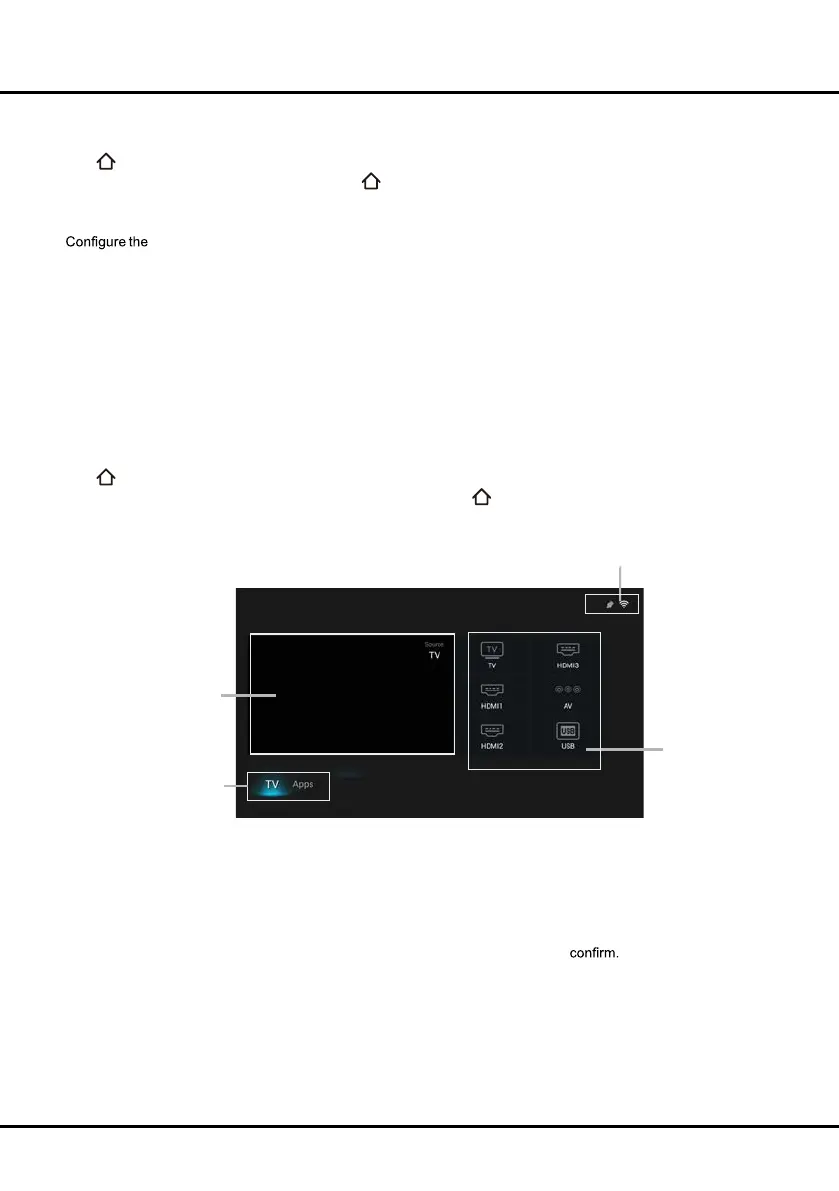
Using Homepage- TV
Note: Some options may not be available for certain signal sources. some options may appear in the next page, you
can press ◄/► to switch. DTV is not availbale for certain model.
This section explores the menus of your TV.
Press
on the remote control to display Homepage. Press ▲/▼/◄/► to enter TV page and select icons from the
screen list. Press OK to enter each option. To exit the menu, press
.
TV window
Displays the current selected TV broadcast program.
Input Source
Select the input source from devices connected to TV through different ports, including TV, AV, HDMI1, HDMI2,
and HDMI3. Press ▲/▼/◄/► to select your desired source, and then press OK to
Note: The available source might differ depending on the model.
Home/ Video/ TV/ Apps
Use ◄/► to focus on
each item.
Status:
Network Status/Time
TV window
Input Source



 To Next Page