14
Chapter 4 Menu Operation
channels. During the process, you can press OK to
abort halfway, or press
to return.
Analogue Manual scan: Press OK to enter. Press
▲/▼/◄/► and number or OK to search, tune or
store the channel.
Antenna Manual Installation: Allows you to start
manual searching the available channels from the
current frequency or any frequency you input.(Only
for digital channels). Press OK to start search from
the current frequency, or use digit keys to input a
frequency, then press OK to start search. During
the process, you can press OK to abort halfway and
press OK to restart, or press
to return.
Clean Channel List: Allows you to remove all the
searched channels from the channel list.
Channel list: Press OK/► to display channel list.
Channel organiser: You can skip channels, edit
channels, or delete channels, Press OK/► to enter.
Channel skip: If a channel is stored twice or its
reception is poor, you can simply skip it. The skipped
channels will no longer be selected by pressing the
Press OK/► to
display
Channel skip
menu. Press ▲/▼
▲/▼button.
to select a channel and press
OK to check the box.
Channel edit: Press OK/► to display Channel list.
Press ▲/▼ to select a channel you want to edit, then
press OK to enter. Press ▲/▼ to select Channel
name, then press OK to access the virtual keyboard
and edit the channel name, highlight OK and
press OK to When you have press
to return.
Channel delete: Press OK/► to display Channel list.
Press ▲/▼ to select a channel you want to delete,
then press OK to delete the channel.
Channel Diagnostics (on digital TV channels)
Press OK/► to display some signal information
on current digital channel, such as signal strength,
Frequency, etc..
Time shift: Set Time Shift to On or Off. Default setting
is On. For details, please see the introducton of Time
Shift on page 13.
Subtitle: this enables subtitle for digital TV channels.
Select Subtitle, press OK/► to display its submenus:
Subtitle: press OK/► to enter, press ▲/▼ to turn On
or Off the subtitles. When Subtitle is set to On, you
can enable subtitle languages on digital TV channels:
1. Press ▲/▼ to select Digital subtitle language.
2. Press OK/► to enter, press ◄/► to select a subtitle
language as your preferred language.
3. Press ▲/▼ to select Digital subtitle language2nd.
4. Press OK/► to enter, press ◄/► to select a
secondary subtitle language.
5. Press Exit or
to return to previous menu.
Note: Press SUBTITLE on the remote control to
directly select a subtitle language available for
selected digital TV program.
Subtitle type: press OK/► to enter, press ▲/▼
to select a subtitle type. You can select Hearing
impaired to display the hearing impaired subtitle with
your selected language.
Teletext: press OK/► to display its submenu.
Decoding page language: select a proper type of
language in which Teletext will display.
Digital teletext language: for digital TV channels,
your TV could zap to a service with multiple initial
Teletext pages in different languages. This function
allows you to select an available language as primary
language which relates to different initial Teletext page.
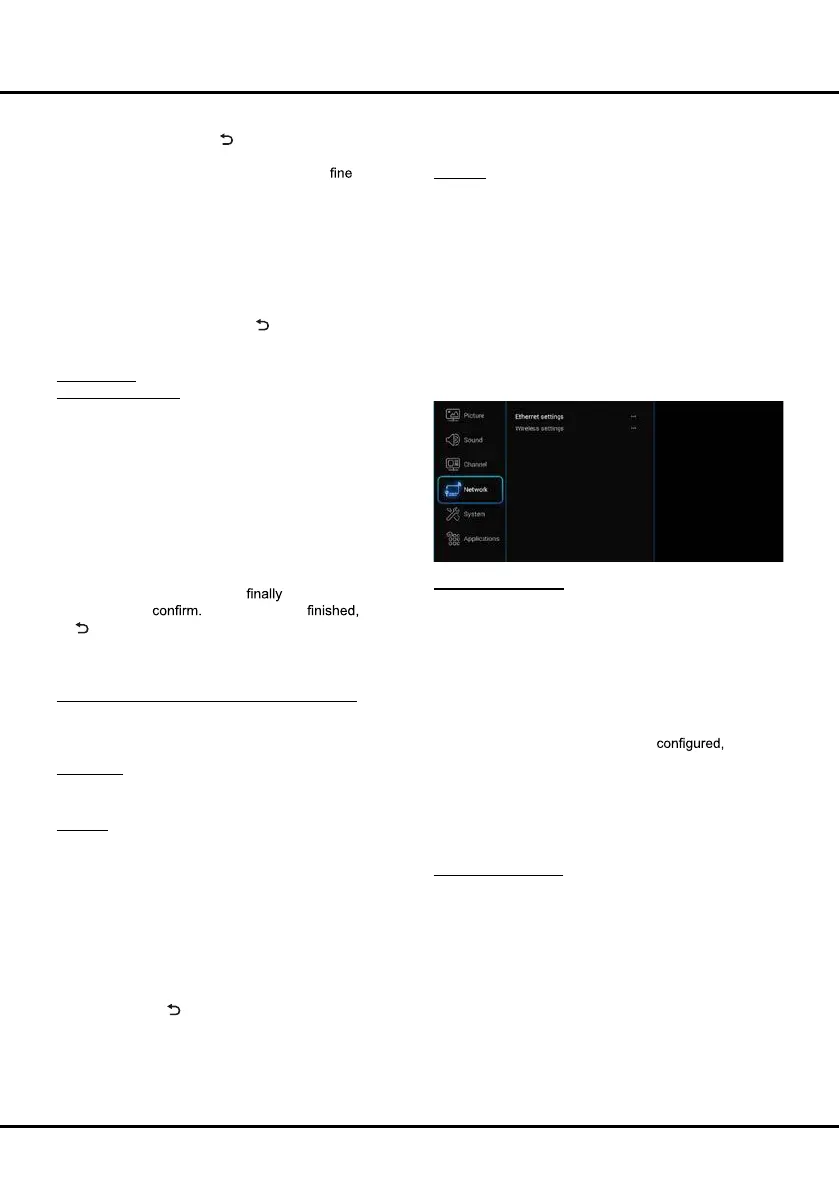
Network
You can set up your TV so that it can access the Internet
through your local area network (LAN) using a wired or
wireless connection.
Ethernet settings:
you can attach your TV to your LAN using cable in three
ways:
• You can attach your TV to your LAN by connecting the
LAN port on your TV to an external modem using a
Cat 5 cable.
•
You can attach your TV to your LAN by connecting the
LAN port on your TV to a IP Sharer which is connected
to an external modem. Use Cat 5 cable for the
connection.
• Depending on how your network is
you may
be able to attach your TV to your LAN by connecting
the LAN port on your TV directly to a network wall outlet
using a Cat 5 cable. Note that the wall outlet is attached
to a modem or router elsewhere in your house.
Select Settings > Network, then select Ethernet
settings to connect to a wired network.
Wireless settings:
To connect your TV to your network wirelessly, you need
a wireless router or modem and a wireless LAN adapter.
Note: If your TV doesn’t have an in-built wireless
Adapter, then
you need a
wireless USB dongle (which
is sold separately)
. Connect
the USB dongle to your
TV’s USB port.
Select
Settings >
Network, then select Wireless
settings to connect to a wireless network. you can set
up the wireless network connection accordingly.
WiFi switch: Select WiFi switch and press OK/►
to enter, use ▲/▼ to set it to On, then below options



 To Next Page