12
Chapter 4 Menu Operation
only when T-Link is set to On.
Auto Power On: Use ◄/► to toggle between On and
Off. When Auto Power on is set to On, TV and device
will be on at the same time.
Auto Standby: Use ◄/► to toggle between On and
Off. When Auto Standby on is set to On, TV and
device will be in standby mode at the same time.
*Note: The CEC functions depend on the devices
connected and it is possible that some devices may
not interoperate correctly when connected to this
TV. The user manual or the manufacturer of the
problematic devices should be consulted for further
information.
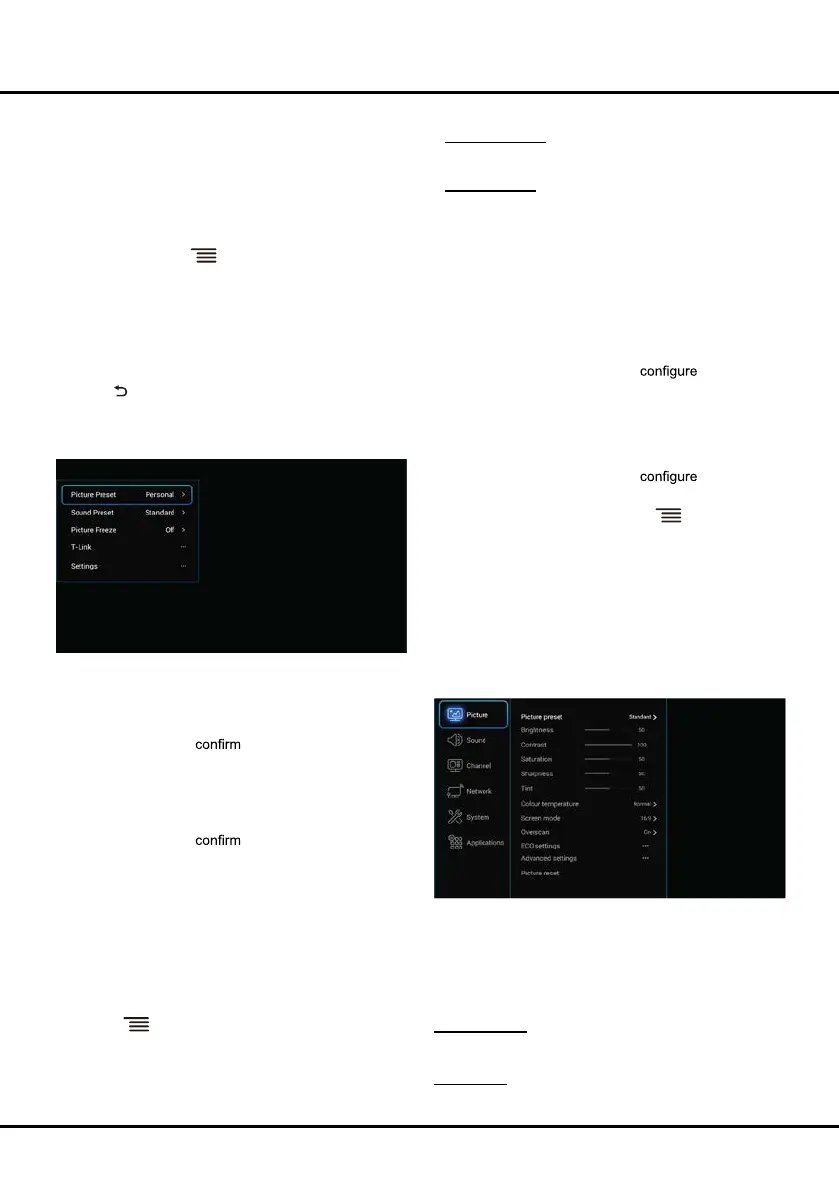
Using Quick Access Menu
Note: Some of the functions might be unavailable in
certain sources. And for some models, certain options
are not available. DTV is not availbale for certain model.
This section explores the menus and settings of your
TV. Each menu is outlined and detailed to help you get
the most from your TV. To access the menu system:
1. In TV mode, press
on the remote control to
display the quick access list.
2. Press ▲/▼ to select the desired item, then press
OK /► to open the corresponding submenu.
3. In submenus, use ◄/► and OK buttons to make the
adjustments, or use ▲/▼ to select an item, use
OK/► to enter and operate according to the on-
screen display or guide.
4. Press to return to the previous menu.
The quick access list includes below items, they are
Picture Preset, Sound Preset, Picture Freeze, T-Link,
Time Shift, PVR, Schedule List and Settings.
Picture Preset
Press OK/► to display its submenus:
Use ◄/► to scroll through the picture preset settings:
Standard, Dynamic, Natural, Movie and Personal.
And then press OK to the selection.
Sound Preset
Press OK/► to display its submenus:
Use ◄/► to scroll through the sound preset settings:
Standard, Music, Movie, Clear Voice and Personal.
And then press OK to the selection.
Picture Freeze
Press OK/► to display its submenus, and use ◄/► to
toggle between On and Off. When On is selected, the
display screen will be frozen.
T-Link
Use this function to search for CEC devices connected
to the HDMI sockets in your TV.
Enable or disable T-Link
1. Press
and select T-Link> T-Link.
2. Press OK/► to display its submenus, and use ◄/►
to select On or Off to enable or disable T-Link.
*Note: Below T-Link setting options will be available
Settings
The Settings menu allows you to the TV
with your preferences. For details, please refer to the
following Using System Settings part.
Using System Settings
The Settings menu allows you to the TV with
your preferences.
Display the main menu by pressing
and select
Settings, or choose Settings under TV part of
homepage, then press OK to display its options:
Picture, Sound, Channel, Network, System and
Applications.
Picture
The menus for adjusting the picture are used to obtain
the best picture settings according to your preference,
the type of program you are watching and the ambient
lighting.
Select Settings > Picture, then the Picture menu
appears on the right with the following options. Press ►
to enter and use ▲/▼to choose an option.
Note: Some options may not be available for certain
modes. Some options may appear in the next page of
the Picture menu, you can press
▲/▼ to switch.
Picture preset: Use ◄/► to scroll through the picture
preset settings: Standard, Dynamic, Natural, Movie
and Personal.
Brightness: Adjusts the brightness of the picture.



 To Next Page