11
Chapter 3 Homepage Operation
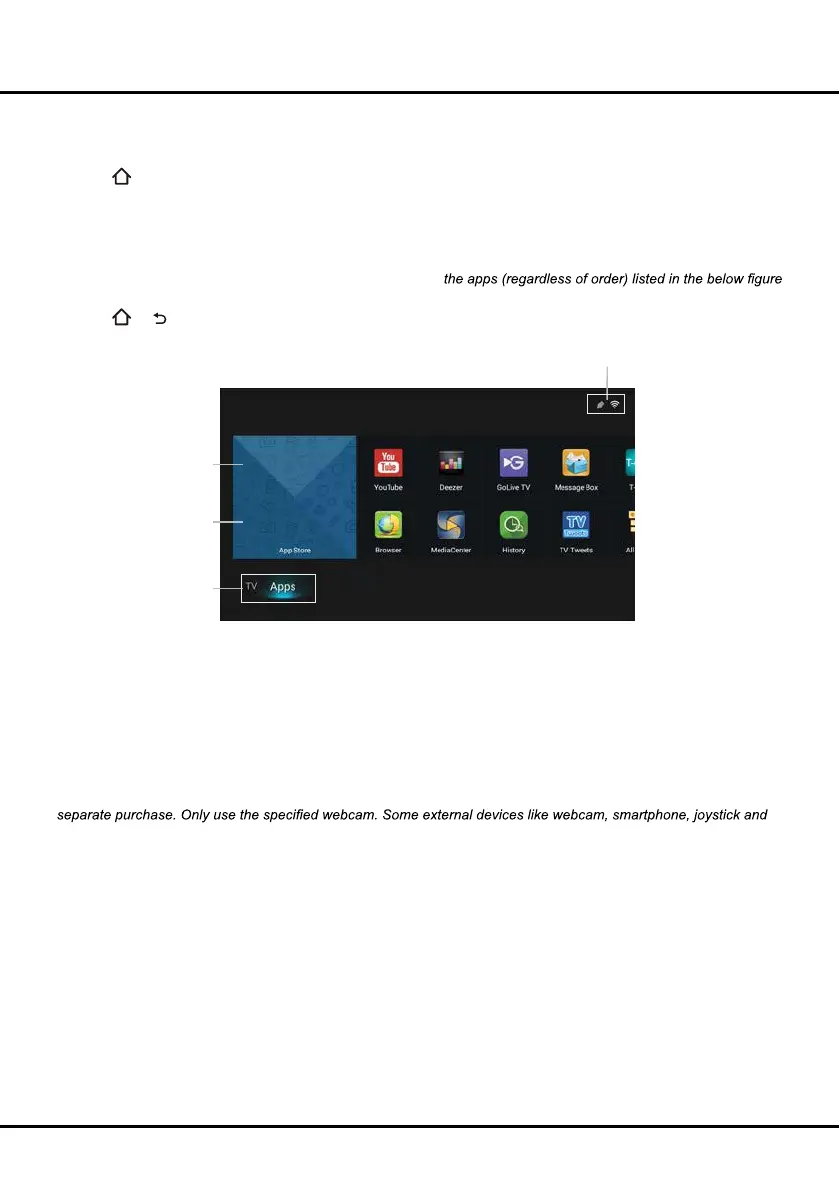
Using Homepage- APPS
To access the menu system:
1. Press
to display the homepage.
2. Press ◄/► to move to APPS interface. Press ▲/▼/◄/► to select the desired item, then press OK to open it or
enter the corresponding submenu.
3. To add apps, move the focus to one "+" block and press OK, then the APP store will be opened, where you can
choose a perferable app to install. You can install one app only for each "+" block. Repeat the same operation to
add more apps.
Note: The pre-installed apps or items can not be deleted. And
may differ from actual product. For some models, certain apps are not available.
4. Press
or repeatedly to return to the homepage.
APP Store: Many useful and entertaining apps are available for downloading. After entering the APP store, you
will see the recommendations. Press ▲/▼/◄/► to select, press OK to enter. The buttons on the top right, such as
"Search" can provide convenient operations.
My Apps: This page shows all apps installed on your TV. The "Uninstall" button on the top right is for you to uninstall
any app you don't like.
Note: The pre-installed apps or items can not be deleted.
The pre-installed apps: These are pre-installed apps. Highlight an app and press OK to open it.
Note: You may need a webcam to use certain apps. The webcam is an optional accessory, and is available by
external wireless adapter may not be supported.
Status:
Network Status/Time
Home/ Video/ TV/ Apps
Use ◄/► to focus on
each item.
History
Search



 To Next Page