16
Chapter 4 Menu Operation
change the password. Press OK/► to enter, then
press the number buttons to enter the new password
twice.
- Max volume: Press OK/► to display the
adjustment bar and use ◄/► to set the max volume
when watching program.
Input Settings: Select System > Input Settings, press
OK/► to enter. User can select the device name of the
input source here, easy to identify the source.
Software update: Select System > Software update,
press OK/► to enter. You can update software by
network or by USB.
- By network: Enables you to download and install
the latest software version from the Internet. Make
sure to set up a wired or wireless network connection
then select By network and press OK/► to
enter. Follow the on-screen instructions to continue.
When new-version software is available, a progress
bar appears. When the download
the TV
will go black and upgrade the software.
Note: Do not switch off or unplug the TV until the
upgrade is completed. Keep successful network
connection during upgrade.
- By USB: Enables you to install the latest version of
the software from your USB ports if available. Select
By USB and press OK/► to enter. Follow the on-
screen instructions to continue your installation.
- Restore Factory settings: Allows you to reset the
TV to factory default settings.
• Select Restore Factory settings and press OK/►
to enter.
• Use the digit buttons to enter the password.
• Press ◄/► to select OK and press OK to
• The Initial setup menu appears. Follow the related
Instructions to continue.
- By Channel: Enables you to install the latest
version of the software if available. Select By
channel and press OK/► to enter.
Follow the on-screen instructions to continue your
installation.
There is also information about the TV such as Current
version and Product name, etc.
HDMI Auto Switch:
When user Plug in an HDMI signal source:
Auto: Auto switch your TV to the HDMI Source.
Manual: A tips will display onscreen to remind user
to select if switch to the HDMI source
Off: Close this function.
Location: Use ▲/▼ to select Home or Shop.
Input method: This TV support Smart ME or Smart TV
IME input method.
Common Interface: press OK and then you will
CAM Info and Application Info.
Note: This option is only available under DTV source,
and please insert the common interface card to the
sockets on the back of TV before using this function.
Common Interface is not available for certain model.
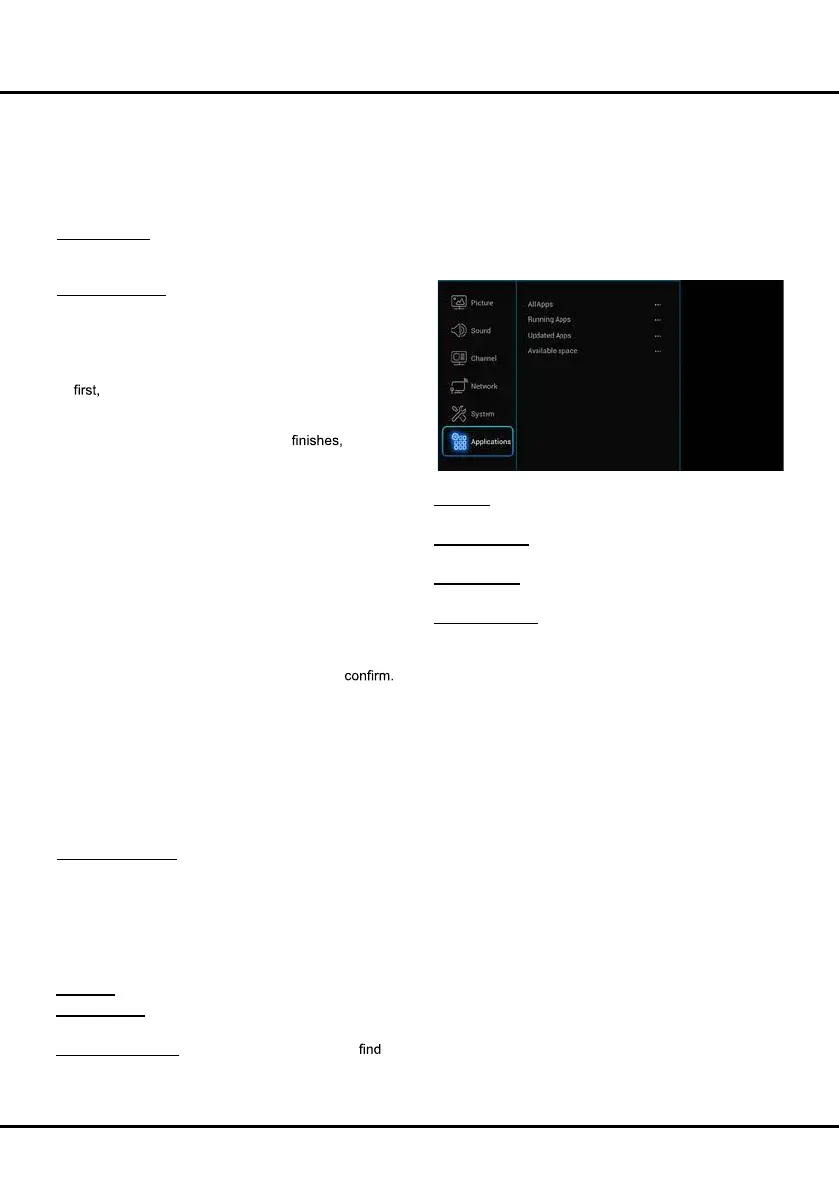
Applications
Select Settings > Applications, then the Applications
menu appears with the following options. Press ► to
enter and use ▲/▼ to choose an option.
All Apps: Press OK to display the information of all the
apps.
Running Apps: Press OK to display the information of
the running apps.
Update Apps: Press OK to display the updated apps,
and click Update All to update the apps .
Available space: Press OK to display the available
space.
- Change password: This option allows you to



 To Next Page