EasyManua.ls Logo

Uniden iGO CAM 75 - User Manual

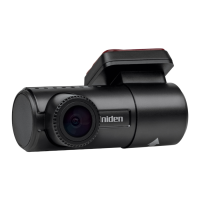
Uniden iGO CAM 75
24 pages
Print Icon
To Next Page IconTo Next Page
Loading...
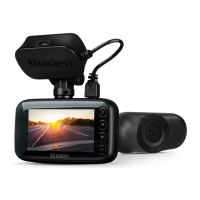
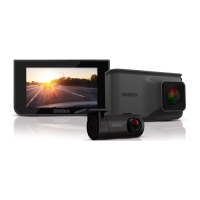
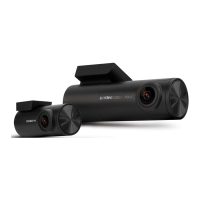
iGO CAM 75/75R
Accident CAM
Vehicle Recorder
For more exciting new products please visit our website:
Australia: www.uniden.com.au

Questions and Answers

  • J
    Julie RomeroAug 13, 2025
    What to do if my Uniden iGO CAM 75 Dash Cameras video is unclear?
    • B
      Brittany PerryAug 14, 2025
      If the video quality is unclear, make sure that there are no fingerprints or dirt on the lens and that the lens is always kept clean.
  • T
    Tyler WilliamsAug 17, 2025
    What to do if Uniden iGO CAM 75 says SD Card Error?
    • M
      Matthew PorterAug 17, 2025
      If you are getting an SD Card Error, format the SD card and use only the recommended card. Also, ensure the SD card is recommended for dash cam use.
  • S
    schwartzjeffreyAug 21, 2025
    How to fix Uniden Dash Cameras device crashes or freezes?
    • S
      Scott MasonAug 21, 2025
      If the device crashes or freezes, press the ‘Reset’ button with a pin to restart it.
  • R
    rodney97Aug 26, 2025
    How to fix Uniden Dash Cameras not taking photos or recording videos?
    • M
      Mrs. Lorraine WalkerAug 26, 2025
      If the device is unable to take photos or record videos, make sure that the SD card is inserted correctly, and use the device to format the SD Card. Also, use the recommended type of SD card (minimum 16GB Class U3) rated for dash cam use.
  • M
    Michael ThompsonAug 29, 2025
    Why does Uniden iGO CAM 75 feel warm during operation?
    • J
      Jesus JacksonAug 29, 2025
      It is normal for the camera to get warm during operation. However, if the camera is exposed to high temperature for a long period, it might fail to boot up. If this happens, cool it down and try again.
  • T
    Timothy BarnettSep 1, 2025
    Why does my Uniden Dash Cameras display turn off after a few minutes?
    • K
      Katherine YuSep 1, 2025
      If the display turns off after a few minutes, check the LCD Auto Off setting and select Off.
  • C
    christopher65Sep 5, 2025
    Why the recorded video doesn’t show mapping information on the Uniden iGO CAM 75 Player?
    • C
      Christy NicholsSep 5, 2025
      If the recorded video doesn’t show mapping information on the Uniden Player, ensure the PC is connected to the internet.
  • B
    Brianna HillSep 9, 2025
    Why is there cross-stripe interference in Uniden iGO CAM 75 Dash Cameras image?
    • N
      nancy73Sep 9, 2025
      Cross-stripe interference in an image is due to the light frequency. Change the light frequency depending on the light source.

Summary

Important Safety Instructions

Whats In The Box

Included Items Check

Lists items included with the iGo Cam 75/75R and iGo Cam 75R.

Controls and Indicators

Front Camera Controls Overview

Diagrams and labels for the front camera controls and indicators.

Rear Camera Controls Overview

Diagram for the rear camera controls and indicators.

Installation Guide

Optimal Installation Location

Guidance on optimal placement for the front and rear cameras.

Front Camera Installation

Step-by-step instructions for mounting the front camera.

Rear Camera Installation

GPS Reception Factors

Factors affecting GPS signal and initial acquisition time.

Device Operation

Micro SD Card Requirements

Requirements for the micro SD card and insertion/removal instructions.

Power Management

Powering the Device On

Steps to power on the device using the car charger or adapter.

Powering the Device Off

Steps to power off the device manually or automatically.

Recording Modes

Automatic Recording

How the device automatically starts recording and how to stop it.

Locking Current Recordings

Method to lock current recordings to prevent overwriting.

Rear Camera Recording

Functionality and connection of the rear camera for capturing footage.

Menu Settings Configuration

Photo and Playback Modes

Using Photo Mode

How to switch to photo mode and take a picture.

Using Playback Mode

How to review saved videos and photos on the device.

Uniden Player Software

Installing Uniden Player

Steps to download and install the Uniden Player software.

Accessing Recorded Files

How to access recorded files from the SD card on a computer.

Mobile App Usage

App Camera Control

View live stream, take snapshots, and access camera settings via app.

App Media Album

View or playback downloaded photos/videos through the app.

Live View App Features

App Snapshot Function

How to take a quick snapshot using the app.

App Album Access

Accessing saved photos/videos via the app's album.

App Recording Control

Starting or stopping recording via the app.

App Camera View Switching

Switching between camera views using the app.

App Microphone Control

Turning audio recording on/off via the app.

App Settings Management

Modifying camera settings through the app.

Troubleshooting Guide

Technical Specifications

Warranty Terms

Uniden iGO CAM 75 Specifications

General IconGeneral
BrandUniden
ModeliGO CAM 75
CategoryDash Cameras
LanguageEnglish

Related product manuals