UBio-X Face User Guide 31
UNIONCOMMUNITY Co., Ltd.
Address: 12F, Munjeong Daemyeong Valeon bldg, 127 Beobwon-ro Songpa-gu,
Seoul, Korea (zip code: 05836)
Tel: +82-2-6488-3000, Fax: +82-2-6488-3099,
E-Mail: sales@unioncomm.co.kr; http://www.unioncomm.co.kr
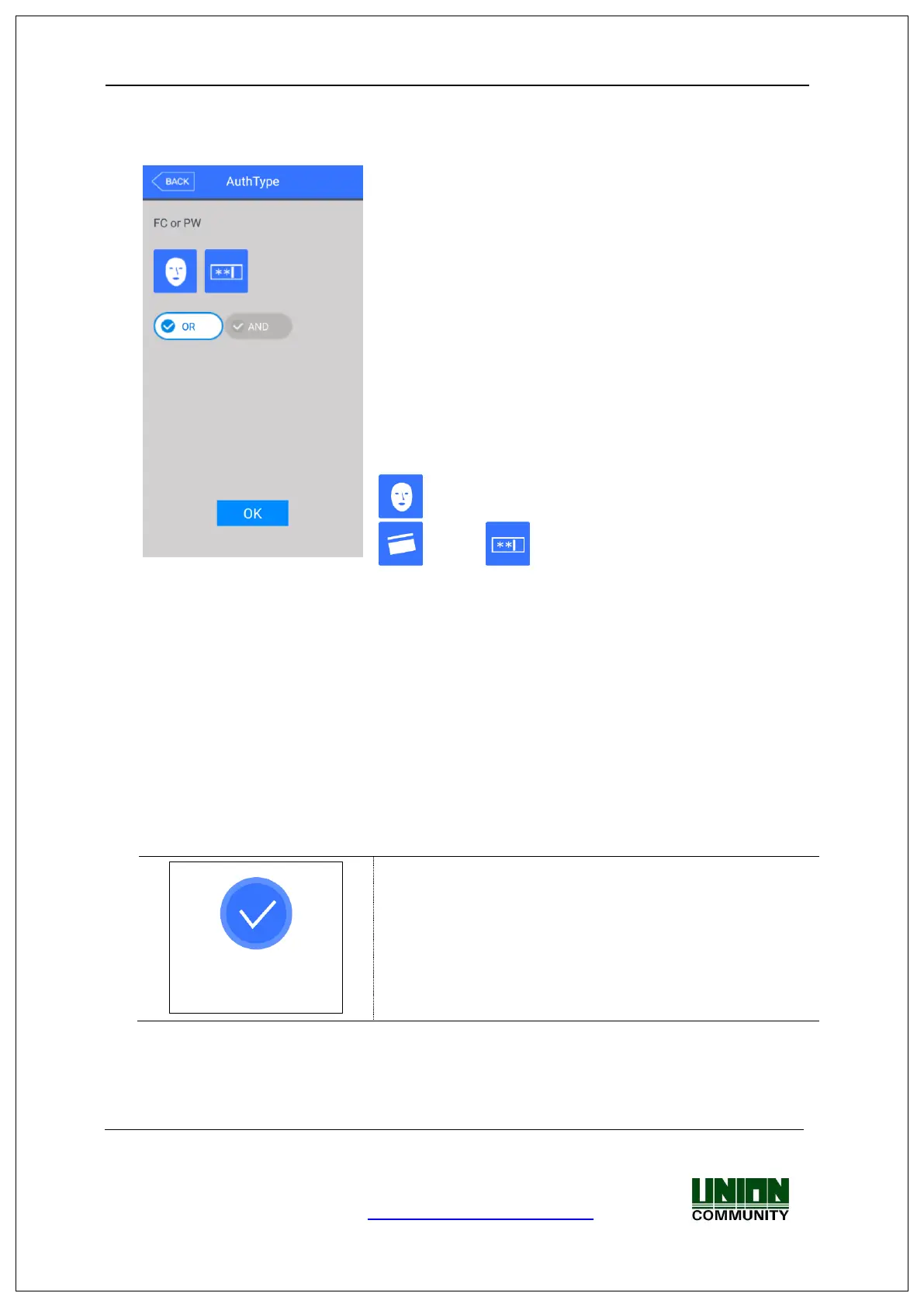
Set by clicking [Auth type] at the [Add User] window.
(But, it can be set when there are more than 1
authentication methods registered)
Click [BACK] button to cancel and return.
This shows all the authentication methods already
registered, and the buttons at the lower side shows the
buttons [OR] / [AND] which can be selected. Present
authentication method is distinguished with blue color as
different as gray color is not selected.
If you click the button [OK], the authentication method is
changed and the screen moves to the previous window.
The authentication method icons are represented as
follows.
: Face
: Card : Password
※ In case of authentication method, if it is not set, the authentication methods are set to
[OR] automatically with the current registered authentication methods. (But, there are
registerable for 3 authentication methods at maximum and if they are used with
Password, it will be limited 2 authentication methods)
3.3.1.7 Save
Click the [Save] button to save when all the registration procedure is finished. At this
point, if you click [Cancel] or [BACK] button to return, the user is not saved.
Next is the LCD messages which can appear at the registration procedure.
When you clicked the [Save] button,
the case registration was successful


 To Next Page
 Loading...