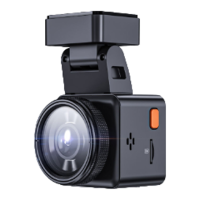
Note: To use the GPS function, you need to purchase an extra GPS
mount for the camera.
-GPS : Default setting is Off. Press Down button to turn ON/OFF.
-Speed Unit: Default setting is MPH. Press UP button to select KM/H
or MPH.
When the setup finished, press Power button to exit.
C. GPS setup
-Auto LCD Off: Default setting is 3 Mins, the camera screen will turn
off in 3 mins while recording. Press Down button to select among
30 Secs, 1Min and 3 Mins, or turn it OFF to disable it.
-Device Sound: Default setting is ON. Press OK button to enable or
disable it.
-Non-use Auto Power OFF: Default setting is 3 mins, when the
camera is on but not in use, it will auto turn off after 3 mins. Press
Down button to select among 1 min, 2 mins and 3 mins, or turn it
OFF to disable it.
-Frequency: Default setting is 50HZ . Press Down button to select
60Hz.
-System info: View the Version of the dash cam.
-Default Setting: Press Down and select OK to set the device back
to factory settings.
When the setup finished, press Power button to exit.
Check and delete videos/photos in the Normal/Event folder.
-Event: Event videos (detected by G-Sensor and manually locked)
stored.
-Normal: Normal recording videos and images stored.
-Photo: Images stored.
-All: All Images and video stored.
D. Files
- 12 -
Go to the MENU interface, and “System Setup”>“Time& Date”,
press Down button to set. In the time setup interface, press UP
4.3 Date/Time setting


 To Next Page