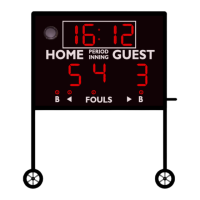
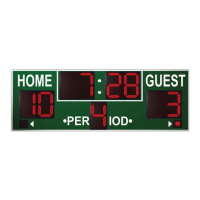
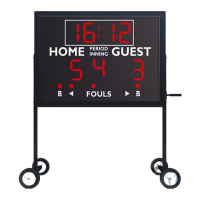
This document is an operation manual for Varsity Scoreboards, specifically for their Hockey & Lacrosse Models. It provides comprehensive instructions for setting up, operating, and maintaining the wireless scoreboard controller and associated scoreboards.
The core of the system is the Wireless Scoreboard Controller, which serves as the central interface for managing all scoring and timing functions.
Function Description:
The Varsity Scoreboard system allows users to wirelessly control one or multiple scoreboards, shot clocks, pitch counts, delay of game clocks, and locker room displays. It supports the creation of easy-to-use presets for different sports, ensuring quick and efficient setup for various game types.
Usage Features:
Controller Face (Front Panel):
- Power (1): Turns the controller on/off.
- LCD Display (2): Shows all settings and scoring information.
- Clock Controls (3): Used to set, start, and stop the game and time-out clocks. Includes a horn button.
- Contrast Knob (4): Adjusts the brightness of the LCD Display.
- Start & Stop Switch (5): Initiates and pauses the game clock.
- Home Score Keypad (6): Used to enter scoring information for the Home team. Includes +1/-1 for score, +1/-1 for shots, and PEN/GOAL buttons.
- Reset Key (7): Clears existing game data and resets the scoreboard to default start-up values. Press and hold for 3 seconds to clear scoring info while saving option settings.
- Numeric Keypad (8): Used for entering values when setting options and editing scoring information.
- Undo Key (9): Undoes the last controller entry. Press/hold while turning the keyboard on to access the System Settings menu.
- Guest Score Keypad (10): Used to enter scoring information for the Guest team. Includes +1/-1 for score, +1/-1 for shots, and PEN/GOAL buttons.
- Game Keypad (11): Used to enter values related to game play, such as +1 SECOND, PERIOD, and UP/DOWN arrows.
- Option Key (12): Press and hold for 3 seconds to enter the Options menu.
- Enter Key (13): Accepts entries in the Option menu and continues the last game scored when the controller is first turned on.
Controller Back Panel:
- DIN Socket (14): For DIN cables, used only for hard-wired setups.
- Power Jack (15): For the AC Adapter.
- Card Holder (16): Holds additional game insert cards.
Getting Started:
- Ensure Game Inserts (Home Score, Guest Score, General Sport) are correctly placed in their respective slots on the controller.
Network Wizard:
- Step 1: Ensure all scoring and timing equipment (scoreboards, shot clocks, etc.) are turned on.
- Step 2: Turn on the controller.
- Step 3: The LCD will display "End of Discovery - X Devices," indicating the number of detected devices. This should match the number of powered-on devices.
- Step 4: The controller automatically runs a startup process, displaying "No Networks" followed by "Network Wizard - Enter to Start."
- Step 5: Press Enter. The LCD will display "Power-On Devices - Enter When Ready."
- Step 6: Press Enter again. The controller verifies the number of powered-on devices and proceeds to the "Select Sport" screen.
Select Sport Screen:
- Step 1: Use Up/Down arrows to select the desired sport and press Enter.
- Step 2: The LCD displays "Use Scoreboard 1 of X," with the scoreboard flashing "1s" to indicate it's being referenced. Press Enter for Yes to include it in the network, or use Up/Down arrows for No.
- Step 3: Repeat for all available devices.
Saving the Network:
- Step 1: The LCD displays "Save Network As:". Use the Numeric Keypad to name the network (e.g., 'Field 1' or 'North Field'). Use the Undo key to back over existing letters.
- Step 2: Press Enter when done. You can then choose to "Add Another Network" (Yes) or proceed to the Home Menu (No).
- Step 3: If all networks are set up, choose No to go to the Home Menu.
System Settings:
- Accessed by pressing and holding Undo while turning the controller on.
- Allows changing scoreboard settings for individual devices, adding, editing, or deleting networks.
Scoreboard Default:
- First option in System Settings. Press Enter to change settings for any device.
- The LCD displays the serial number of a powered-on device, and the device flashes "O" for visual identification. Press Enter to select the device for editing.
- Out of Network Mode: Sets device behavior when in Game Mode but not in the current network (Lights Off, Time of Day, Flashing 8s).
- Date/Time of Day: Set the date and time.
Network Setup:
- Second option in System Settings.
- Add A New Network: Press Enter and follow "Network Wizard" instructions from Step 3.
- Edit Network: Select "Edit Network" to discover powered-on devices. Use Up/Down arrows to select the network to edit, then press Enter and follow "Network Wizard" instructions from Step 3.
- Delete Network: Allows deleting saved networks. A confirmation screen "Delete Network Hockey No" appears. Select Yes to delete and return to the previous screen, or No to return without deleting. If all networks are deleted, the device displays "No Networks" and prompts to start the Network Wizard.
- Accessed by pressing and holding the Option key while in a network and Game Mode. Options are model-specific.
- Team Names: Change electronic team names using the key fob (optional feature).
- Hockey/Lacrosse Goal Lt.: Associates a scoreboard with a mini handheld for goal light operation. Use Up/Down arrows to scroll between devices, then Enter to select and associate.
- Set Brightness: Changes the brightness of scoreboard digits (High, Medium, Low). Press Enter, then use Up/Down arrows to select a specific device or "All Devices." Use Up/Down arrows to cycle brightness levels, then Enter to set.
Hockey Operation (Keypad Functions):
- Home Score Keypad:
- +1: Adds one point to Home Score.
- -1: Subtracts one point from Home Score.
- +1 Shot: Adds one to Home Shots on Goal.
- -1 Shot: Subtracts one from Home Shots on Goal.
- Pen: Adds a Home Penalty. "Home Penalty" appears on LCD. Use numeric pad for player number, then Enter. "Home #23 time" appears. Press Enter to start default penalty time or use numeric pad for manual time. Press Enter when done.
- Goal: Displays Home Goal indicator on scoreboard.
- Guest Score Keypad: Functions identically to Home Score Keypad for the Guest team.
- Hockey/Lacrosse Keypad:
- +1 Second: Adds one second to the clock.
- Up & Down Arrows: Scrolls between items in the Options menu.
- Period: Advances the period by one.
- Option: Press and hold to access the Options menu.
- Enter: Accepts selected options.
Other Controller Functions:
- Number Keypad: Used for editing input.
- Reset: Press and hold to return to Home Menu.
- Power Switch: Turns the LCD keyboard controller On/Off.
- Clock Switch (Start/Stop): Starts and stops the game clock.
- Accessed by pressing the Set Clock key.
- Use Time 1/Time 2: Uses preset times.
- Enter Game Time: Inserts a one-time clock setting.
- Edit Game Time 1/Time 2: Edits preset times.
- Show Time Of Day: Displays time of day on the scoreboard.
- Accessed by pressing the "TIME OUT" key.
- Start T/O 1:00: Starts default timeout countdown.
- Edit T/O Time: Edits the default timeout time.
- Timeout Display: Toggles timeout display On/Off on the scoreboard.
- Timeout Alarm: Toggles timeout alarm sound On/Off.
Horn Hold:
- Pressing the Horn Key sounds the (optional) scoreboard horn.
Maintenance Features:
Reset for Another Game:
- Press and hold Reset for three seconds to clear all scoring information on the controller's LCD and the scoreboard. All option settings are saved.
Shut Down:
- After the game, turn the controller's Power switch Off. Scoring information and option settings are saved and can be retrieved by pressing Enter when turning the controller back on.
- Shortly after turning off the controller, the Period/Inning digit on the scoreboard will flash until power to the scoreboard is shut off at its power disconnect switch or circuit breaker.
- Store the controller and accessories in a secure, dry location after each use.
Battery Maintenance:
- To prolong battery life, keep the adapter plugged in year-round to regulate battery voltage when storing the controller between games or seasons.
Important Power Note:
- After each use, power to the scoreboard must be turned off at the scoreboard's power disconnect switch or circuit breaker. Failure to do so will result in unnecessary power consumption and shorten the life of the displays and other electronic components.
This manual provides a comprehensive guide for operating and maintaining the Varsity Scoreboards Hockey & Lacrosse Models, ensuring users can effectively manage game scoring and timing.

 Need help?
 General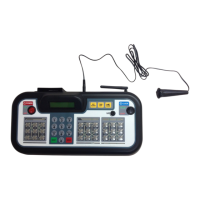

 To Next Page