7
NETWORK WIZARD
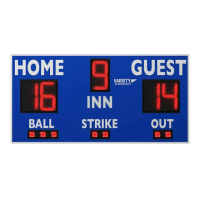
Here we’ll show you how to set up one or multiple scoreboards and link them to a single Controller,
as well as create easy-to-use presets for dierent sports.
4 /
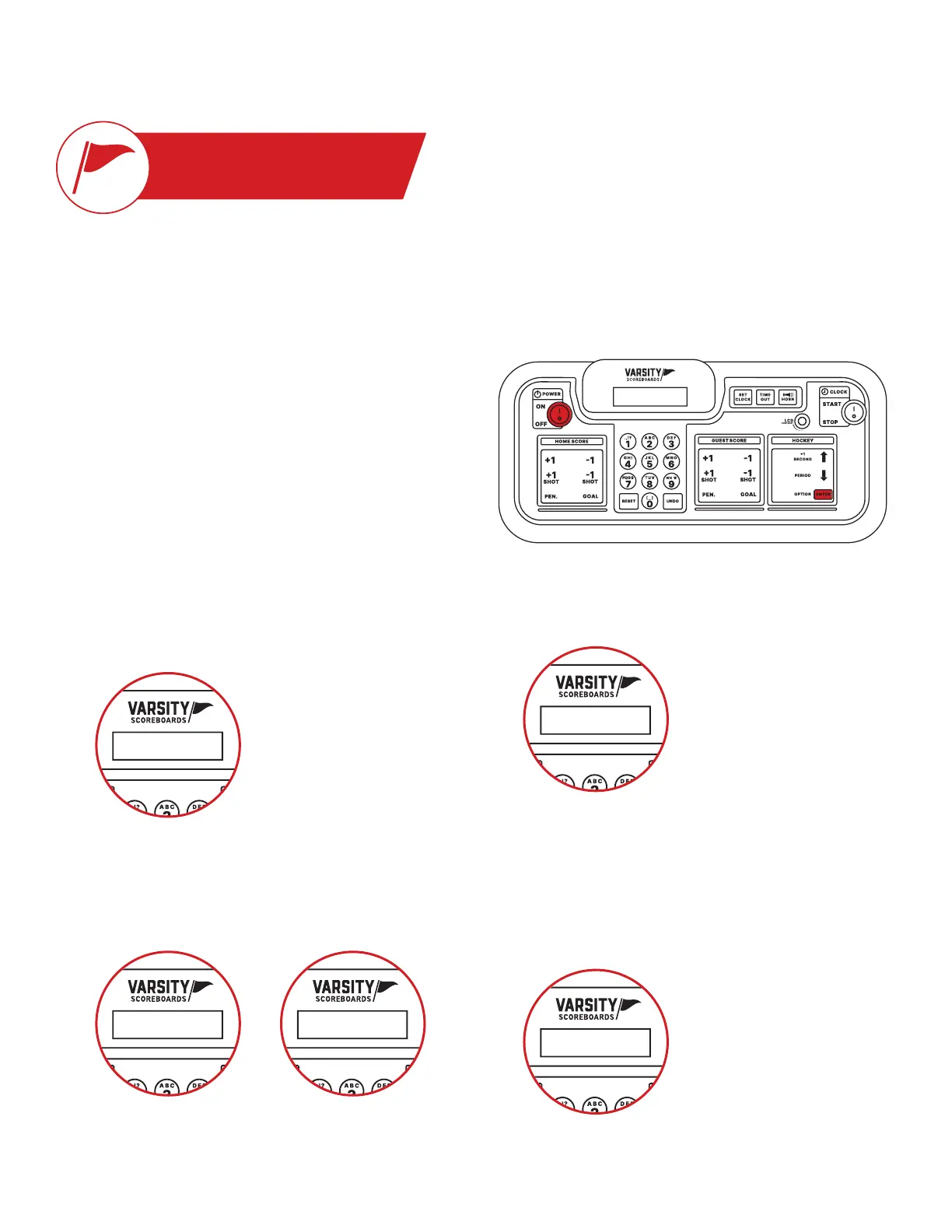
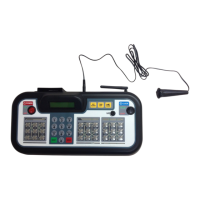
The keyboard Controller will automatically run a startup
process and display No Networks followed by Network Wizard –
5 /
Press the Enter key. The LCD screen will display Power-On
Devices – Enter When Ready.
6 /
Press the Enter key again. The keyboard Controller will verify
the number of devices powered on by again displaying End of
Discovery – X Devices and then automatically proceed to the
Select Sport screen.
1 /
Make sure all scoring and timing equipment such as scoreboards,
shot clocks, pitch count, delay of game clocks, locker room
2 /
Turn on your Controller.
3 /
The LCD screen will display the total number of scoring and
timing equipment it detects and display the following message,
where “X” is the number of devices detected: End of Discovery
– X Devices.
Note: This should be the same number of scoring equipment you
have turned on.
Power-On Devices
- Enter when Ready
End of Discovery:
X Devices
No Networks Network Wizard:
Enter to Start
End of Discovery:
X Devices


 To Next Page