10
2.5 Clean
The button serves to delete all the entered text.
In order to delete single letters or words use the backspace on the
keyboard.
2.6 Menu
Tap the icon or swipe the screen from left to right to display the
menu of Vasco Translator.
2.6.1 Translator
Tap « Translator » to see the Vasco Translator main screen.
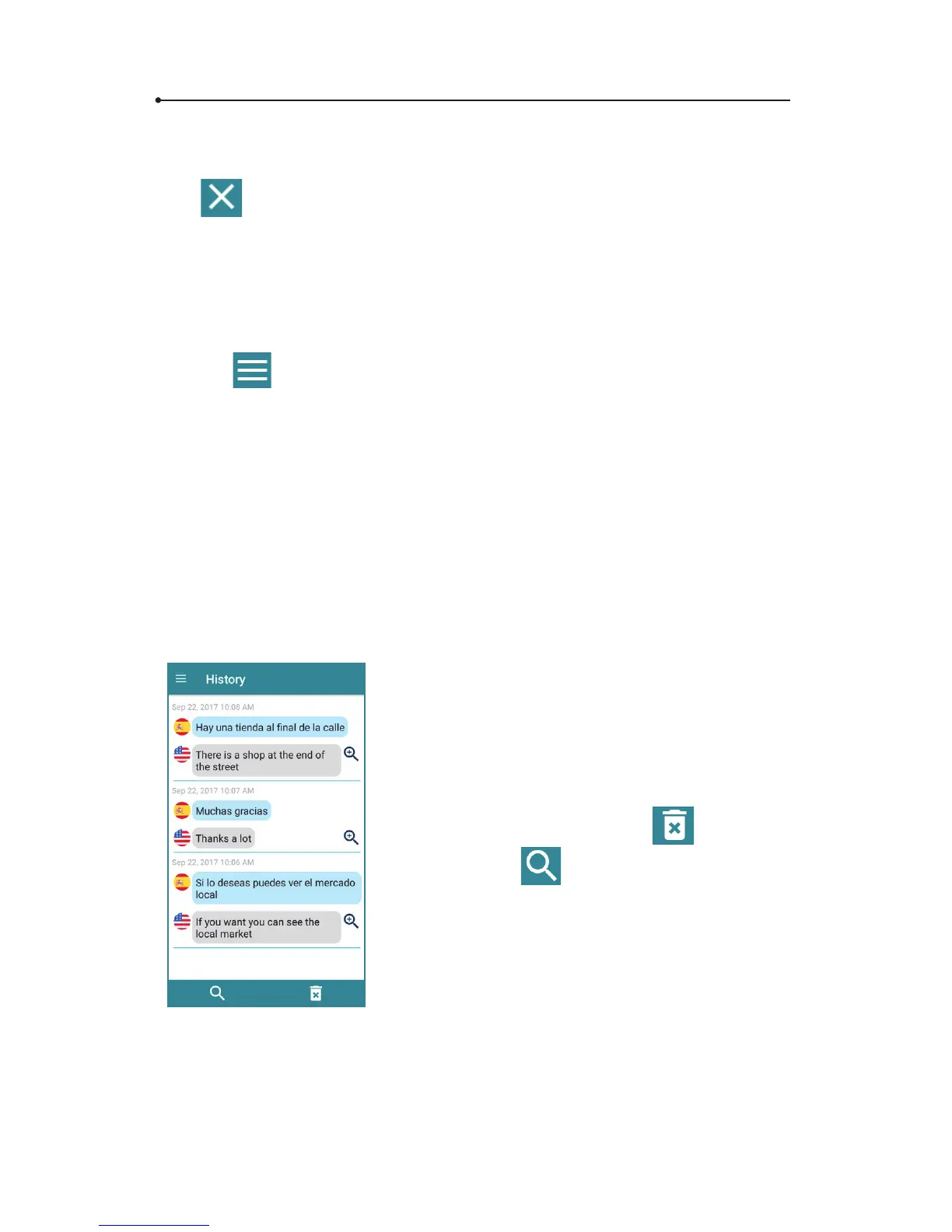
2.6.2 History
To see or clear translation history, open the application menu and
tap « History ».
Tap the selected sentence to display it on
the main screen.
Tap and hold the line for about 1 second
to delete it.
To clear all translations, tap
.
To search, tap
.
To enlarge the chosen translation, tap the
magnifying glass icon.



 To Next Page