18
balance.
3. Maintaining the stable condition in step 1, tap the icon
on the screen. Icon will appear in the
upper right corner of the image. When the icon disappears. the white balance adjust is complete.
6.1.3. Photo-shooting
1. There are two methods to take photos.
* Press the photographing button on the endoscope
* Tap Icon on the screen.
2. When taking photos, icon appears in the upper right corner of the screen. The photo has been taken
when the icon disappears, and "Photo saved successfully" appears on the screen.
3. After taking a photo, the image area in the lower right corner will be updated accordingly. Click the
updated image to preview the image.
Keep the Vathin endoscope as still as possible to prevent obscure images during the photo-shooting.
6.1.4. Video Recording
Tap icon to start recording, and the icon will turn red , will appear on the
upper right corner of the screen to indicate the recording time. Tap again to end the video recording,
and will disappear. The video has been taken when "Video saved successfully” on the
screen.
Note
The maximum allowable length of the video is 70 minutes (i.e. 4GB). Therefore, any video recording over
70 minutes will be automatically stored by splitting into two or more videos.
6.2. File Management Interface
6.2.1. Enter the File Management Interface
Tap the File Management button to enter the file management interface. This interface is used mainly for
operations such as file viewing, folder editing & deleting, file moving, and medical record editing, as shown in

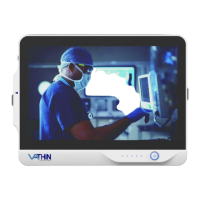

 To Next Page