STEP 1: TURN ON YOUR DEVICE
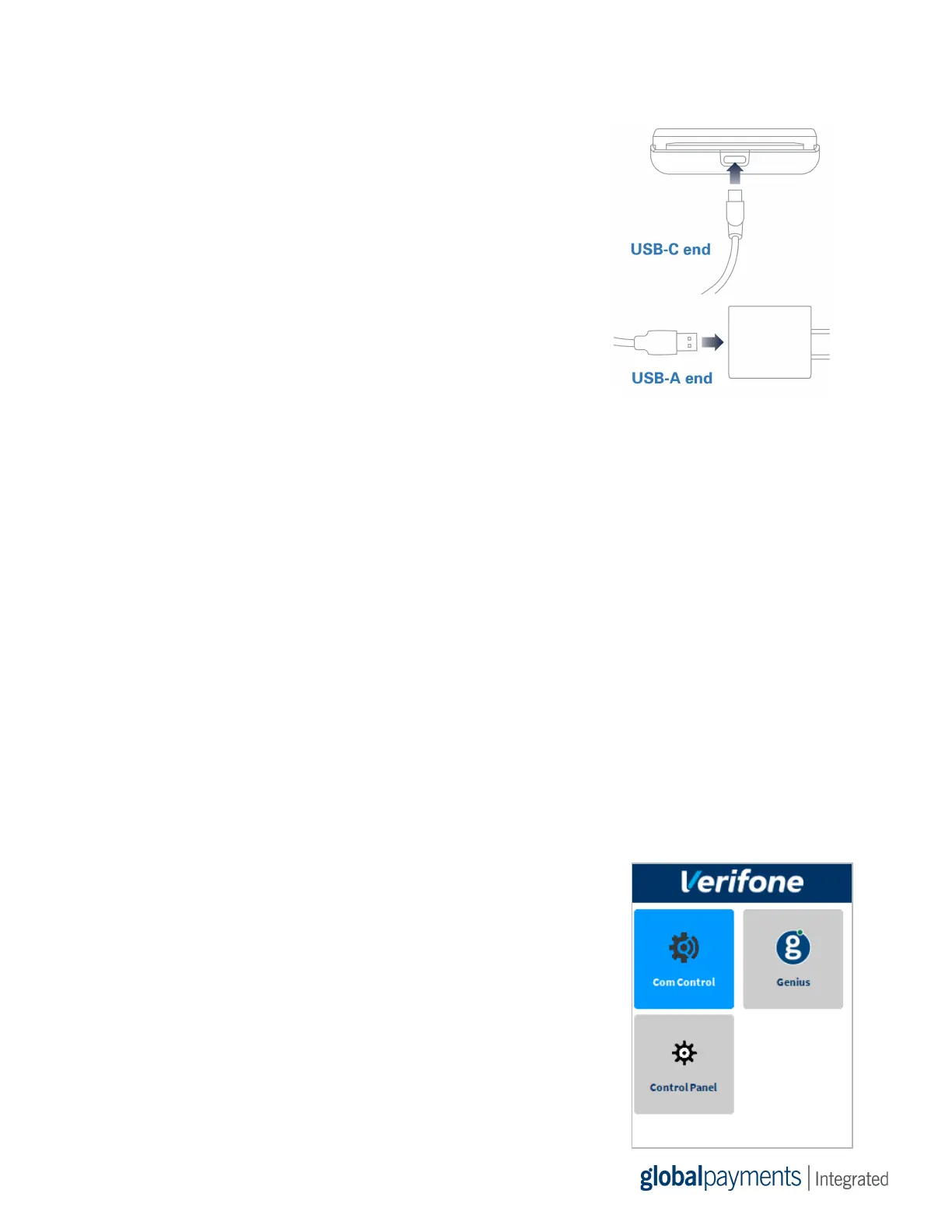
1. Insert the USB-C end of your USB cable into your
device.
2. Insert the USB-A end of your USB cable into the
power adapter.
3. Plug the power adapter into a power socket. Your
device will turn on.
- If your device does not turn on, hold the Enter
button for at least four seconds.
Note: We recommend that you charge your device overnight before you set it up.
STEP 2: CONNECT YOUR DEVICE TO YOUR NETWORK
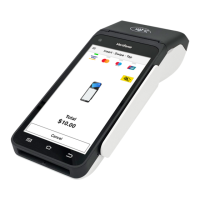
You can connect your e285 to your network using the following connection types:
● Wi-Fi
● Bluetooth
Note:
● Your device is configured to receive a dynamic IP address by default. If you need
to configure a static IP address, go to the FAQs section.
● If you see “Power Interface?” on-screen, tap Yes.
Wi-Fi
Important: If you are not using our Meet in the Cloud solution,
connect your e285 to the same network as your POS.
Find your network
1. Use the keypad to press 1, 5 and 9 at the same time.
2. Tap Com Control.
3. Tap WiFi.
4. Tap Configuration, and then use the keypad to enter the
password. The default password is 200331.
5. Tap OK.
6. Tap WiFi Scan.
4 | Wireless e285 Quick Start Guide






 To Next Page