Need help?
Do you have a question about the VeriFone e285 and is the answer not in the manual?
Instructions for connecting the e285 device to a Wi-Fi network and finding network details.
Information on enabling Bluetooth connection for the e285 device with the POS.
Steps to check the Wi-Fi connection status on the e285 device.
Steps to check the Bluetooth connection status and IP addresses on the e285 device.
Procedure to verify the device's internet connectivity by checking IP address details.
Troubleshooting Bluetooth connection issues, explaining default status and contact for enablement.
Details on device behavior for remembering POS connections upon startup and how to change modes.
Steps to configure a static IPv4 address for Wi-Fi network settings on the e285 device.
Steps to configure a static IPv4 address for Bluetooth network interface settings on the e285 device.
Troubleshooting steps for failed Wi-Fi gateway connection tests, including router checks.
Guide on using the keypad to enter special characters, noting limitations for '<' and '>'.
Troubleshooting steps for issues with receiving transaction requests, checking network and range.
Explanation that low battery prevents contactless card reading and advice to charge the device.
Information on accessing the Help Center for more details about the e285 device.
Explanation that the device automatically enters sleep mode when not in use.
Instructions to turn off the device by holding the Cancel button for 10 seconds.
Instructions to wake or turn on the device by holding the Enter button for four seconds.
Information required before contacting support, including serial number, credentials, and POS details.
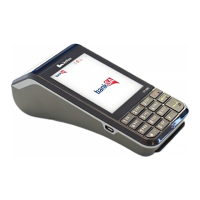
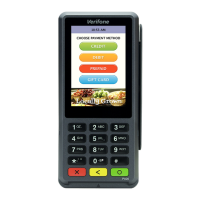
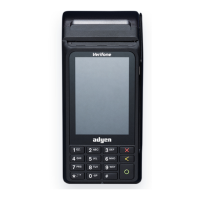
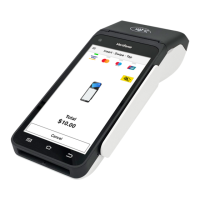
The Wireless e285 is a customer engagement device (CED) designed to integrate seamlessly with a Point of Sale (POS) system, facilitating various payment types. It acts as an intermediary, securely handling payment interactions while keeping sensitive data separate from the POS. This device supports a range of payment methods, including credit, debit, chip-card, and NFC (contactless) transactions, making it a versatile tool for modern retail environments.
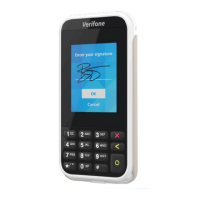
The primary function of the Wireless e285 is to process customer payments. It features a touch-sensitive display for customer interaction, allowing for input of PINs, signatures, and other transaction-related information. The device is equipped with multiple readers to accommodate different card types: a magnetic stripe reader for traditional swipe transactions, a chip card slot for EMV (Europay, MasterCard, and Visa) chip cards, and a contactless reader for NFC payments like Apple Pay or Google Pay.
The e285 operates within a "Genius" ecosystem, where it connects to the POS system to receive transaction requests and send back payment confirmations. A key security feature is that no sensitive data passes directly between the CED and the POS, enhancing data protection and compliance. This architecture ensures that the POS system remains out of scope for certain payment card industry (PCI) compliance requirements, as the e285 handles the secure processing of cardholder data.
The device includes a keypad with standard numeric and function buttons (Cancel, Back, Enter), which are essential for navigation, entering passcodes, and confirming selections. It is powered by a rechargeable battery, providing portability and flexibility in placement within a retail setting. The device is charged via a USB-C port, connecting to a power adapter that plugs into a standard electrical outlet.
Setting up and using the Wireless e285 involves several steps, primarily focused on network connectivity and integration with the POS.
To power on the device, the USB-C end of the provided USB cable is inserted into the device, and the USB-A end into the power adapter, which then plugs into a power socket. The device should turn on automatically. If not, holding the Enter button for at least four seconds will initiate power-up. It is recommended to charge the device overnight before initial setup to ensure a full battery.
The e285 can connect to a network via Wi-Fi or Bluetooth. For Wi-Fi, users access a "Com Control" menu by pressing 1, 5, and 9 on the keypad simultaneously. From there, they navigate to "WiFi," then "Configuration," and enter a default password (200331) to access network settings. A "WiFi Scan" allows the device to discover available networks. Users then select their desired network, choose the authentication type (PSK or EAP), and enter network details such as the authentication password, identity, or IP address information. It's crucial for the e285 to be on the same network as the POS if not using a cloud-based solution.
For Bluetooth connectivity, the process also starts by pressing 1, 5, and 9 to access "Com Control," then navigating to "More." However, Bluetooth connection is not enabled by default and requires contacting support to activate. Once enabled, the device must connect to the POS within 180 seconds of being turned on, or it will need to be restarted. The POS system will provide instructions for completing the Bluetooth pairing.
For environments requiring a static IP, users can access "Com Control," then "WiFi," "Configuration," and enter the password. After selecting the network, they can go to "IP settings," then "IPv4," and switch DHCP to "No." This allows manual input of IP address, subnet mask, gateway IP address, and DNS server details. Special attention is needed for IP address formatting, where zeros are used to complete 12 digits (e.g., 192.168.2.35 becomes 192.168.002.035).
After configuring network settings, users can verify the connection by navigating to "Com Control," then "WiFi" (or "More" for Bluetooth), and then "Status." For Wi-Fi, the "Status" field should show "Up." For Bluetooth, after selecting "IP Addresses" and "BT LAN," the "Status" field should also show "Up." If the status is "Down," troubleshooting or contacting support is necessary.
To ensure the device is ready for transactions, a gateway connection test can be performed. From the home screen, pressing 000, entering the passcode (9416557), and navigating to "Options," then "Network," and finally "Connection Test" will run a series of checks. All tests must pass for the device to function correctly with the payment gateway.
Once the e285 is connected and tested, it needs to be configured within the POS system using "Merchantware Credentials," which include the Merchantware name, SiteID, and Key. The device's IP address or host name is also required for this integration. After POS configuration, a test transaction should be run to confirm successful communication between the POS and the e285. If successful, the test transaction should be canceled, and the device is ready for live sales.
When inputting information, special characters can be accessed by repeatedly pressing the 1, *, 0, or # buttons on the keypad until the desired character appears. It's noted that '<' and '>' characters cannot be entered.
The device automatically enters sleep mode when not in use to conserve battery. To turn off the device completely, the Cancel button should be held for 10 seconds. To wake or turn on the device from a powered-off state, the Enter button should be held for four seconds.
The Wireless e285 requires minimal maintenance, primarily focusing on proper handling, cleaning, and battery management.
It is crucial to avoid using liquids near the device to prevent damage and ensure safe operation. When cleaning, users should not use thinner, trichloroethylene, or ketone-based cleaning products, as these can corrode the plastic and rubber components. Cleaning products should also not be sprayed directly onto the device. Instead, a gentle, non-corrosive cleaning method should be employed, likely involving a soft, dry cloth.
Only the power adapter and charging cable provided by the manufacturer should be used to charge the device. Plugging the power adapter into an outdoor power outlet is explicitly warned against. Charging the device when not in use helps maintain battery health and ensures it's ready for contactless payments, which may not function correctly with a low battery.
Users are advised not to turn off the device when installing an update, nor should they unplug it from a power outlet during an update. This prevents potential software corruption and ensures the update process completes successfully.
If the device fails to connect, receive transaction requests, or read contactless cards, users are encouraged to check network connections, run gateway tests, and ensure the device is charged. For issues that cannot be resolved through these steps, or for enabling Bluetooth connection, contacting the Support Team is recommended. Before contacting support, users should gather the device's serial number (found by pressing 000, entering passcode 9416557, and checking the "Serial Number" field), Merchantware credentials, and POS make and version. The support contact number is 888.249.3220.
When Bluetooth is enabled, the device can be configured to remember the last POS it connected to and automatically reconnect, or to search for available POS devices on startup. If these connection modes need to be changed, support should be contacted.
Overall, the Wireless e285 is designed for ease of use and secure payment processing, with clear guidelines for setup, operation, and basic maintenance to ensure reliable performance in a retail environment.
 General
| Operating Temperature | 0°C to 50°C (32°F to 122°F) |
|---|---|
| Connectivity | WiFi, Bluetooth |
| Battery | Li-ion battery |
| Card Readers | Magstripe |
| Processor | 400MHz |
| Contactless | NFC/Contactless |
| Certifications | PCI PTS 5.x |





 To Next Page