PaymentCloud LLC. • 800-988-2215 • support@paymentcloudinc.com
Table of Contents
Additional Information
9V.032025
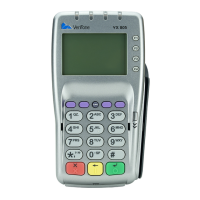
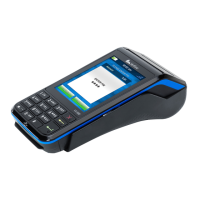
Verifone V200C
User Manual & Setup Guide
Spec Sheet
Shop Verifone V200C
Troubleshooting & Tips
Printer Jam
Unresponsive Printer
How to Perform a Software Update
1. From the home menu, select MANAGEMENT, then SETTINGS.
2. Select CALL TMS.
3. Enter the Verifone V200c’s default password, then press the
green button to conrm.
4. The download process will initiate shortly after this last step is
completed. Merchants should note that, while mid-download,
their device may be rebooted and/or redirected to the home
menu.
How to Fix a Blank Screen
1. Start by testing your V200c’s network and power connection.
2. Disconnect V200c from the power source, then re-connect.
3. Verify that Ethernet cords and cable connections are functional.
4. If all else fails, contact Verifone support.
Printing Issues
1. Access printer paper compartment.
2. Unfasten the impaired thermal receipt paper roll from the
compartment.
3. Insert new thermal receipt paper roll.
1. Start by verifying that your Verifone V200c is functional and
powered on.
2. Run a test to gauge the durability of the network and/or power
connection.
3. Ensure that the thermal paper roll has been installed.
4. Ensure that the printer roller and dust cover are installed.
5. If all else fails, contact Verifone support.
Incorrect Terminal Display
To troubleshoot a faulty terminal display, you should:
1. Check to ensure that your power source is strong.
2. Check device congurations.
3. Contact Verifone support for any further assistance.
Accept Payments
5
Setup
3
Rights Reserved
11
Settings
8
Troubleshooting
& Tips
9
Overview
2


 To Next Page