V
x
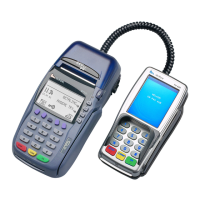
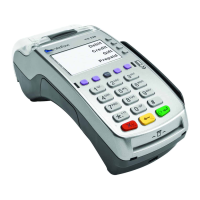
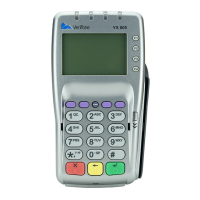
810 Duet Keypad
B Terminal keys/options are in bold.
Cancel Clear OK
B The left-most PURPLE key, e.g. located above the
numeric keys, enables scrolling through the display menu.
To toggle between up and down use the key.
B User/terminal actions are separated by pressing the
green OK key.
B The gray keys to the right of the screen (F1 – F4) are used
to select options listed in the display,
B Text in
SMALL CAPS
indicates display instructions to either
enter the requested information (e.g., “
AMOUNT
” enter the
transaction amount) or select an option using one of the
gray F1- F4 keys.
B Indicate YES and NO by selecting the corresponding gray
display F key.
B Use of “>” in this guide is a shortcut for the action “press”
the following key.
B Instructions in blue italics indicate that the action is
optional, depending on the confi guration or previous entry.
B Some transactions may require a password.
B An example of Card Manual Entry and Inserted Card is only
provided for a Sale. For other transactions, refer to the
specifi c manual entry steps under Credit Sale.
Terminal Transaction Table
TRANSACTION
NAME
DESCRIPTION
PURCHASE
This transaction initiates a Sale. It supports Card
Swipe, Manual Entry and Inserted Entry (aka dipping)
for EMV (Chip Cards).
PHONE ORDER
This transaction initiates a phone order sale – card
not present.
This transaction is only activated for E-commerce
merchants.
VOID
This transaction initiates voiding a sale that is still in
the batch. Voiding of either the last transaction or any
transaction retrieved by its invoice number or the last
4 digits of the account number.
REFUND
This transaction initiates a refund for a sale that is no
longer in the current terminal batch.
FORCE
This transaction enables entry of a previously
approved sale into the batch and is used when the
authorization approval was not obtained through the
terminal.
Cannot be used with Debit Cards.
SETTLEMENT
This transaction initiates closing of the current
batch and opening of a new batch for logging and
accumulating transactions.
The terminal sends all the approved offline
transaction to the host before starting the Settlement
process.
PRE-AUTH
This transaction initiates an online approval. Such
approvals are stored in the Pre-Auth batch. Can be
used for entering pre-tip transactions. All Pre-Auths
must be changed to a Pre-Auth Complete or removed
using the Delete Pre-Auth transaction before a
Settlement can be initiated.
Cannot be used with Debit Cards.
PRE-AUTH
COMPLETE
This transaction captures and finalizes a sale that
was approved as a Pre-Auth transaction. Use this
transaction to add tips to Pre-Auths.
DELETE
PRE-AUTH
This transaction deletes a Pre Auth transaction from
the terminal’s Pre-Auth batch. Pre-Auth transactions
are retrieved by sequence number or account number.
Deleting a Pre-Auth transaction does not remove the
transaction from Issuer’s records nor release the hold
on the customer’s open to buy.
BATCH
TOTALS
Displays batch totals of stored transactions.
BATCH
REVIEW
Allows review of transactions in the terminal, using
specific criteria.
Credit Financial Transactions
The card can be swiped or manually entered for credit
transactions.
Credit Sale (Card Swiped)
1. At the Main Menu select Purchase > F2
2. “
CLERK/SERVER ID
” (1 to 4 digits) > OK
3. “
AMOUNT
“ (1 to 7 digits) > OK
4. Swipe credit card
5. “
TIP AMOUNT
” (1 to 7 digits) > OK
6. Processing…
APPROVED
7. Detach receipt for signature
8. “
PRINT CUST COPY?
” >
YES
(F1)
Credit Sale (Card Manual Entry)
If the magnetic card stripe does not read, you can enter a
transaction manually. Some additional steps will be required.
1. At the Main Menu select Purchase > F2
2. “
CLERK/SERVER
” (1 to 4 digits) > OK
3. “
AMOUNT
” (1 to 7 digits) > OK
4. “
INSERT OR SWIPE
...” Type account # (13 to 16 digits) > OK
5. “
EXPIRATION DATE (YYMM
)” > OK
6. “
CARD PRESENT
” >
YES
(F1)
7.
“IMPRINT THE CARD”
> OK
8. “
TIP AMOUNT
” (1 to 7 digits) > OK
9. “
VERIFICATION CODE
” (CID, CVV2, CVC2) > OK
10. Processing…
APPROVED
11. Detach receipt for signature
12. “
PRINT CUST COPY?
” >
YES
(F1)
Credit Sale (Card Inserted)
When inserting a card, it must remain in the terminal until the
transaction is completed.
1. At the Main Menu select Purchase > F2
2. “
CLERK/SERVER ID
” (1 to 4 digits) > OK
3. “
AMOUNT
” (1 to 7 digits) > OK
4. Insert credit card
5.
ENGLISH
or
FRENCH
– Select application
6. Confi rm amount > OK
7. Enter “
PIN
” > OK
8. Processing…
APPROVED
9. Detach receipt for signature
10. “
PRNT CUST COPY?
” >
YES
(F1)
2 3
American Express
V
x
810 Duet
Operating Instructions
Guide Conventions


 To Next Page
 Loading...