Adding a Badge:
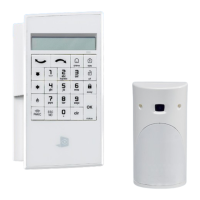
Present the Badge to the or BR Reader for 2 seconds
The reader will beep and the display will change to
Enter a name for the badge or leave it blank and press
Managing Badges / Access Codes - Continued
Adding Badges/Codes (XMA/WMB)
Note: Badges require WMB or BR badge reader learned into the system.
Perform 'Accessing Level 3 Programming' and verify you are in
Access Level 3
Press until the display reads
Press . Display will show
Press . Display will show
Adding a Code:
Enter a 4-6 digit user code and press
The display will show
Re-enter the 4-6 digit code and press
The display will show
Enter a name for the code or leave it blank and press
The code has now been entered into the system
ENTER A
BADGE / CODE
CONFIRM THE CODE
BADGES AND ACCESS
CODES
BADGE / CODE
NAME OF CODE
NAME OF BADGE
Note: When a code is created the system will automaticaly generate two sub-codes that can
be used as a silen and audible duress. This means that for every code you create you will not be
able to create another code withing +/- 2 digits.
Example: Code 1234 has been created. 1235, 1236, 1233, 1232 are no longer available
ENGLISH
10 11


 To Next Page