EasyManua.ls Logo

Videx 4845 - User Manual

Videx 4845
8 pages
Print Icon
To Next Page IconTo Next Page
Loading...
66250250 - V4.1 - 31/03/21Art.4842 .. 4845 - Installation instructions
- 1 -
4000 Series
DESCRIPTION
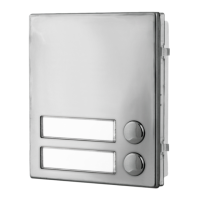
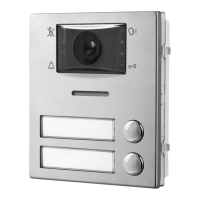
Push button modules allow the expansion of the number of call
buttons. Available in versions with 2, 3, 4 or 5 call push buttons.
Each button has its own connection terminals, but the module
can be congured to have a single common terminal for all but-
tons. The common terminals conguration can be selecting on
the 4 jumpers, accessible from the rear of the module.
Depending on the number of push buttons available, the module
can have 2 or 4 illumination LED’s for the card name holder. Look-
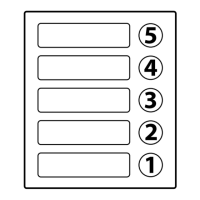
ing at the module from the front, push buttons are numbered as
shown in the drawing. Each button has the relevant terminals:
button 1-terminals 1,1C, button 2-terminals 2,2C etc.
AVAILABLE VERSIONS
1
2
Art.4842
2 call button
1
3
2
Art.4843
3 call button
1
3
2
4
Art.4844
4 call button
1
3
2
4
5
Art.4845
5 call button
COMMON TERMINAL SETTING
Settings referred to the module with the maximum number of
push buttons: Art.4845 – 5 push buttons.
The settings shown are for all buttons common together to 1C
or all buttons individual, but you can choose any combination
of this for each button.
2C
4C
3C
5C
1C
All push button common terminals are linked to
common terminal 1C.
2C
4C
3C
5C
1C
Each button has its own common terminal.
HOW TO REMOVE/INSERT THE CARD NAME HOLDER
To avoid damage to the module front plate, mask the side that
will be in contact with the screwdriver blade;
Insert the screwdriver (at side) into the card-holder hole as
shown in Fig. 1;
Move the screwdriver to the left as shown in Fig. 2 to extract
the card name holder;
Edit the card name then replace it inside the holder and ret:
insert the holder inside its housing from the left or right side
then push the other side until it clips into place.
Fig. 1 Fig. 2
ADHESIVE GASKET PLACEMENT
Apply the
Y
seal as shown in Fig. 3.
ANTITAMPERING LOCKS FIXING
Fit the anti-tampering locks
W
as shown in Fig. 4.
Y
G
Fig. 3
W
Fig. 4
CONNECTION TERMINALS SIGNALS
12Vdc power input for illumination LED’s supply
+
1C Push button 1 common
1 Push button 1
2C Push button 2 common
2 Push button 2
3C Push button 3 common
3 Push button 3
4C Push button 4 common
4 Push button 4
5C Push button 5 common
5 Push button 5
TECHNICAL SPECIFICATIONS
Power Supply: 12Vdc
Power Consumption: 45mA max
Working Temperature: -20 +60 °C
CLEANING OF THE PLATE
Use a clean and soft cloth. Use moderate warm water or non-ag-
gressive cleansers.
Do not use:
abrasive liquids;
chlorine-based liquids;
metal cleaning products.
Art.4842 .. 4845 Button expansion modules

Other manuals for Videx 4845

Questions and Answers

  • H
    hhenryAug 4, 2025
    How to fix interference on the speech in my Videx Intercom System?
    • S
      Selena LyonsAug 4, 2025
      If you are experiencing interference on the speech with your Videx Intercom System, it could be due to several reasons. One potential cause is low signal strength, which forces the GSM module to increase power and interfere with speech circuits. To resolve this, check the signal strength using ‘1111SIG?’ and try relocating the antenna or using a more powerful one. Also, ensure that antenna cables are not running close to the power supply cables or microphone wires inside the intercom panel. If the issue persists, try a different SIM card from another service provider to see if they have better coverage in your area.
  • V
    Valerie WilcoxAug 8, 2025
    What to do if my Videx 4845 panel does not respond to SMS messages?
    • C
      Cynthia FrostAug 9, 2025
      If your Videx Intercom System panel isn't responding to SMS messages, the SIM card might not have an SMS service center number stored. You'll need to insert the SIM card into a mobile phone to check this. Contact your SIM card provider for assistance if needed. Also, verify that you're sending the message to the correct number, which is the SIM card number in the intercom panel. After sending an SMS, listen for a single short beep from the intercom panel, indicating the message was received and understood. A long beep indicates the message was not understood or the 4-digit code was incorrect. As a solution, you can try resetting the 4-digit code to 1111 by powering up with C1 & PTE shorted.
  • C
    Christopher RossAug 13, 2025
    Why does the call keep dropping out on my Videx 4845 Intercom System?
    • J
      jessicahardingAug 13, 2025
      If calls keep dropping out on your Videx Intercom System, consider increasing the call time in the programming settings. Also, check the signal strength; a weak signal or antenna malfunction could be the cause. Try moving or changing the antenna, or switch to a different SIM card provider to improve signal reception.
  • B
    Blake RochaAug 17, 2025
    Why do I hear a long beep when I press a button on my Videx 4845?
    • J
      Jerome HayesAug 17, 2025
      If you hear a long beep when pressing a button on your Videx Intercom System, it could mean that no telephone number is set up for that button. You should check the programming to ensure the number is correctly configured. Another possibility is that the SIM card is not fitted correctly, so verify that the SIM card is properly inserted.
  • M
    Mary RodriguezAug 21, 2025
    How to stop speech echoes and feedback on my Videx Intercom System?
    • T
      Tyler WhiteAug 21, 2025
      If you are experiencing speech echoes and feedback with your Videx Intercom System, try lowering the speaker volume using jumpers JP2 & JP3. You can also adjust the volume using the programmable settings during a call. Make sure that the microphone is correctly fitted in the intercom panel and that the microphone hole is not blocked.
  • M
    Michael NguyenAug 26, 2025
    What to do if my Videx 4845 Intercom System panel beeps twice and the backlight doesn't illuminate?
    • K
      Kyle MooreAug 26, 2025
      If your Videx Intercom System panel repeatedly beeps twice and the name plate backlight does not illuminate, it could be due to an inadequate power supply voltage. Check that the power supply provides the correct voltage and that the jumper JP1 is in the correct position. You can also try a full reset by powering up with C2 & PTE shorted and try a different SIM card. Note that the intercom module may have a fault.
  • R
    Rachel HernandezAug 30, 2025
    Why am I getting an ERROR message when programming my Videx Intercom System via SMS?
    • J
      Jon ChavezAug 30, 2025
      If you receive an ERROR message in SMS when programming your Videx Intercom System, or no SMS is returned even with a '?' at the end, there may be errors in the message format. Double-check the message against the examples, looking for issues like using two apostrophe marks side by side instead of the correct character “ or using lowercase letters instead of uppercase (e.g., 'stn' instead of 'STN').

Summary

Videx 4000 Series Button Expansion Modules

Product Description

Details the function and availability of call button expansion modules, including versions with 2-5 buttons.

Available Versions

Lists the different module variants based on the number of call buttons (2, 3, 4, or 5).

Common Terminal Setting

Explains how to configure common terminals for all buttons or individual buttons using jumpers.

Card Name Holder Maintenance

Guides on how to safely remove, insert, and edit card name holders on the module front plate.

Installation and Security Features

Covers placement of adhesive gasket and fixing of anti-tampering locks for secure installation.

Connection Terminals and Signals

Details the terminal assignments for power input, common terminals, and individual push buttons.

Technical Specifications

Provides key technical data including power supply, consumption, and operating temperature.

Cleaning and Maintenance

Recommends using soft cloths and mild cleaners, advising against abrasive or harsh chemicals.

Product Disposal and Environmental Compliance

WEEE Disposal Compliance

Explains the proper disposal of Waste Electrical and Electronic Equipment (WEEE) according to EU directive.

Videx 4845 Specifications

General IconGeneral
BrandVidex
Model4845
CategoryIntercom System
LanguageEnglish

Related product manuals