O
O
p
p
e
e
r
r
a
a
t
t
i
i
o
o
n
n
M
M
a
a
n
n
u
u
a
a
l
l
5.2 How to control main screen
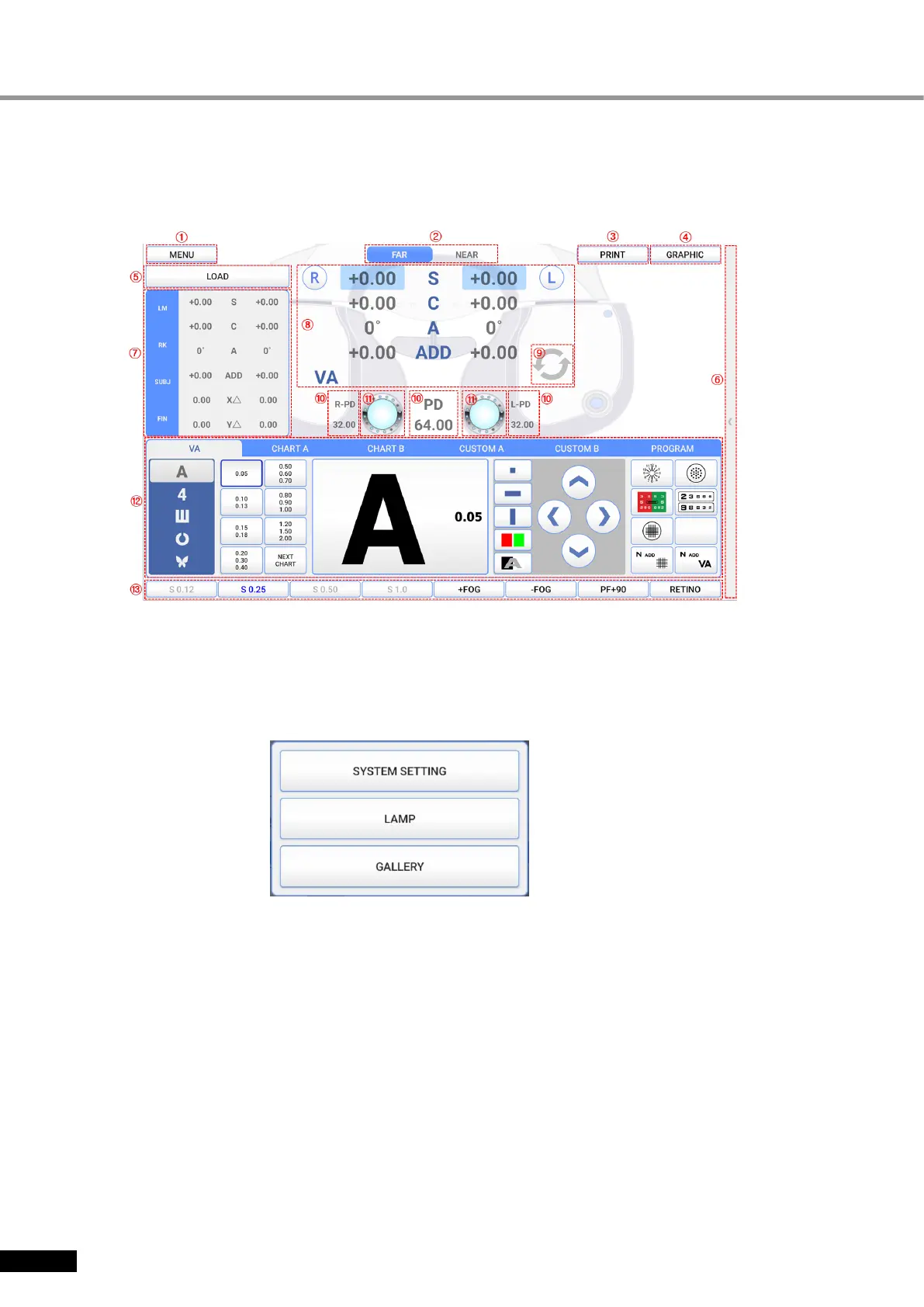
Here is the explanation of features and functions for button on main screen.
[Figure 5-3] Main Screen
① Menu button
- When touch the menu button, menu selecting window appears.
- When touch LAMP button, a window that can control LED brightness appears.
- When touch GALLERY button, a window appears that allow you to view color blindness
tests, near charts, and eyeball images.
[Figure 5-4] menu selecting window
② Near/Far distance mode change button
- It changes Far distance mode and Near distance mode when press the button. On near
distance mode, tilting is done automatically.
③ Print button
- When you touch print button, the test result screen appears. And when you press the print
button again on the test result screen, it is printed on paper. It can be set to print
immediately without displaying the screen.
- After printing is completed, the test result can be saved in DATABASE, and the test result
can be automatically initialized.
- If there is no printing paper, the letter will turn red.


 To Next Page