EasyManua.ls Logo

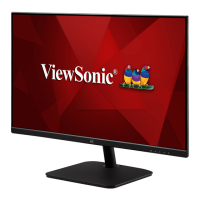
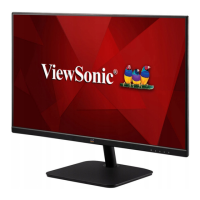
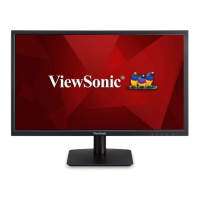
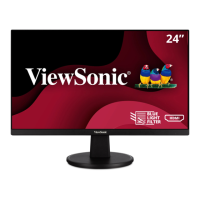
ViewSonic VA2430-h - User Manual

ViewSonic VA2430-h
45 pages
Print Icon
To Next Page IconTo Next Page
Loading...
VA2430-h
Display
User Guide
Model No. VS17789
P/N: VA2430-H-5 / VA2430-H-6 / VA2430-H-W-6
IMPORTANT: Please read this User Guide to obtain important information on installing and using your product in
a safe manner, as well as registering your product for future service. Warranty information contained in this User
Guide will describe your limited coverage from ViewSonic® Corporation, which is also found on our web site at
http://www.viewsonic.com in English, or in specific languages using the Regional selection box in the upper right
corner of our website. “Antes de operar su equipo lea cu idadosamente las instrucciones en este manual”

Questions and Answers

  • L
    Laurie PenaAug 28, 2025
    How to adjust the brightness on ViewSonic VA2430-h Monitor when the screen is too light or dark?
    • J
      joe46Aug 29, 2025
      If the screen image on your ViewSonic monitor is too light or dark, adjust the brightness and contrast settings via the OSD Menu. Alternatively, you can reset the monitor to its factory settings.
  • V
    Vanessa OliverSep 3, 2025
    Why are the colors on my ViewSonic VA2430-h Monitor wrong?
    • T
      Thomas PowellSep 3, 2025
      If the colors on your ViewSonic monitor appear wrong or abnormal, and any colors (red, green, or blue) are missing, check the video cable to ensure it is properly and securely connected. Loose or broken pins in the cable connector could cause an improper connection. You can also connect the monitor to another computer. If you have an older graphics card, contact ViewSonic® for a non-DDC adapter.
  • C
    Cheryl LongAug 27, 2025
    How to adjust brightness on ViewSonic Monitor?
    • A
      Amanda JohnstonAug 28, 2025
      If the screen image on your ViewSonic monitor is too light or dark, adjust the brightness and contrast settings via the OSD Menu. You can also reset the monitor to factory settings.
  • K
    Kimberly CruzSep 18, 2025
    What to do if the OSD Menu doesn't appear on my ViewSonic VA2430-h Monitor?
    • J
      James McguireSep 18, 2025
      If the OSD Menu isn't appearing on your ViewSonic monitor or the OSD controls are inaccessible, check if the OSD Menu is locked by pressing and holding the 3 and 5 key for 10 seconds. If that doesn't work, turn off the monitor, unplug the power cord, plug it back in, and then turn the monitor back on. As a last resort, reset the monitor to its factory settings.
  • C
    Carla HernandezSep 23, 2025
    What to do if the OSD Menu is not displayed on my ViewSonic VA2430-h Monitor?
    • A
      Antonio PonceSep 23, 2025
      If the OSD Menu does not appear on your ViewSonic monitor screen or the OSD controls are inaccessible, check whether the OSD Menu is locked by pressing and holding the 3 and 5 key for 10 seconds. If that doesn't work, turn off the monitor, unplug the power cord, plug it back in, and then turn on the monitor. As a last resort, reset the monitor to factory settings.
  • C
    Christopher OsborneSep 7, 2025
    How to fix blurred screen image on ViewSonic VA2430-h?
    • M
      Michelle SmithSep 7, 2025
      If the screen image on your ViewSonic monitor is blurred, adjust the resolution to the correct Aspect Ratio. Alternatively, reset the monitor to factory settings.
  • N
    Nicholas TuckerSep 10, 2025
    What to do if there is no audio output from my ViewSonic Monitor?
    • T
      Travis CoxSep 10, 2025
      If you're using headphones, be sure the mini stereo jack is properly connected. Make sure the volume isn't muted or set to 0. Check the Audio Input setting as well.
  • M
    martinnovakSep 16, 2025
    Why don't USB devices work when connected to my ViewSonic Monitor?
    • L
      Lawrence SmithSep 17, 2025
      If USB devices aren't working when connected to your ViewSonic monitor, ensure the USB cable is connected properly. Try using a different USB port if available. Note that some USB devices might need more power, so try connecting them directly to the computer.
  • Q
    qdaltonAug 26, 2025
    How to fix a blurred screen image on my ViewSonic VA2430-h Monitor?
    • D
      Dr. Kimberly BentleyAug 26, 2025
      Adjust the resolution to the correct Aspect Ratio. If the blurring continues, try resetting the monitor to its factory settings.
  • C
    Courtney GreenAug 25, 2025
    Why is my ViewSonic VA2430-h Monitor screen image too light or dark?
    • F
      fosteradamAug 26, 2025
      Adjust the brightness and contrast settings using the OSD Menu. If that doesn't work, try resetting the monitor to its factory settings.

ViewSonic VA2430-h Specifications

General IconGeneral
Screen Size24 inch
Panel TypeIPS
Refresh Rate60 Hz
Brightness250 cd/m²
Aspect Ratio16:9
Color Support16.7 million colors
Resolution1920 x 1080
PortsHDMI, VGA
Viewing Angle178º (H) / 178º (V)
Contrast Ratio1000:1 (static)
Response Time5ms (GtG)
Power Consumption25W (typ)

Related product manuals