EasyManua.ls Logo

ViewSonic VS17612 - User Manual

ViewSonic VS17612
107 pages
Print Icon
To Next Page IconTo Next Page
Loading...
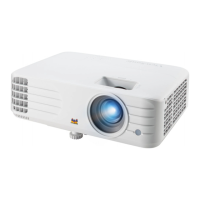
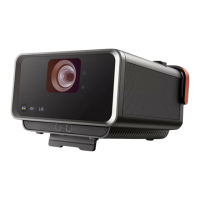
X10-4K
Lamp Free Smart Theater
User Guide
Model No. VS17612
P/N: X10-4K
IMPORTANT: Please read this User Guide to obtain important information on installing and using your product in
a safe manner, as well as registering your product for future service. Warranty information contained in this User
Guide will describe your limited coverage from ViewSonic® Corporation, which is also found on our web site at
http://www.viewsonic.com in English, or in specific languages using the Regional selection box in the upper right
corner of our website. “Antes de operar su equipo lea cu idadosamente las instrucciones en este manual”

Table of Contents

Questions and Answers

  • D
    Debra RogersAug 14, 2025
    Why won't my ViewSonic VS17612 turn on?
    • S
      Sarah NguyenAug 14, 2025
      If your ViewSonic Projector isn't turning on, first, ensure the power cord is properly attached to both the projector and the power outlet. If it still doesn't turn on, wait until the cooling process has finished, then try again. As a last resort, test another power outlet or electrical device using the same outlet.
  • C
    camposfernandoAug 17, 2025
    What to do if the ViewSonic Projector remote control does not work?
    • J
      Joshua GriffithAug 17, 2025
      If the remote control for your ViewSonic Projector isn't working, first make sure there are no obstructions between the remote and the projector, and that you're within 8 meters (26 feet). If it still isn't working, check the batteries and replace them if needed.
  • S
    Shaun SullivanAug 21, 2025
    Why my ViewSonic VS17612 does not turn on?
    • E
      Elizabeth CampbellAug 21, 2025
      If your ViewSonic Projector isn't turning on, make sure the power cord is securely plugged into both the projector and the power outlet. Also, the projector might be in the process of cooling down; wait for it to complete before attempting to turn it on again. Try using a different power outlet or testing the current outlet with another electrical device.
  • L
    Luis RojasAug 25, 2025
    What to do if my ViewSonic VS17612 remote control does not work?
    • D
      Daniel ConradAug 25, 2025
      If your ViewSonic Projector's remote control isn't working, first, make sure there are no obstructions between the remote and the projector, and that you're within 8 meters (26 feet) of the projector. Then, check the batteries and replace them if necessary.
  • T
    Tracy SullivanAug 27, 2025
    How to fix a ViewSonic VS17612 Projector with no picture?
    • C
      clarkmichelleAug 28, 2025
      If your ViewSonic Projector displays no picture, ensure the video source cable is properly connected and that the video source is turned on. If the input source isn't automatically selected, use the Source key on the projector or remote to select the correct source.
  • H
    Heather MartinezAug 31, 2025
    How to fix a blurred image on ViewSonic VS17612?
    • J
      jonesjuanAug 31, 2025
      If the image on your ViewSonic Projector is blurred, try adjusting the Focus Ring to correctly focus the projection lens. Also, make sure the projector and screen are properly aligned. Adjust the projector's height, projection angle, and direction if necessary.
  • J
    Jeremy AndersonSep 3, 2025
    How to fix no picture on ViewSonic VS17612?
    • J
      Jason HudsonSep 3, 2025
      If there is no picture on your ViewSonic Projector, ensure the video source cable is properly connected and that the video source is turned on. If the input source isn't automatically selected, use the Source key on the projector or remote to select the correct source.
  • S
    Sarah WoodsSep 6, 2025
    How to fix blurred image on ViewSonic VS17612?
    • R
      rstoneSep 6, 2025
      To fix a blurred image on your ViewSonic Projector, adjust the Focus Ring to correctly focus the projection lens. Also, make sure the projector and screen are properly aligned, adjusting the projector's height, projection angle, and direction if needed.
  • C
    Christian LeachSep 9, 2025
    What to do if ViewSonic VS17612 Projector is frozen?
    • H
      heather89Sep 10, 2025
      If your ViewSonic Projector is frozen and unresponsive, carefully insert a paper clip into the Reset button at the rear of the projector to reset the device.

ViewSonic VS17612 Specifications

General IconGeneral
Contrast Ratio22, 000:1
Zoom Ratio1.1x
Display TechnologyDLP
Brightness4000 ANSI Lumens
Lamp Life15, 000 hours (SuperEco Mode)

Related product manuals