Operation Instructions
08
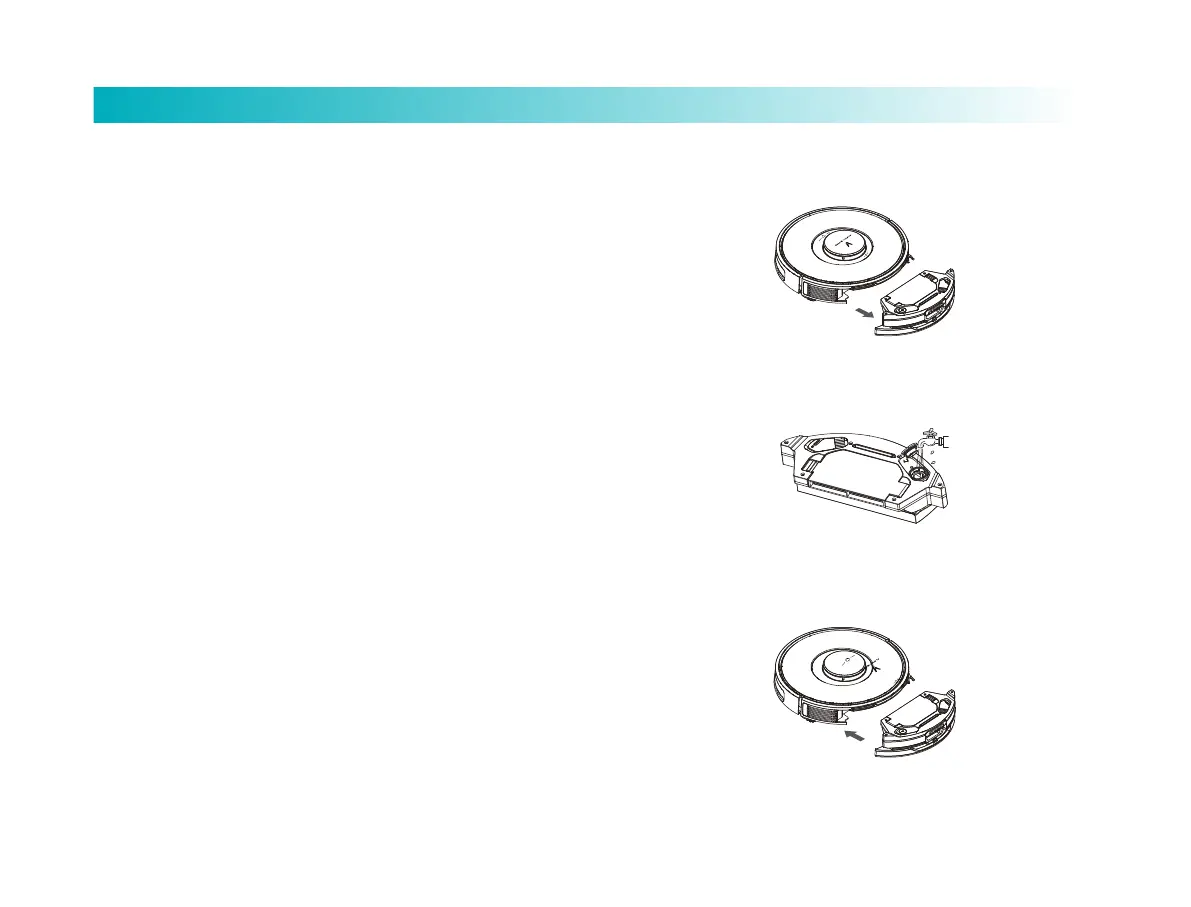
3. Soak the mop with water and aach it to magic tape
band and tighten it. Inject water through the inlet, and
tighten the cover.
4. Mount the 2-in-1 Dust Compartment with Water Tank
into the robot. To install the Integrated tank back, push it
in with the slot. Then push it to the boom aer hearing a
click.
Fault
In case of fault in the robot, audible and visual alarms will
be given with power LED indicator flashing in orange. For
more details refer to Troubleshooting.
The robot will sleep automatically when being idle for 10
minutes in case of fault.
Network configuration and firmware update
Download Mijia App, and use the mobile client to reset Wi-Fi
according to the APP's tips. Refer to the Quick Guide for
further information. You can check and upgrade firmware
through the App. Make sure the equipment is charging while
upgrade. Read the guide in the App for the details of
upgrade. Configure network according to the tips in the App
aer finishing download. You can use the App for remote
control, reservation and so on as long as it is connected to
network.
How to use
1. Place the robot on flat floor indoors. Remove the limit
protector at both sides of bumper.
2. Press the Dust Compartment release buon to remove the
2-in-1 Dust Compartment with Water Tank.


 To Next Page