MaintenanceHow to connect to Wi-Fi
10
Connect power supply
Connect power plug to the socket.
Reseing Wi-Fi
When your router is replaced or Wi-Fi password is changed, you
have to reset Wi-Fi seings by holding both and keys for
3 seconds till the Wi-Fi indicator light flashes in white color and a
voice prompt is given, indicating that the Wi-Fi seings are reset
successfully.
Bind iOS-based cell phone to Wi-Fi
Select robot's hotspot in Wi-Fi seings of your phone, and
wait for connection; Return to the App, tap "next" and follow
the tips to finish connection.
Notes: Please refer to How to Reset Wi-Fi when your phone is
unable to connect Viomi vacuum (as following); Please
connect to Wi-Fi for optimal user experience.
Bind Android-based cell phone to Wi-Fi
Tap the available product, and tap "connect" to proceed. Just
follow the tips.
Download the App
Search for "Viomi mall" or "Mijia" in app store; or scan the QR
code to download and install the app.
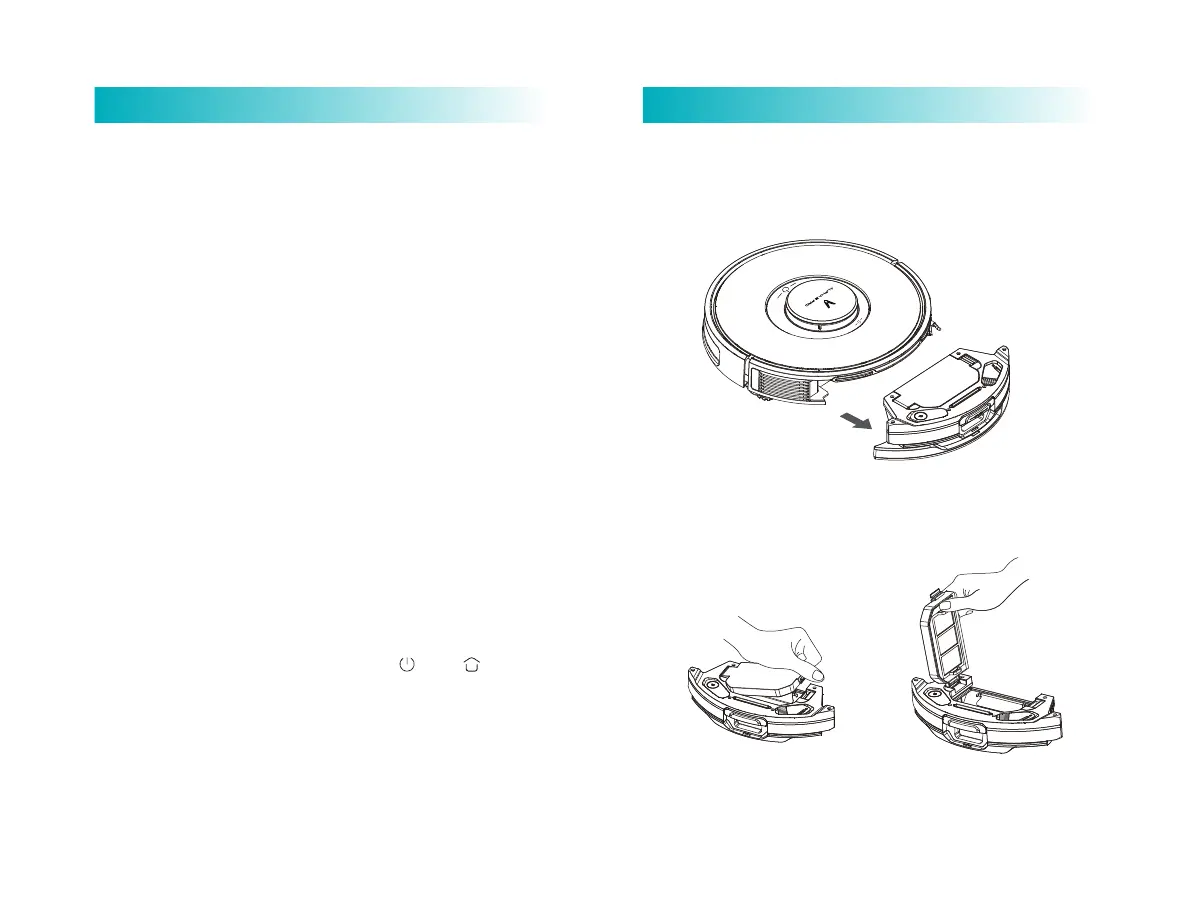
2-in-1 Dust Compartment with Water Tank
1. Press Dust Compartment release buon and pull the tank out
to remove it.
2. Release the Dust Compartment clamp to remove filter screen
clamp.


 To Next Page