9
Section 6: Basic Operation
1. Insert one end of the DP cable into your PC’s graphics card. An HDMI cable may
also be used. HDMI cable not included.
For optimal refresh rate (or “performance”), it is recommended to use a DP
cable with the monitor’s corresponding connector.
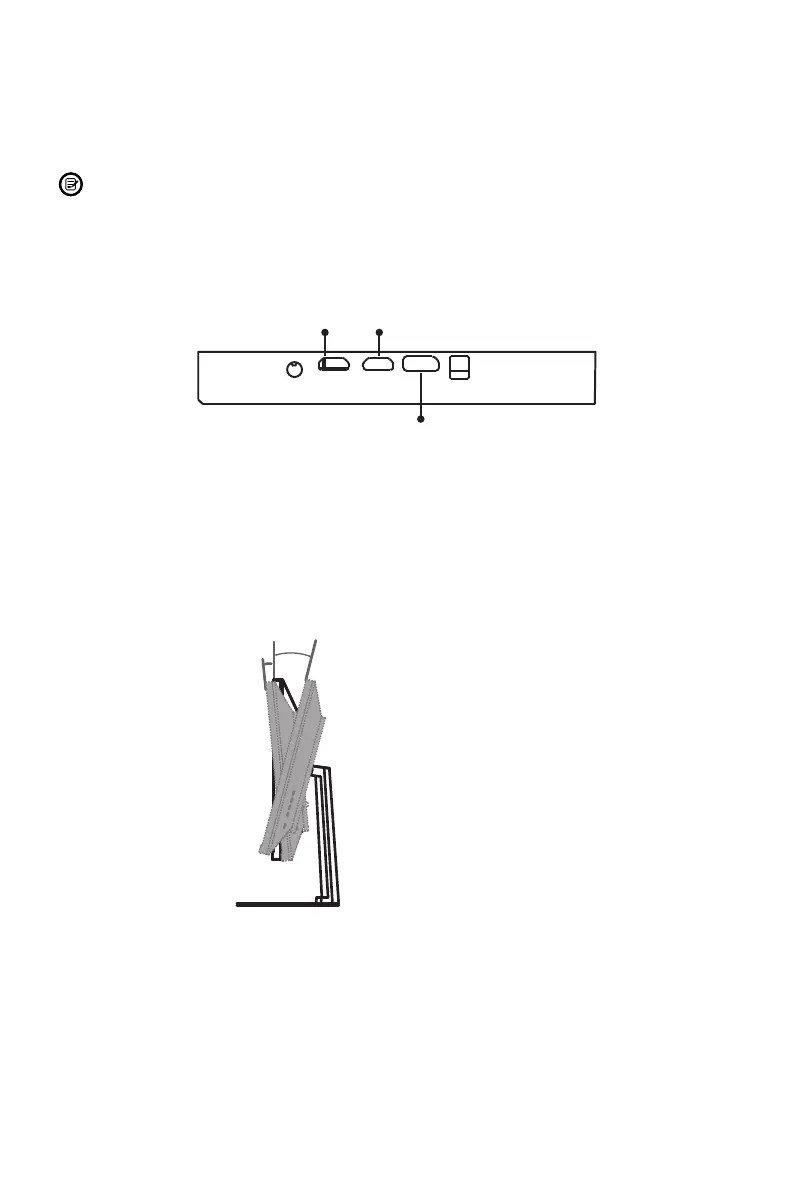
2. Connect the other end of the cable to the corresponding connector on your
monitor. See the image below.
HDMI 2HDMI 1
DP 1.2
3. Connect the power cable to your monitor then connect the other end to your
power source. It is recommended that you use a surge protector with adequate
voltage if a wall outlet cannot be reached directly.
4. Locate the power button on the monitor and press it to turn the monitor on.
5. Carefully adjust monitor’s angle as desired.
-5.0°(±2.0°)- +15°(±2.0°)
-5°
+15°
VIOTEK Adaptive Sync
Adaptive sync eliminates image tearing, stuttering and ghosting by adjusting of a monitor’s
vertical refresh rate to the frame rate of the graphics card. It is compatible with GPUs that
use AMD® FreeSync™ or NVIDIA® G-Sync™. The feature is off on VIOTEK monitors by
default and must be manually enabled in the monitor’s OSD (see Section 8: OSD). To use
this feature, the connecting device must be compatible with adaptive sync (FreeSync and/or
G-Sync); have the latest graphic drivers; and be connected to the monitor using a DisplayPort
(DP) cable.


 To Next Page