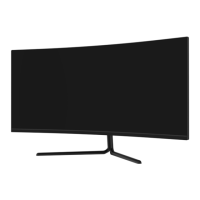
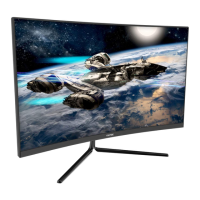
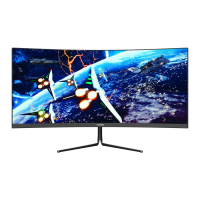
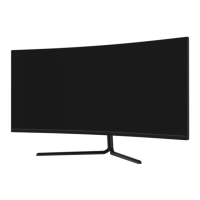
Indicator Light
Control Panel
The Control Panel is located at the corner of the monitor. Its labels are on the front
of the monitor while its buons are directly under the labels on the boom
edge. The Control Panel is used (1) to turn the monitor on and (2) in combinaon
with the On-Screen Display (OSD) Menu to adjust the monitor sengs. Review the
images below for informaon about this panel.
Menu/Enter: Opens the main menu
Down: Moves down/lower while navigang
Up: Moves up/higher while navigang
Exit: Exits the current menu screen and returns to the main menu,
or closes the menu if currently on the main menu screen
Power: Turns the monitor on or off
Note: The Down and Up buons may be mapped to keyboard hotkeys if desired.
OSD Menu
The On-Screen Display (OSD) Menu may be used to adjust your monitor's sengs
and appears on screen aer turning on the monitor and pressing the Control
Panel's Menu/Enter Key.
Note: When using the monitor for the first me, sengs will automacally adjust
to opmal sengs according to your computer's configuraon and parts etc.
Indicator Light
This light is located on the front of the monitor.
Solid blue light indicates power is on and the monitor is operang normally.
Flashing blue light indicates no video source has been detected. Please ensure your
PC is on and all video cables are fully inserted and/or connected.
Menu/Enter Down Up Exit Power
All specificaons and informaons are subject to change without noce.
-3-


 To Next Page