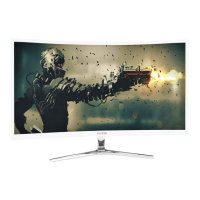
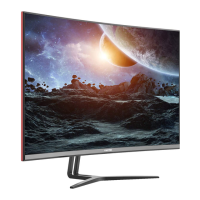
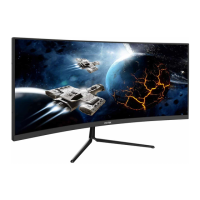
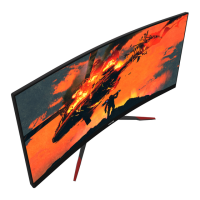
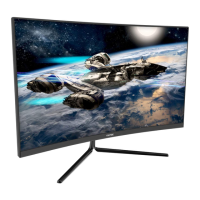
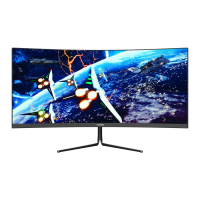
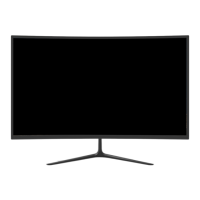
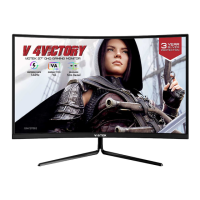
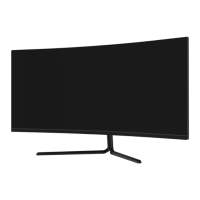
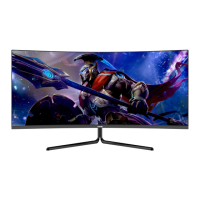
The VIOTEK® GN34CW/GN34CB is a curved gaming monitor designed to provide an immersive visual experience for users. This user manual outlines the setup, operation, and maintenance of the monitor, ensuring optimal performance and longevity.
Function Description
The monitor serves as a display unit for computers, capable of receiving video signals via DisplayPort (DP), HDMI, and DVI connections. It supports various resolutions, with a recommended setting for optimal viewing and gaming. The monitor features an On-Screen Display (OSD) menu, allowing users to adjust a wide range of settings to customize their viewing experience. These settings include brightness, contrast, color temperature, picture quality, and audio controls.
Key functionalities include:
- Input Source Selection: Users can switch between DVI, HDMI, and DP inputs to connect different devices.
- Picture Adjustment: Fine-tune brightness, contrast, and DCR (Dynamic Contrast Ratio) for optimal image clarity.
- Color Settings: Adjust gamma, select picture modes (Standard, Text, Movie, Game, FPS, RTS), customize RGB components, and set low blue light filtering levels to reduce eye strain.
- Picture Quality Enhancements: Features like Bypass, Sharpness, Response Time, Noise Reduction, Super-Resolution, and Dynamic Luminous Control are available to improve image quality and reduce artifacts.
- FreeSync Technology: The monitor supports FreeSync, which, when enabled with compatible hardware and a DP cable, helps eliminate screen tearing and stuttering for a smoother gaming experience.
- Display Aspect Ratio: Users can switch between Wide Screen, 4:3, and Auto aspect ratios.
- Audio Control: Mute audio, adjust volume, and select the audio source (HDMI or DP).
- Multi-Window Functionality (PIP/PBP): The monitor supports Picture-in-Picture (PIP) and Picture-by-Picture (PBP) modes, allowing users to display content from multiple input sources simultaneously. PIP allows a smaller window from a secondary source to be displayed over the main screen, while PBP divides the screen into two equal halves for two different sources. Users can adjust PIP/PBP window size, position, and swap signal sources.
- OSD Customization: Adjust the OSD's horizontal and vertical position, transparency, and time-out duration. The OSD can also be rotated to achieve the best display angle when the monitor is flipped.
- ECO Modes: Optimize settings for different activities such as Standard, Text, Movie, Game, FPS, and RTS, providing tailored visual experiences.
- Gameplus Modes: Features various game icons designed to optimize aim during shooting games and can be used in other scenarios.
Usage Features
The monitor is designed for ease of use and flexibility in setup.
- Stand Installation: The stand consists of a stem and a base, which are fastened together using provided screws and a screwdriver. The assembled stand then securely attaches to the back of the monitor. The stand can be easily detached by pressing a button near the stand plate.
- Mount Installation: For users preferring wall mounts or other VESA-compatible accessories, the monitor supports VESA 100x100mm mounting. It is crucial to use the provided NO. 2 screws for mounting and to retain the original screws and stand plate.
- Connectivity: The monitor offers multiple input ports including DVI, DP, and HDMI, along with an audio connector for earphones. Port covers are included and should be removed before connecting cables, then reinstalled if desired.
- Power Connection: The monitor connects to a standard wall outlet using the included power cable. A surge protector with adequate voltage is recommended.
- Indicator Light: A solid blue light indicates the monitor is on and operating normally. A flashing blue light signals no video source detected, while a red light indicates no horizontal or vertical signal or low voltage.
- OSD Navigation: The OSD menu is accessed by pressing the 'M' button. Navigation is intuitive, using the up/down buttons to browse functions and the 'M' button to enter sub-menus or confirm settings. The 'E' button is used to exit menus. The 'E' button also allows switching between limit and full color gamuts with compatible graphics cards and HDMI/DP connections.
- Quick Access Functions: Dedicated buttons allow quick switching between ECO modes and Gameplus modes, enhancing the user's experience based on their activity.
Maintenance Features
Proper maintenance ensures the longevity and optimal performance of the monitor.
- Cleaning: Always unplug the monitor before cleaning. Use a dry cloth or a lightly damp cloth. If using a damp cloth, ensure the monitor is completely dry before plugging it back in. Avoid using alcohol or ammonia-based cleaners, and never spray liquid directly onto the screen or any part of the monitor. Use a soft, non-abrasive cloth to gently remove debris or dust.
- Ventilation: The monitor has ventilation openings on the back. Ensure these openings are not blocked to prevent overheating.
- Placement: Place the monitor on a secure, level surface to prevent it from falling and sustaining damage. Avoid placing it near heat sources like portable heaters or heating vents.
- Cable Management: Ensure all cables are properly inserted and connected. Loose connections can lead to signal issues or poor image quality.
- Troubleshooting: The manual provides a comprehensive troubleshooting guide for common issues such as a blank screen, out-of-focus image, flashing screen, color bleeding, scrolling image, and indicator light problems. This guide helps users diagnose and resolve minor issues independently.
- Disassembly Warning: Users are strongly advised not to attempt to disassemble or remove parts from the monitor. Any unauthorized disassembly or modification can result in damage, exposure to high voltage electricity, and will void the warranty. Only authorized technicians should perform service on the product.
- Non-Use: Unplug the monitor during extended periods of non-use.
- Weight Restrictions: Do not place heavy items on the monitor or monitor cables.

 Need help?
 General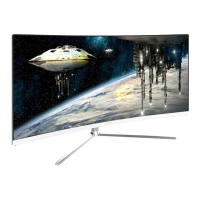

 To Next Page