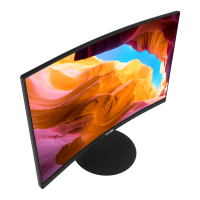
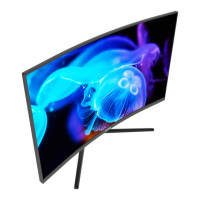
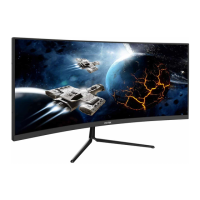
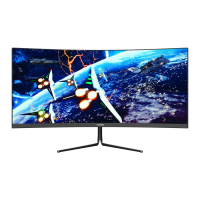
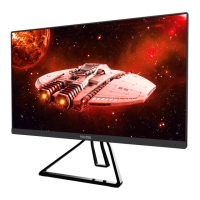
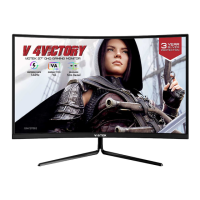
This document is a user manual for the Viotek NBV24CB2 Gaming Monitor. It provides comprehensive instructions for setting up, operating, and maintaining the monitor, along with safety precautions and troubleshooting tips.
The Viotek NBV24CB2 is a gaming monitor designed to provide an immersive visual experience for users. Its primary function is to display video output from a computer or other video sources, making it suitable for gaming, multimedia consumption, and general computing tasks.
Usage Features:
The monitor offers several features to enhance the user experience:
- On-Screen Display (OSD) Menu: Users can access and adjust various monitor settings through an intuitive OSD menu. This menu is activated by pressing the "M" button on the monitor.
- Luminance Settings: Adjust brightness and contrast to optimize visual clarity.
- ECO Modes: The monitor includes several ECO modes (Standard, EYES, Game, RTS, FPS, Movie) that allow users to quickly optimize display settings based on their current activity. "Standard" mode is recommended for most general use. These modes help in tailoring the visual output for specific content, such as reducing eye strain (EYES mode) or enhancing visibility in fast-paced games (Game, RTS, FPS modes).
- DCR (Dynamic Contrast Ratio): This function can be turned on or off to dynamically adjust the contrast for a more vibrant image.
- Image Setup: Users can set the aspect ratio (Wide, 4:3) to match the content being displayed.
- Color Setup: Customize color temperature (Warm, User, Cool, Normal) and individually adjust RGB components (Red, Green, Blue) to achieve desired color accuracy and personal preference.
- OSD Setup: Configure OSD language, horizontal and vertical position, timeout duration (how long the OSD remains open), and overall transparency.
- Reset Options: The OSD allows for auto-configuration of monitor settings, auto-setting of monitor color, and a full reset of monitor configurations to factory defaults.
- Input Select: Manually switch between available input signals (HDMI, VGA).
- Audio Controls: Mute audio, adjust audio volume, and enable or disable the FreeSync function.
- Volume Adjustment: A dedicated button allows for direct adjustment of the monitor's volume without navigating through the full OSD menu.
- Gameplus Modes: The monitor features Gameplus modes, accessible via the "E" button. These modes offer various crosshair icons designed to optimize aim in shooting games, providing a competitive edge. These icons can also serve other purposes depending on user preference.
- AMD FreeSync: This feature, though off by default, can be enabled to synchronize the monitor's refresh rate with the graphics card's frame rate, reducing screen tearing and stuttering for a smoother gaming experience. To use FreeSync, the user's hardware must be FreeSync-capable, connected via an HDMI cable, and have the latest graphic drivers installed.
- Connectivity: The monitor provides multiple input options, including HDMI and VGA ports, allowing connection to a wide range of devices. An audio output port is also available for connecting external speakers or headphones.
- Power Button and LED Indicator: A power button controls the monitor's on/off state. An LED indicator changes color to show the monitor's status: solid blue for normal operation (power on) and red for no video source, no signal, or low voltage.
Maintenance Features:
The manual emphasizes several safety and maintenance precautions to ensure the longevity and proper functioning of the monitor:
- Cleaning:
- Always unplug the monitor before cleaning.
- Use a dry cloth or a lightly damp cloth for cleaning. If using a damp cloth, ensure the monitor is completely dry before plugging it back in.
- Avoid using alcohol or ammonia-based cleaners and/or liquids directly on the monitor.
- Do not spray cleaner or any liquid directly onto the screen or any part of the monitor.
- Ventilation: The monitor has ventilation openings on the back. It is crucial to avoid blocking these openings to prevent overheating, which can damage the unit.
- Placement:
- Avoid placing the monitor near heat sources (e.g., portable heaters, heating vents) to prevent damage.
- Ensure the monitor is placed on a secure, level surface to prevent it from falling and sustaining damage.
- Handling:
- Do not insert anything into the monitor, especially the ventilation openings.
- Avoid placing heavy items on the monitor or its cables.
- Unplug the monitor during extended periods of non-use.
- Disassembly: Do not attempt to disassemble or remove parts from the monitor. Unauthorized disassembly or modification can lead to damage, exposure to high voltage electricity, and serious injury or death. Any such actions will also void the product's warranty.
- Troubleshooting: The manual includes a troubleshooting section to help users diagnose and resolve common issues such as a blank screen, out-of-focus image, flashing screen, color bleeding, indicator light malfunctions, "cannot plug and play" errors, dim images, image jitter/moire patterns, and incorrect image position or color. These solutions often involve checking cable connections, power sources, display settings, and ensuring proper device compatibility.

 Need help?
 General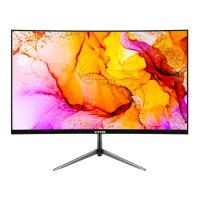

 To Next Page