15
The color bleeds or visual effects appear unusual.
• If your screen is all red or blue, or any colors disappear, check to see that the cable is
properly inserted. A loose connection can cause a bad signal.
• Try connecting to another video source for comparison.
The screen appears to be scrolling, rolling, or moving unusually.
• Check that your source frequency is within 120Hz.
• Reconnect and ensure your video cable is secure.
The indicator light does not work
• Check if the power is on.
• Make sure the power cable is properly connected to the monitor and power source.
Cannot plug and play.
• Check PC requirements to make sure it is compatible with the monitor.
• Check graphics card requirements to make sure it is compatible with the monitor.
Dim image
• Adjust the brightness and contrast ratio.
Image jitter/moire pattern
• Nearby electric equipment may be interfering with the monitor.
Light indicator is on or flashing, but there is no image displayed on screen
• Check if the monitor power is on.
• Check if the graphics card is installed properly.
• Make sure the power cable is properly connected to the monitor and power source.
Image position is not centered/the size is not right
• Please adjust Clock or Auto settings.
Color difference (colors are not optimized)
• Adjust RGB color settings or reset color temperature.
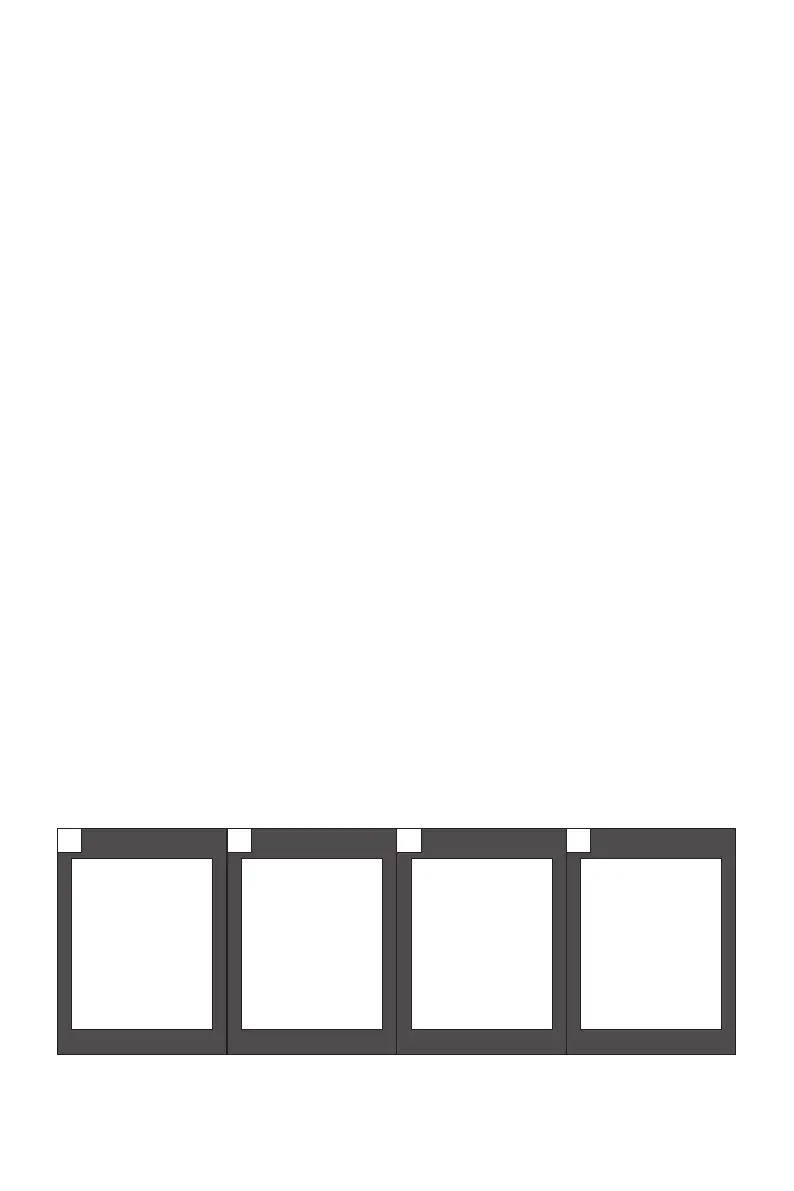
11.2 – PBP (Picture by Picture) Resolution Information
While using this feature and in order to obtain an optimal viewing experience, it is
recommended to set both panels to the same resolution.
It is recommended
to set the rst
panel to 1280 x
1440 @ 60Hz
resolution.
It is recommended
to set the rst
panel to 1280 x
1440 @ 60Hz
resolution.
It is recommended
to set the rst
panel to 1280 x
1440 @ 60Hz
resolution.
It is recommended
to set the rst
panel to 1280 x
1440 @ 60Hz
resolution.
1 2 3 4
At this resolution, image tearing and other visual artifacts should be minimized.


 To Next Page