Printing Visioneer
®
Rabbit™ PC30dwn
User Guide
53
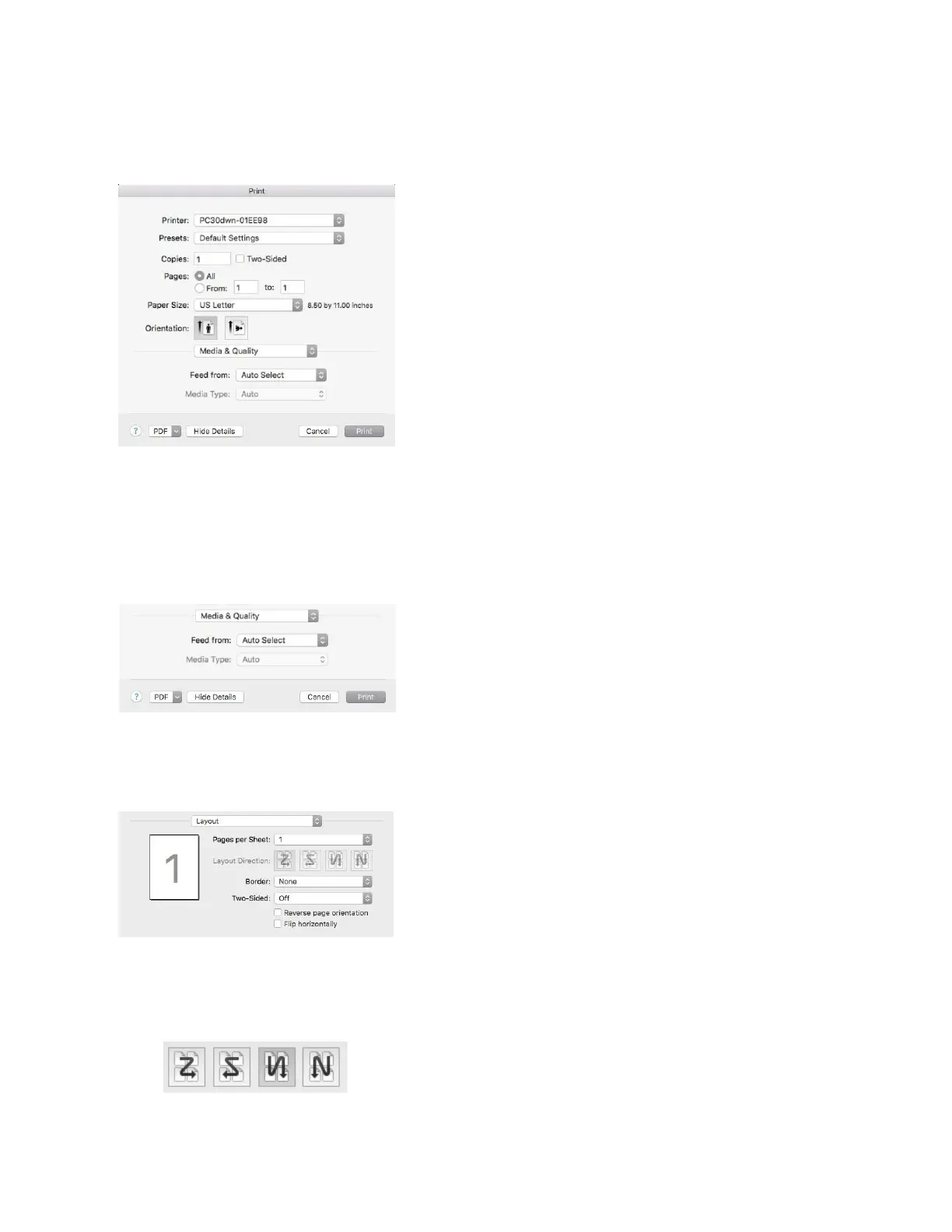
Mac OS PRINTER PROPERTIES
Main
Copies — print multiple copies of the document. Check Two-Sided to have the document printed on
both sides of the paper.
Pages — select All to print every page or specify the pages to print.
Orientation — change the orientation (portrait or landscape) of the printed documents.
Media & Quality
■
Feed from — specify to feed from the main paper tray or the manual feed
■
Media type — this feature is disabled for the Visioneer
®
Rabbit™ PC30dwn.
Layout
■
Pages per sheet — select the number of pages to be printed on a single sheet of paper. Select
between Off, 2 (2 pages-in-1), 4 (4 pages-in-1), 9 (9 pages-in-1), 16 (16 pages-in-1).
■
Layout Direction — select the layout direction you want when printing multi-page document on a
single sheet (Right, then Down/Down, then Right/Left, then Down/Down, then Left).
■
Border — select to add border around each page when printing more than one page on a single
sheet of paper.


 To Next Page