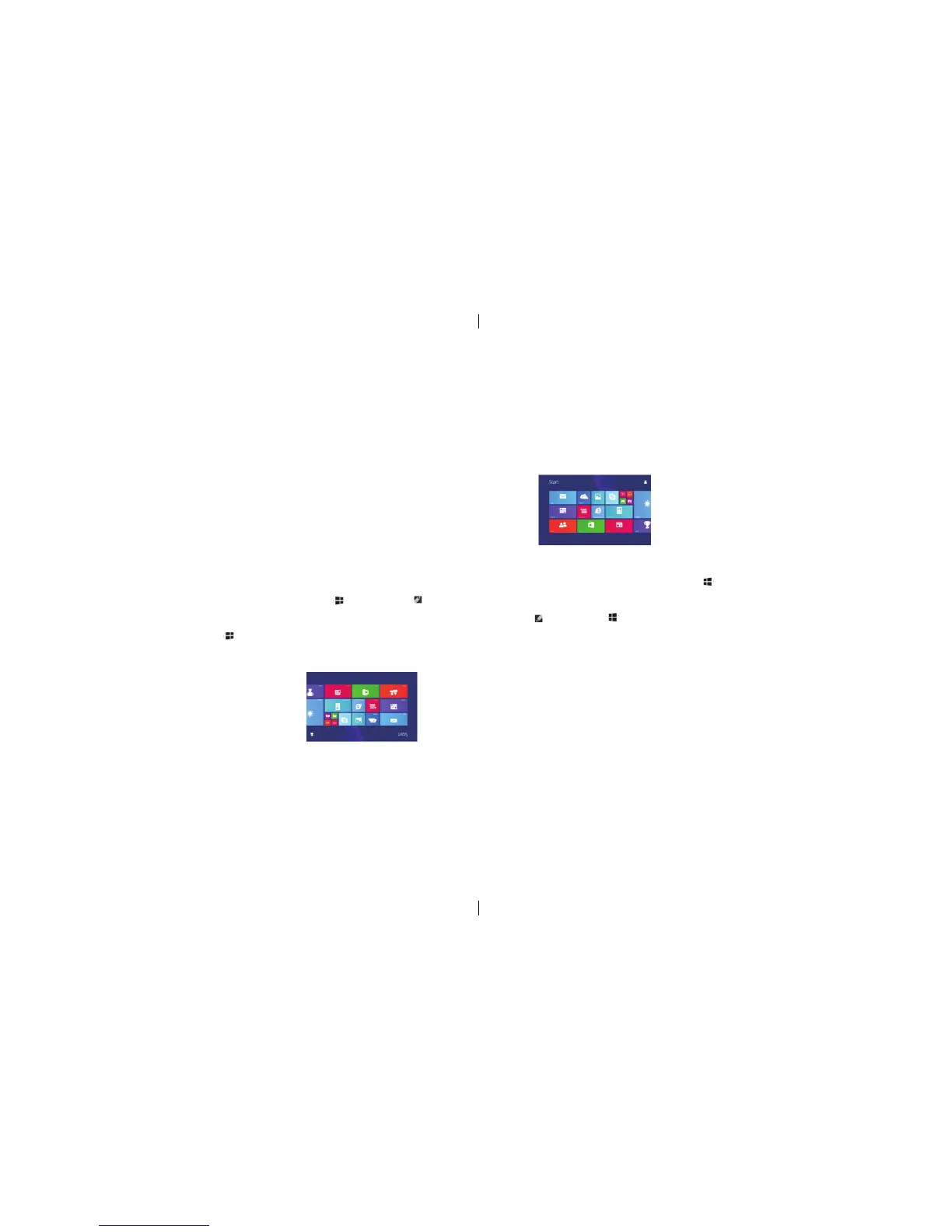
Visit the “Start” screen
** When your computer boot into Windows, will appear by default “Start” screen.
From any other window or application to access the “Start” screen, use any of the following methods:
• Press Windows button
• Swipe from the right edge of the screen to access the super button then click start icon.
*** If you are on the “Start” screen, press the Start icon will take you to recently used application Program
or recently viewed content.
* Note: Start icon and Windows button have the same functionality.
Swipe screen towards left
• Swipe from the right edge of the screen to access the super button inward . Super button provides com-
mands for system Access orders , such as start , search , share , devices and settings options.
* • Swipe from the Start screen to end of left will pop up “Applications” icon. click the application icon to
display applications list installed in Tablet which ordered in alphabetical.
Swipe screen towards right
• Swipe screen fast from the left edge to inward to switch currently running application program.
• Swipe screen fast from the left edge to inward to display currently running application program thumbnail.
swipe screen fast from the left edge to inward to display recently running application program list.
Swipe screen towards left/right
*• From the Start screen , from the top or bottom edge of the screen or swipe inwards to display a custom icon.
Custom finishing touch can be magnetically attached to the start screen.
• From the top of the application can be docked to the bottom swipe inward or close the application.
Visitez l’écran “Démarrer”
** Quand vous rentez dedans Windows, c’est automatiquement mis au “Démarrer” pas défaut. De toute
autre fenêtre ou autre application vous pouvez accéder l’écran “Démarrer”, en utilisent une des méthodes
suivantes:
• Appuyez sur le bouton de Windows
• Glisser au bord de l’écran à la droite de l’écran pour accéder au bouton de super ensuite cliquez sur ’icône
Démarrer.
*** Si vous êtes sur l’écran “démarrer” appuyez sur Start, icône vous amène à Programme d’application
récemment utilisée ou le contenu consulté récemment.
* Note: icône Start et le bouton de Windows ont la même fonctionnalité.
Glisser l’écran vers la gauche
• Passez du bord de la droite de l’écran pour accéder au bouton de super intérieur. Bouton de Super fournit
les commandes d’accès au système, telles que le démarrage, recherche, les dispositifs et les options de
paramètres.
* • Sur la page Démarrer, glisser jusqu’a la gauche et l’icone “Application” apparaîtra. cliquez sur l’icône de
l’application pour afficher la liste des applications installées dans la tablette par ordre alphabétique.
Glisser écran vers la droite
• Vitement glisser à partir du gauche à l’intérieur pour changer les applications qui sont déja ouvert.
• Vitement glisser à partir du gauche à l’intérieur pour voir les application qui sont ouverte inci une liste des
application qui sont ouverte.
Écran de glisser vers la gauche / droite
*• En commencant de l’écran de démarrage, à partir du bord supérieur ou inférieur de l’écran, glisser vers
l’intérieur pour afficher l’icon peronaliser. Ceci peut être attachés sure l’écran de démarrage.
11
11


 To Next Page