Using the PC tablet:
WI-Fi setting
On/off Wi-Fi.
1 Swipe from the right edge of the screen to access the super button icon.
2 touch settings internet icon .
3 Swipe Wi-Fi icon towards left or right to turn on or off Wi-Fi.
Connected to Internet.
1 Swipe from the right edge of the screen to access the super button icon.
2 touch setting available .
3 Select an available network from the list and get connected.
Gesture:
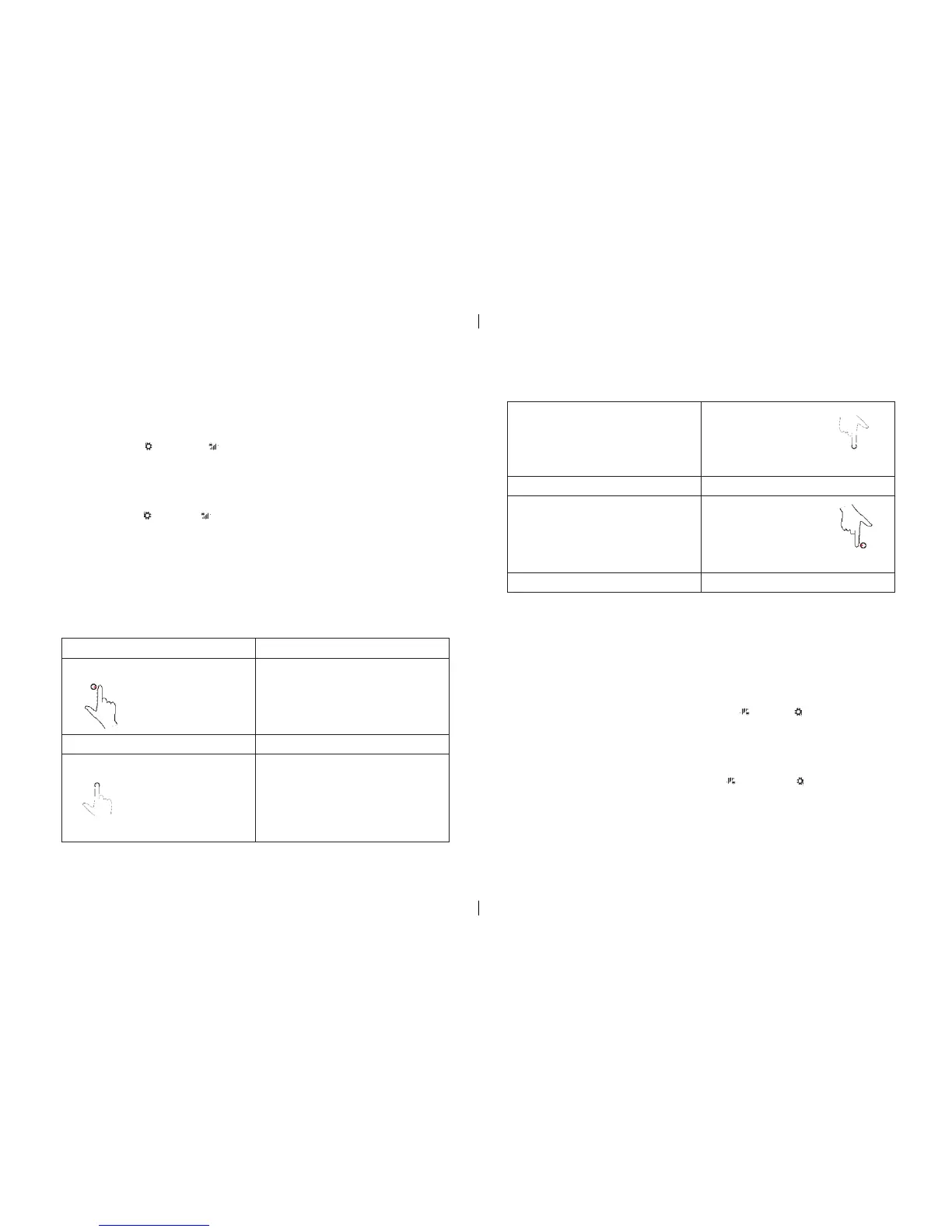
This tablet‘s LCD is multi-touch. You can operate tablet via the click screen of Tablet.
Finger gesture touch You can do
Use ngertips to gently clicking on the display. • Select an item on the screen , including options,
entries , images and icons.
• Start the application .
• Touch a button on the screen.
• Use the on-screen keyboard to enter text.
Finger gesture touch You can do
Press your finger on the display for 2 second. • Display detailed information about a project.
• Open the context menu of a project for further action.
Utilisation de la tablette:
Paramètre Wi-Fi
Marche / arrêt Wi-Fi.
1 Faites glisser au bord de la droit de l’écran pour accéder à l’icône du bouton super.
2 réglages tactiles icône d’internet .
3 Faites glisser l’icône Wi-Fi vers la gauche ou la droite pour activer ou désactiver une connexion Wi-Fi.
Connecté à Internet.
1 Faites glisser au bord de la droit de l’écran pour accéder à l’icône du bouton super.
2 réglages tactiles disponible .
3 Sélectionnez un réseau disponible dans la liste et connecté.
Geste:
L’écran LCD de cette tablette est multi-touch. Vous pouvez utiliser tablette via l’écran de clic de Tablet.
Finger geste tactile Vous pouvez faire
Utilisez les doigts pour cliqué le doucement sur l’écran. • Sélectionnez un élément sur l’écran, les options, vos
entrées, des images et des icônes.
• Commancer l’application.
• Appuyez sur un bouton sur l’écran.
• Utilisez le clavier surel’écran pour saisir du texte.
Finger geste tactile Vous pouvez le faire
Appuyez votre doigt sur l’écran pendant deux secondes. • Afficher des informations détaillées sur un projet.
8
8


 To Next Page