4 Locating
Page 30 of 33
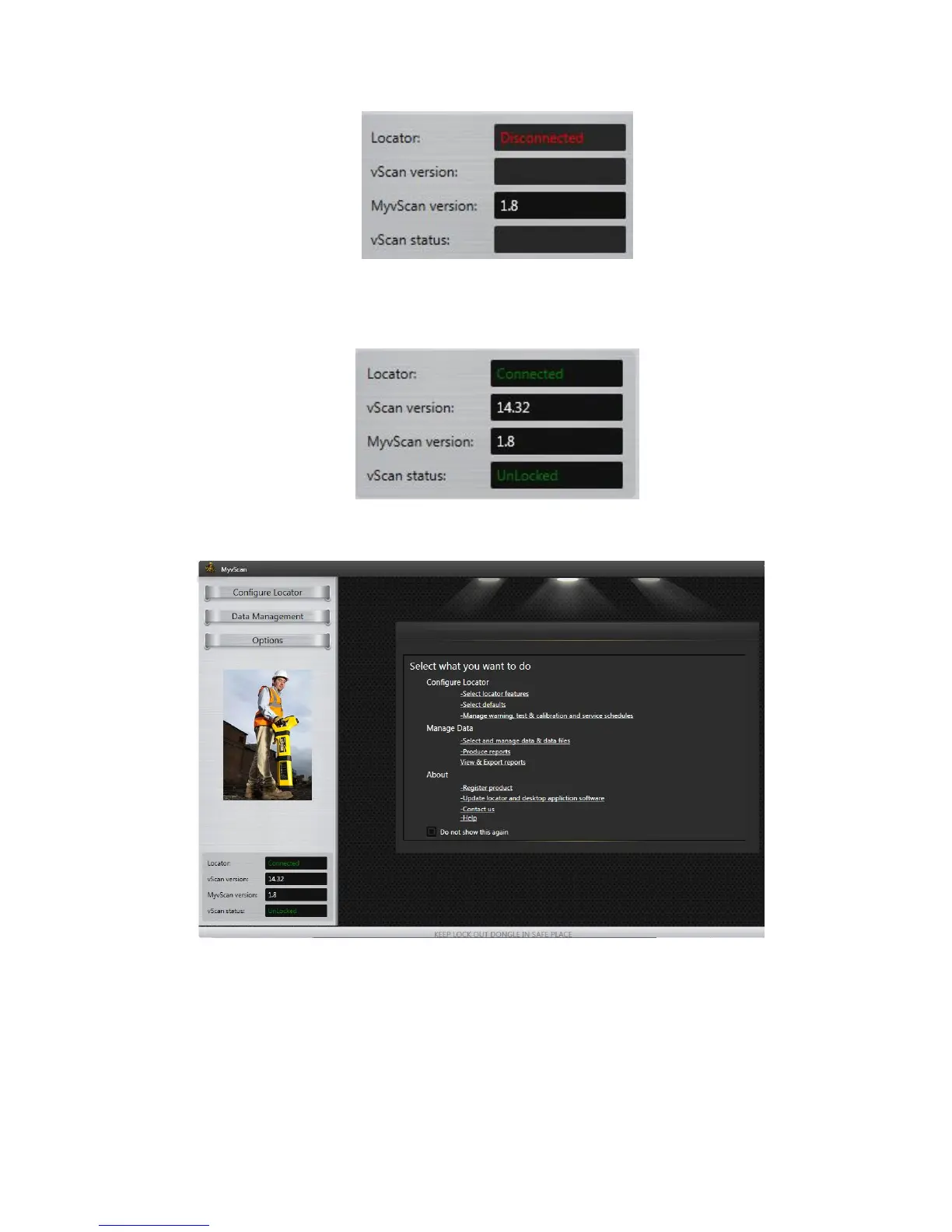
With the locator switched off the bottom left of the home screen will show the above.
Switch on the locator and the text will turn Green and display “Unit Connected” as below. Note that the
software revision of MyvScan (not to be confused with the locator software) will also be displayed together
with the vScan lock status. To unlock or lock the vScan requires the use of the Lockout Dongle.
4.12.2 Navigating around MyvScan
When MyvScan is first launched you will see the home page as below:
The screen is split into two main areas:
To the left you have the three main options:
- Configure Locator
- Data Management
- Options (Note that a red dot will appear on the Options bar if a software update is available)
To the right is a first time use page that helps describe the features available. Checking the “Do not show
this again” box will prevent it from displaying on future switch-on’s.
Clicking one of these will also reveal a sub menu relating to these topics.
To the right the black area is your work area relating to the selection you have made on the left.


 To Next Page