■ Keep current value
Follow the steps below to manually set the white balance to compensate for the ambient lighting
conditions�
1� Set the White balance to Auto and click Save�
2. Place a sheet of white paper in front of the lens; then allow the Network Camera to adjust the color
temperature automatically�
3. Select Keep current value to conrm the setting while the white balance is being measured.
4� Click Save to enable the settings�
You can click Preview to fine-tune the image, or click Restore to recall the original settings without
incorporating the changes� When completed with the settings on this page, click Save to enable the
settings and click Close to exit the page�
Privacy Mask
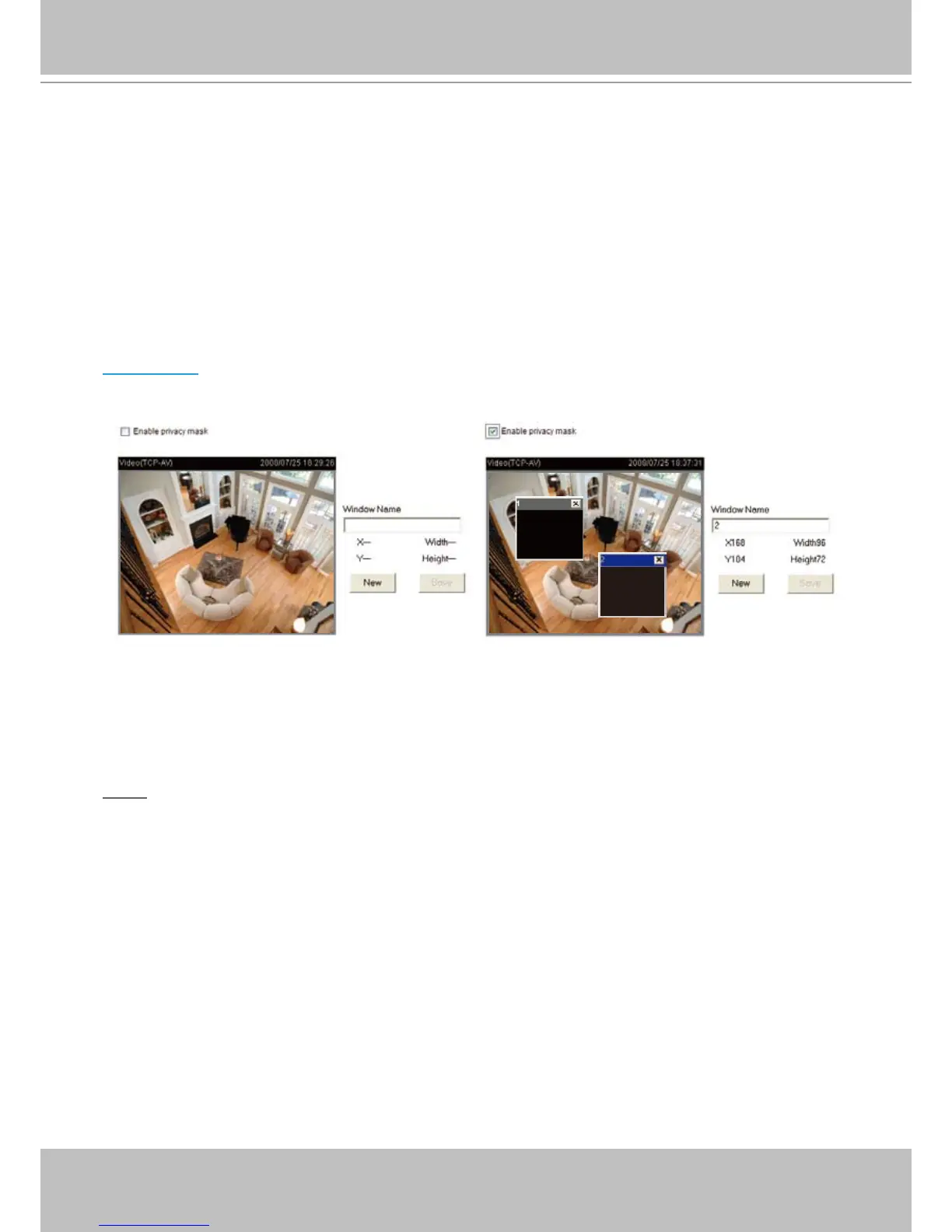
Click Privacy Mask to open setting page. On this page, you can block out sensitive zones to address
privacy concerns�
■ To set the privacy mask windows, follow the steps below:
1� Click New to add a new window�
2. Use the mouse to size and drag-drop the window, which is recommended to be at least twice the size
of the object (height and width) you want to cover�
3� Enter a Window Name and click Save to enable the settings�
4� Select Enable privacy mask to enable this function�
NOTE
► Up to 5 privacy mask windows can be set up on the same screen.
► If you want to delete the privacy mask window, please click the ‘x’ on the upper right-hand corner of
the window�



 To Next Page