3
15
VBR337
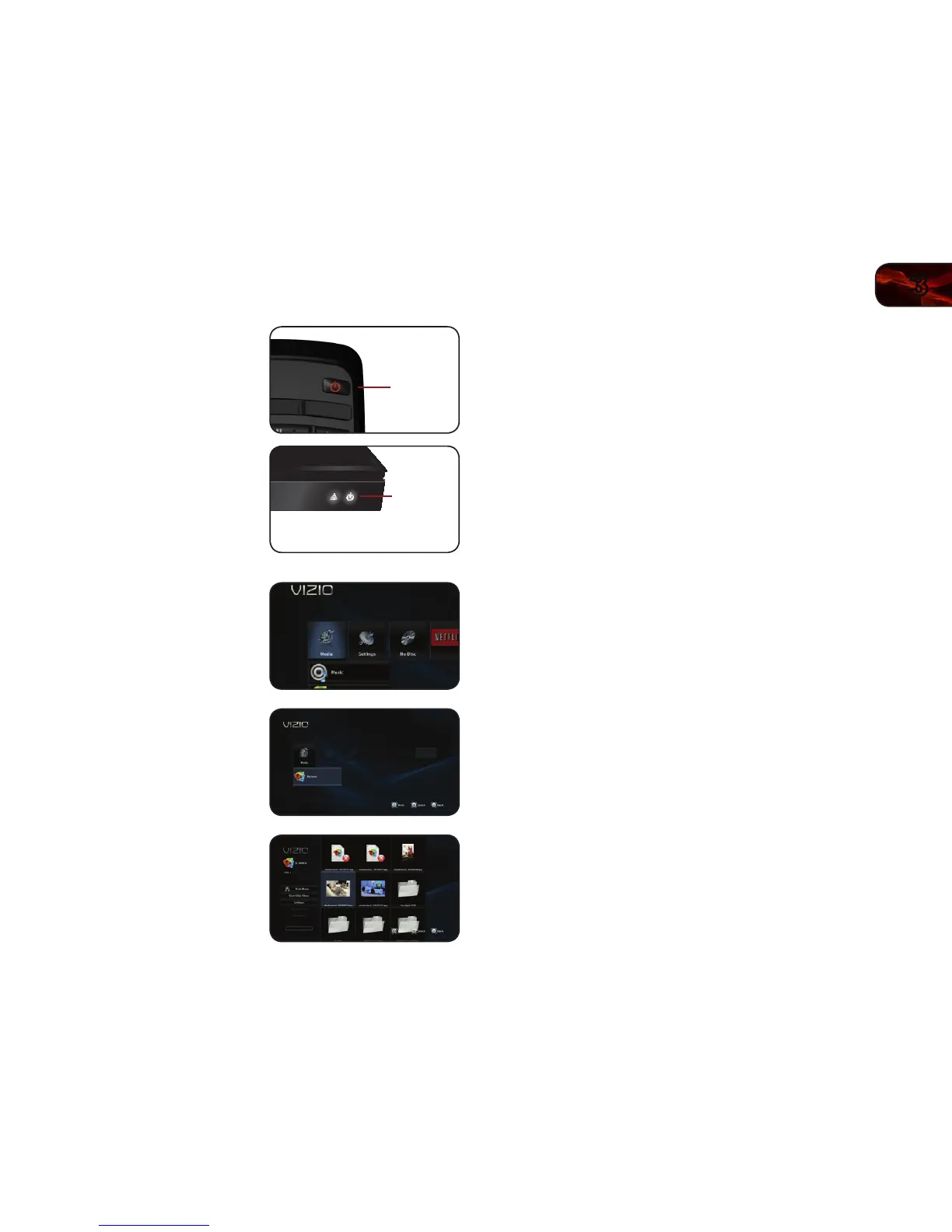
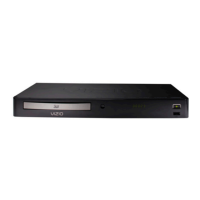
3. Press the Power button on the remote
or press the Power button on the front
of the player to turn it on.
4. Use the Arrow buttons on the remote
to highlight Media, then press
SELECT.
5. Use the Up/Down Arrow buttons
to highlight Pictures, then press
SELECT.
6. Use the Arrow and SELECT buttons
on the remote to locate your photo
folder in the le browser.
Highlight Start Slide Show and press
SELECT. The slide show begins to
play.
Adjusting the Slide Show Settings
The slide show settings can be adjusted to make your presentations more exciting.
To adjust the settings:
1. Highlight Settings in the Pictures le browser screen and press SELECT.
2. Adjust the settings:
• Slide Show Effects - Change the transition between slides. Choose
from Horizontal Scroll, Fade, Shutter, and None.
• Slide Show Delay - This setting adjusts the amount of time each slide
is displayed. Choose from 1, 2, 5, 10, 15, and 30 seconds. If you want
no delay between slides, choose No Delay.
3. When you have adjusted the settings, highlight OK and press SELECT.
The Settings menu closes.
4. Start your slide show by highlighting Start Slide Show and press SELECT.
Power
Power


 To Next Page