26
4
VBR337
Changing the System Settings
The System menu allows you to customize autoplay, power, screen saver, and
network settings. From this menu, you can also reset the player to its factory
defaults.
To access the System menu:
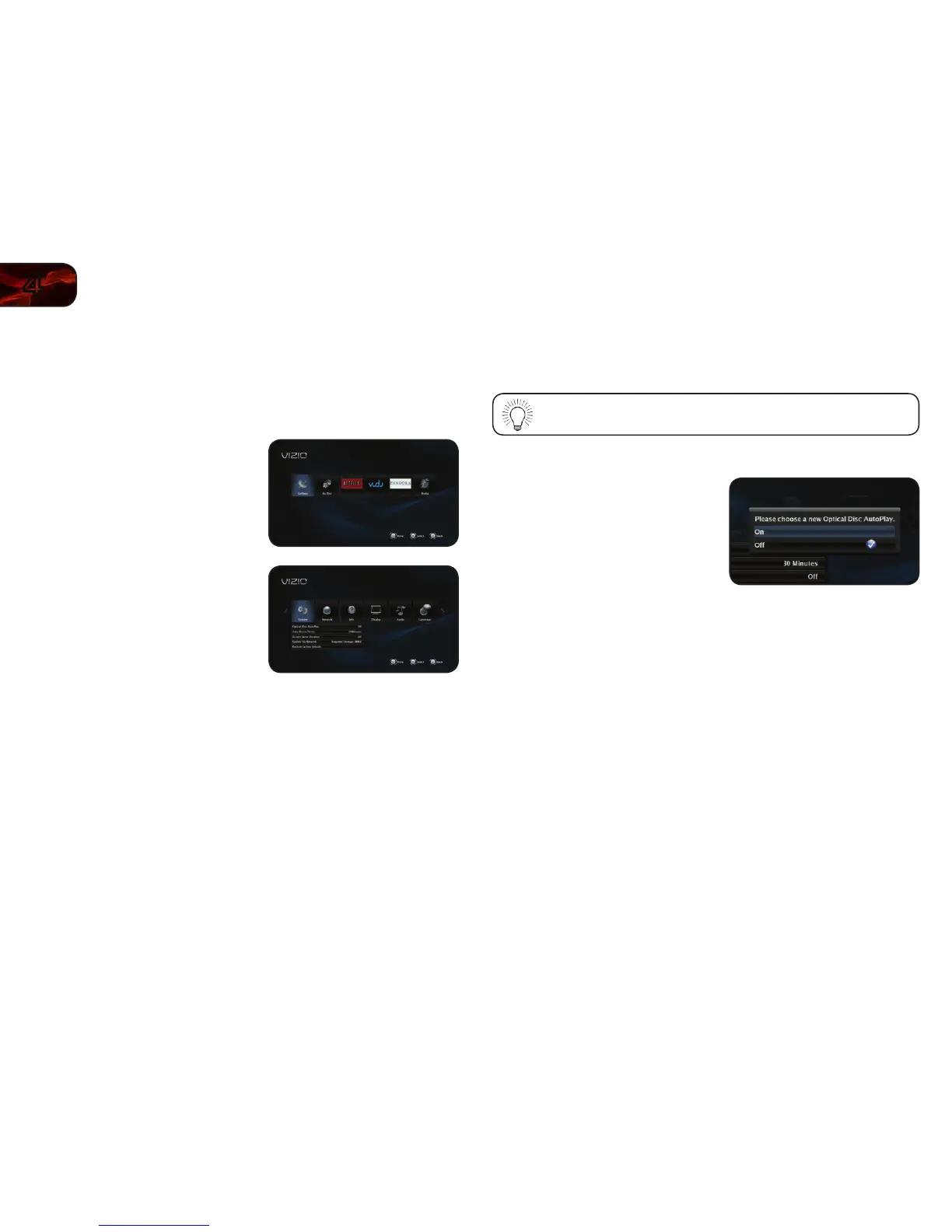
1. Turn on the player and your TV. Use
the Arrow buttons on the remote to
highlight Settings and press OK.
The Settings menu is displayed.
2. Use the Arrow buttons on the remote
to highlight System and press OK.
The System drop-down menu is
displayed. Your current settings are
displayed to the right of each menu
option.
Activating or Deactivating Disc Autoplay
When this option is activated, the player will automatically play an inserted disc.
When this option is deactivated, you will need to select Play Disc to play a disc.
Autoplay does not mean that the player will start a movie. The disc
will load and usually the disc’s main menu will be displayed.
To Activate/Deactivate Disc Autoplay:
1. From the System menu, use the Up/
Down Arrow buttons on the remote to
highlight Optical Disc Autoplay and
press OK.
2. Using the Up/Down Arrow buttons
on the remote, highlight On or Off and
press OK.


 To Next Page