INTERNET MAP
}}
107
Internet map
13
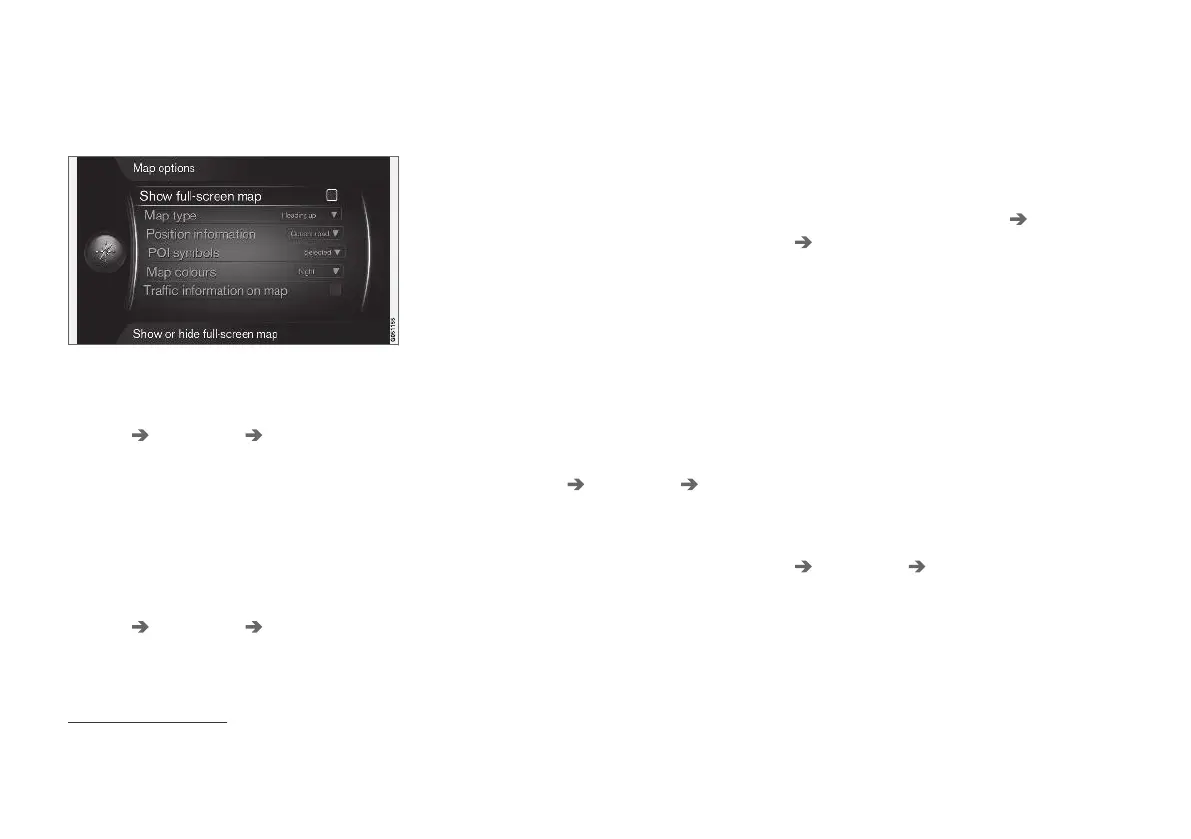
- map options
Settings for different map options.
Full screen map
To show the map in full screen, in the normal
view for the source, press OK/MENU and select
Settings Map options Show full-screen
map
. Highlighted option + OK shows the map
across the whole screen without other car-rela-
ted information, such as passenger compartment
temperature or active radio transmitter in the
lower and upper edge of the screen.
Map mode compass direction
To set compass direction, in the normal view for
the source, press OK/MENU and select
Settings Map options Map type.
This is where to select how the map should be
shown on the screen. Activate the desired option
with OK.
•
North up - the map is always shown with
North at the top of the screen. The car sym-
bol moves in the current compass direction
on the screen.
•
Map heading up - the car symbol is in the
centre and is always pointing upwards on the
screen. The map image rotates under the car
symbol in relation to how the road turns.
•
3D Heading up - same as Map heading
up but 3D map. Display varies depending on
zoom.
Information about current position
To set the information about current position, in
the normal view for the source, press OK/MENU
and select
Settings Map options
Position information.
Activate the desired option with OK.
•
Current road - the screen shows the name
of the road/street where the car/cursor is
located.
•
Lat/Long - the screen shows the coordi-
nates of the location where the car/cursor is
located.
•
None - the screen shows no information for
the location where the car/cursor is located.
Point of interest (POI) on the map
To set which POI options should be shown on
the map, in the normal view for the source, press
OK/MENU and select
Settings Map options
POI symbols.
This is where to specify which POI options should
be shown on the map. Activate the desired option
with OK.
•
Default - POI options specified with the
function Selected are shown.
•
Selected - select with the TUNE knob + OK
for each POI option required on the screen.
•
None - no POI options are shown.
For examples of POI, see Internet map - points of
interest (POI) symbols (p. 104).
Map colours
To set map colours, in the normal view for the
source, press OK/MENU and select
Settings
Map options Map colours.
Activate the desired option with OK.
13
Applies to certain markets.



 To Next Page