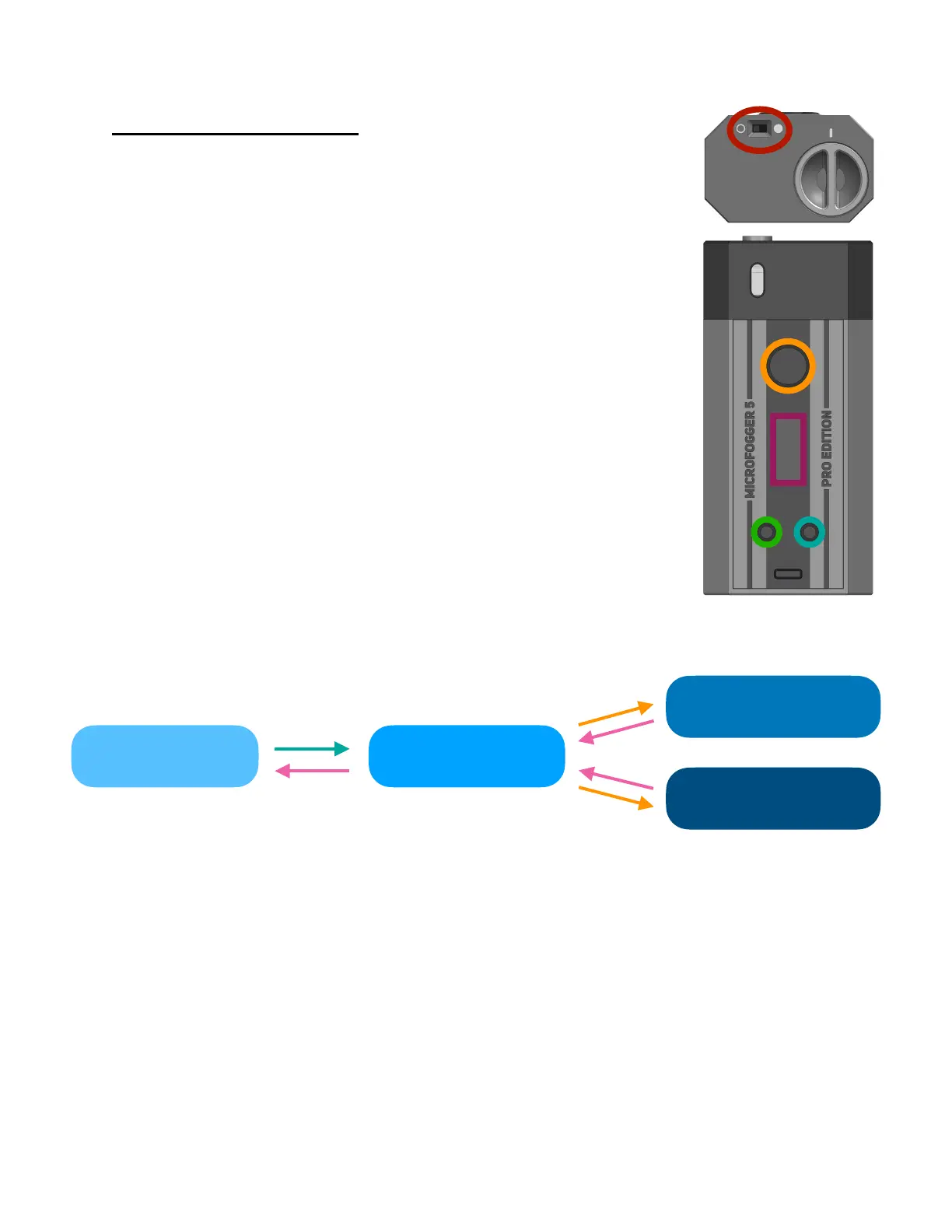
On-board user interface
Switch
Slide to the right to turn device on, slide left to turn off
Smoke button
-Hold to begin smoke production, let go to stop
-Press once to return to previous screen in menu
Mode button
-Press to change between smoke density / speed adjustment
-Hold to enter the settings menu
-In settings menu, press to cycle through settings
Select button
-Press to cycle through smoke density/speeds on home screen
-Press to configure individual settings in menu
-Hold on some settings to quickly cycle through values
Screen user interface
The on-board screen allows you to change the MicroFogger’s power
levels and adjust various advanced settings. The overall structure of
the menu is as shown:
Home Screen
Here, you can cycle through smoke density levels by pressing the select button while
the right bar is highlighted. To highlight and adjust the left airflow power bar, press the
mode button. Hold the smoke button to see how changes affect smoke production in
real-time.



 To Next Page