6 OPERATION
6.1 Video Recording
1) Normal Video Mode
It starts video recording automatically when power on, the LED indicator will flash slowly. Stop
recording automatically when power off (still keep recording around 3 minutes for smart power
cable), to stop recording manually by pressing the ‘Menu/OK’ button.
Loop on (by default): Loop recording mode continuously records videos to create footages of
assigned length of time (default setting: 3 minutes). If the memory reaches maximum, then
the oldest footage will be deleted to store the most recent footage. Set the video clip time in
the dash cam configuration or Wi-Fi app.
Loop off: It records as 30 minutes per clip for both front and rear camera without overwriting
until the memory reaches maximum and then stop.
NOTE: You cannot record videos without a micro SD card.
2) Emergency Video Mode
G-Sensor Event Recording: It will automatically activate emergency recording mode when
detecting a collision. The LED indicator will flash quickly.
It will save a video file named ‘’GSR 001 002 003….’’
Manual Event Recording: Press the emergency button of wired remote during the recording
to manually activate emergency recording mode. The LED indicator will flash quickly.
It will save a video file named ‘’KEY 001 002 003….’’
NOTE: Video files recorded in emergency mode are protected from being overwritten.
6.2 System Setup
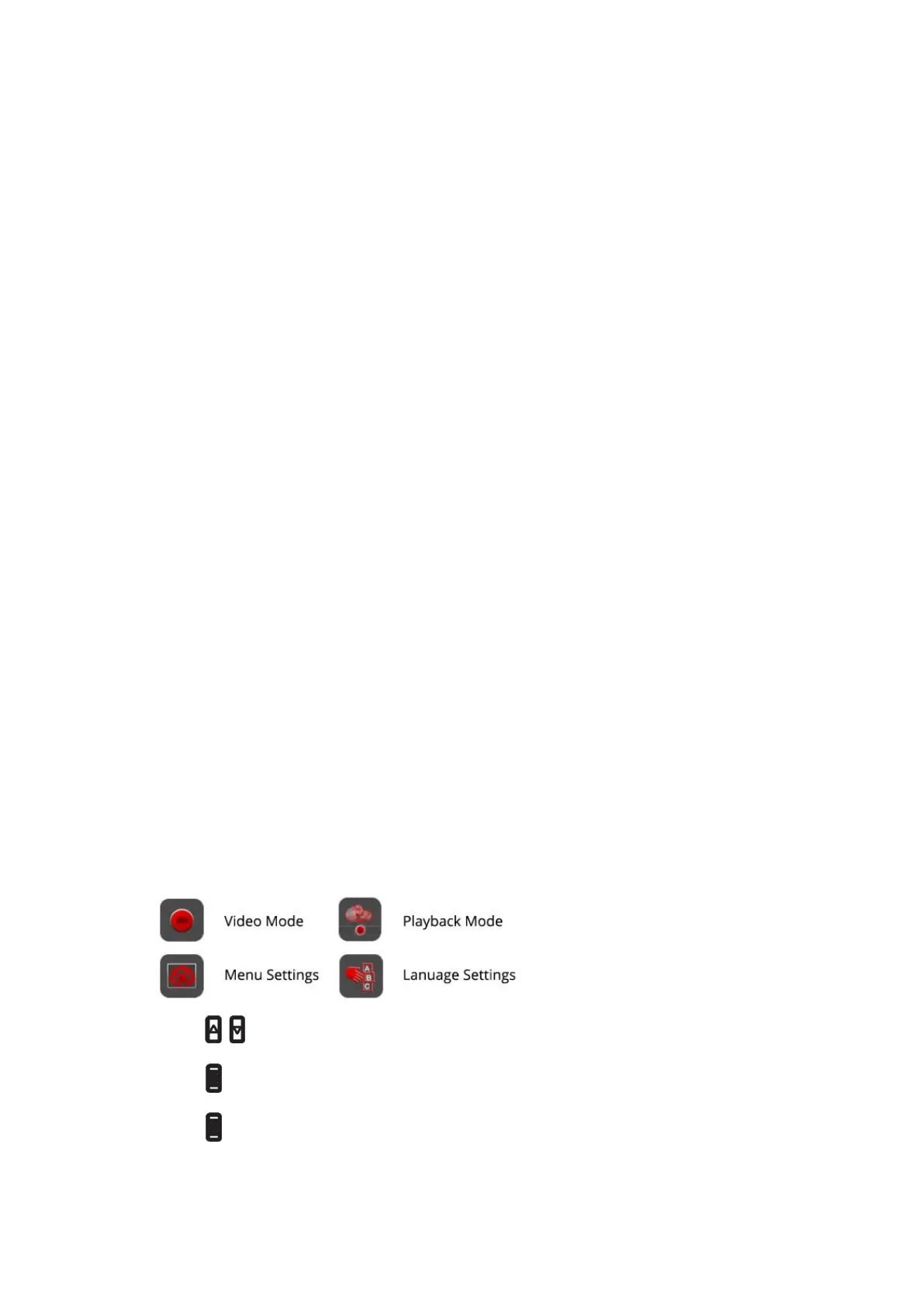
Press the ‘Menu/OK’ button to stop recording (enter standby mode) before setup the system,
and press the ‘Menu/OK’ button again to enter menu system.
1) Press to select different options.
2) Press to confirm the options or settings.
3) Press to enter menu or quit menu settings.


 To Next Page