EasyManua.ls Logo

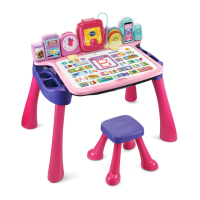
VTech Get Ready for School Learning Desk - User Manual

VTech Get Ready for School Learning Desk
22 pages
Print Icon
To Next Page IconTo Next Page
Loading...
Instruction Manual

Questions and Answers

  • J
    Jason HowardAug 13, 2025
    What to do if Projection Reel inserted is not recognized on VTech Get Ready for School Learning Desk?
    • K
      Kenneth McknightAug 14, 2025
      If the Projection Reel inserted into your VTech Toy is not recognized, ensure that the Projection Reel is fully inserted. Also, verify that nothing other than the Projection Reels are inserted into the slot.
  • G
    Gina ShafferAug 17, 2025
    Why does my VTech Get Ready for School Learning Desk Toy give an incorrect response?
    • N
      Nicholas RoyAug 17, 2025
      If your VTech Toy is giving an incorrect response, there are a few potential reasons. First, try reloading the batteries to reset the main unit. If that doesn't work, the batteries may be exhausted, so replace them with a new set. Also, humidity may cause interference, so ensure the unit is in a dry area.
  • M
    mark77Aug 21, 2025
    What to do if the Touch Panel gives an incorrect response on my VTech Get Ready for School Learning Desk Toy?
    • B
      brittney30Aug 21, 2025
      If the Touch Panel on your VTech Toy is giving an incorrect response, make sure you are touching it with only one finger and not touching it in any other way.
  • C
    Chris CollinsAug 25, 2025
    How to fix VTech Toy when the main unit is ON but the Touch Panel does not respond?
    • J
      Jorge BarberAug 25, 2025
      If the main unit of your VTech Toy is on but the Touch Panel isn't responding, first, ensure you're not in the Writing Pad or Picture Tracing modes, as the Touch Panel (except for Mode and Help icons) is inactive during these activities. Also, make sure you're only touching the Touch Panel with one finger and not using the Stylus or other objects simultaneously.
  • H
    holmesnathanAug 29, 2025
    What to do if Picture Tracing or Projector Game gives unmatched audio responses on VTech Get Ready for School Learning Desk Toy?
    • W
      warrenteresaAug 29, 2025
      If the Picture Tracing or Projector Game on your VTech Toy provides audio responses that don't match the projection, ensure the matched Projection Reel is fully inserted into the Projector.
  • Z
    zcrawfordSep 1, 2025
    Why does the Writing Pad activity start automatically on my VTech Toy?
    • N
      nmckinneySep 1, 2025
      If the Writing Pad activity on your VTech Toy starts automatically, it might be due to direct light impacting the Writing Pad's sensitivity. Ensure you are not playing with the unit next to a window or in direct sunlight. Also, place the Stylus back in its holder when not in use.
  • J
    Jose SmithSep 5, 2025
    Why is Writing Pad activity interrupted by instruction voice on my VTech Get Ready for School Learning Desk?
    • J
      Juan ChangSep 5, 2025
      If the Writing Pad activity on your VTech Toy is interrupted by the instruction voice, it could be due to direct light affecting the Writing Pad's sensitivity. Ensure you're not playing near a window or in direct sunlight. Also, remember to place the Stylus back in its holder when not in use.
  • A
    angelapinedaSep 9, 2025
    Why doesn't my VTech Toy shut off automatically?
    • J
      Jennifer ColemanSep 9, 2025
      If your VTech Toy isn't shutting off automatically after 10 minutes of inactivity, make sure the Stylus is placed back in its holder when not in use. Also, ensure that no capacitive objects are on the Touch Panel.

Summary

INTRODUCTION

Included in the Package

Lists all items included with the Get Ready for School Learning Desk.

Safety Warning

Cautionary note regarding disposal of packing materials for child safety.

Manual Save Reminder

Advises users to keep the instruction manual for important information.

PRODUCT FEATURES

Interactive Display and Writing Pad

Features the LED display and writing pad for interactive learning and tracing.

Interactive Projector

Projects images for tracing and games, with focus adjustment.

Music Player Controls

Allows playback and control of music melodies.

Pretend Clock and Time Learning

Features a clock for learning time concepts.

ASSEMBLY INSTRUCTIONS

Desk Assembly

Step-by-step guide for assembling the desk base and legs.

Stool Assembly

Instructions for assembling the stool legs into the seat.

Desk Transformation Features

Art Station and Chalkboard

Use as an art station or chalkboard for creative activities.

Activity Card Holder

Flip up touch panel to store activity cards.

Product Features and Actions

Interactive Learning Features

Covers Roller & Slider, Pretend Clock, and Activity Page Modes for learning.

Writing and Drawing Functions

Utilizes LED Display/Writing Pad, Touch Panel, Stylus, and Clips for creation.

Media and Control Functions

Includes Music Player, Volume, and Power controls for device operation.

Projection System Usage

Details Projector Reel Slot, Focus Adjustor, and Reel Rack for projection.

GETTING STARTED

Battery Removal and Installation

Guide for inserting and removing AA batteries for power.

Important Battery Information

Guidelines for battery usage, mixing, and safe disposal.

TO BEGIN PLAYING

Touch Panel Interaction

How to interact with the touch panel and activity pages for gameplay.

Writing Pad Usage Notes

Specific notes on using the Writing Pad with the stylus for best results.

Writing Pad Operation

Writing Pad Usage Guide

Instructions for using the Writing Pad with the stylus for writing practice.

Writing Pad Precautions

Precautions and tips for optimal Writing Pad performance and care.

Projector Activities

Picture Tracing

Learn to draw by tracing projected outlines using crayons or markers.

Projector Games

Play games using projected images and activity pages.

Projector Game Guide

Projector Game Operation

How to play projector games with matching reels and pages for interactive fun.

Projector Game Notes

Important notes for proper projector game functionality and image display.

Interactive Activities

Music Player and Sound

Play and control music melodies on the device.

Clock and Time Learning

Learn time concepts with the pretend clock feature.

Roller & Slider for Learning

Learn days of the week and weather using the roller and slider.

Photo Frame Usage

Use template for sizing and placing photos or art in the frame.

Battery and Card Management

Battery Status and Auto Shut-Off

Monitor battery levels and understand automatic power-off feature.

Activity Card Handling

Proper insertion and care for activity cards to ensure detection.

Alphabet & Letter Sounds

Alphabet Learning Activities

Covers Touch & Learn, Searching Fun, Letter Guessing, Alphabet Song for letter skills.

Numbers & Counting

Number Learning Activities

Covers Touch & Learn, Searching Fun, Number Guessing, Counting Game for number skills.

Music Jammer

Music Learning and Creation

Learn music styles, instruments, and create music with the jammer.

Shapes & Colors

Shape and Color Learning

Learn shapes and colors through interactive activities and projector games.

TROUBLESHOOTING

Unit Power and Card Issues

Solutions for main unit not turning on or activity card not recognized.

Touch Panel and Writing Pad Troubleshooting

Touch Panel Responsiveness

Solutions for touch panel not responding or giving incorrect input.

Writing Pad Operational Problems

Solutions for writing pad not working or auto-entering activity.

Projection and General Troubleshooting

Projection Reel and Audio Issues

Solutions for projection reels and unmatched audio responses.

Unit Malfunction and Environment

Solutions for general unit malfunctions and humidity effects.

CARE & MAINTENANCE

General Care and Storage

Guidelines for cleaning, storing, and protecting the unit and cards.

Battery Removal for Storage

Remove batteries for extended periods of non-use to preserve them.

Projection Reel Cleaning

Instructions for cleaning projection reel film carefully.

TECHNICAL SUPPORT

Troubleshooting Steps and Reset

Steps to resolve malfunctions by resetting or replacing batteries.

Contacting Consumer Services

Information on how to contact VTech for product support.

FCC Compliance Information

Device Compliance Details

Details on FCC rules, compliance, and interference regulations for the device.

VTech Get Ready for School Learning Desk Specifications

General IconGeneral
Batteries RequiredYes
Batteries IncludedYes
LanguageEnglish
Recommended Age2 - 5 years
FeaturesInteractive learning activities, music, and lights
Power SourceBattery
TypeLearning Desk

Related product manuals