EasyManua.ls Logo

Walchem WebMaster - User Manual

Walchem WebMaster
73 pages
Print Icon
To Next Page IconTo Next Page
Loading...
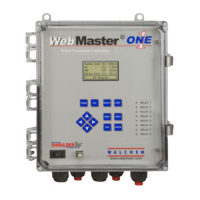
WebMaster
®
/WebAlert
®
USB Style
Quick Start Guide
W A L C H E M
IWAKI America Inc.
WebMaster
®
/WebAlert
®
Quick Start Guide
Five Boynton Road Hopping Brook Park Holliston, MA 01746 USA
TEL: 508-429-1110 FAX: 508-429-7433 WEB: www.walchem.com

Other manuals for Walchem WebMaster

Questions and Answers

  • A
    Andrew StewartSep 23, 2025
    What causes 'this device can work faster' message with no Local Area Connection 2 on Walchem Controller?
    • M
      matthew63Sep 23, 2025
      If you receive the message 'this device can work faster' but no Local Area Connection 2 appears on your Walchem Controller, it suggests that the driver in your PC has crashed. This can occur when the Controller Restart button is clicked with the USB cable connected. Reboot your PC. If a blue screen appears on restart attempt, a hard reboot may be necessary. Alternatively, the driver in your PC may be corrupt; in this case, uninstall and reinstall the driver.
  • L
    Lisa GilesAug 23, 2025
    What to do if there is a faulty controller sensor input in Walchem WebMaster?
    • E
      elizabeththompsonAug 23, 2025
      If you suspect a faulty controller sensor input in your Walchem Accessories, start by going to the Sensor Input Page and running a self-test. If the test passes, the issue likely lies with the sensor or its wiring. If the self-test fails, disconnect the sensor from the circuit board and try the self-test again. If failure persists, consider replacing the circuit board.
  • S
    sabrinanewtonAug 25, 2025
    What to do if there is no electrolyte fill solution in the membrane cap of Walchem WebMaster?
    • D
      Dr. Marcus OrrAug 26, 2025
      If there's no electrolyte fill solution in the membrane cap of your Walchem Accessories, refill the membrane cap with electrolyte. If the cap won't hold the solution, replace it.
  • D
    dweaverAug 27, 2025
    What to do if there are air bubbles on the membrane of Walchem WebMaster Accessories?
    • J
      Joshua PaceAug 27, 2025
      If you notice air bubbles on the membrane of your Walchem Accessories, dislodge the bubbles. If necessary, increase the flow rate.
  • J
    Jared HammondAug 27, 2025
    What to do if there is insufficient sample flow in Walchem WebMaster Accessories?
    • K
      Kyle SmithAug 27, 2025
      If you have insufficient sample flow in your Walchem Accessories, increase the flow rate to between 30 and 100 liters per hour.
  • H
    Harold PhillipsSep 18, 2025
    Why does the 'New Hardware Found Wizard' appear when connecting my Walchem Controller?
    • A
      ambernixonSep 18, 2025
      If you encounter the 'New Hardware Found Wizard' after connecting the cable to your Walchem Controller, it could be due to the following reasons: * The driver is not installed: Install the driver. * The driver is installed on another USB port: Move the cable to the other port.
  • P
    Philip Carroll PhDSep 15, 2025
    What to do if I can't reconnect my Walchem Controller after unplugging the cable?
    • D
      Debra WhiteSep 16, 2025
      If you are unable to reconnect your Walchem Controller after removing and re-plugging the cable, the driver in your PC may not have reset. To resolve this, unplug the cable and wait for 5 minutes, or reboot your PC.
  • G
    garywalkerSep 17, 2025
    Why does my Walchem Controller show 'page cannot be displayed' after entering the IP address?
    • A
      Antonio ElliottSep 17, 2025
      If you get the message 'this device can work faster' and Local Area Connection 2 appears, but entering 199.199.199.2 in the browser results in 'The page cannot be displayed' on your Walchem Controller, it means that Local Area Connection 2 is not set to use a fixed IP address. To fix this, access the ‘Local Area Connection 2’ properties and enter the fixed IP address of 199.199.199.1 as described in the Quick Start Guide.
  • J
    John WyattSep 6, 2025
    Why are my Walchem WebMaster Accessories not sending emails even though ShoulderTap® is working?
    • R
      Ryan JamesSep 6, 2025
      If your Walchem Accessories are not sending emails but ShoulderTap® is working, the issue could stem from several factors: * The SMTP IP address might be incorrect, or not for an ASMTP server. Verify this information with your email service provider. * Ensure that 'Use ASMTP' is checked and that the ASMTP username and password are correct. * Confirm you have a valid email account set up and that the controller's email address is accurately entered. * Also, verify that the 'Send Email Via' setting is configured to 'Modem'. * Finally, double-check that the recipient email address is correct, and there isn't a general email server problem. Contact your email service provider to check the SMTP IP address.
  • A
    Ashlee ThomasSep 3, 2025
    Why does calibration fail due to slope calculated in One Point Process Calibration being outside of the range in Walchem WebMaster?
    • K
      Katrina PetersonSep 3, 2025
      A calibration failure will occur in Walchem Accessories if the slope (mV/ppm) calculated in the One Point Process Calibration is outside of the range of the nominal mV per 0.1 to 2.0 ppm.

Summary

Overview and Initial Setup

Computer Requirements and Support Literature

Lists hardware/software prerequisites and available user assistance materials.

Introduction and Communication Methods

Overviews the device and its various communication methods.

Getting Started and Remote Access Setup

Covers initial setup, ShoulderTap, DirectTap, and Ethernet configurations.

Windows 10 Setup

USB Driver Installation for Windows 10

Step-by-step guide for installing the USB driver on Windows 10.

Windows 8 Setup

USB Driver Installation for Windows 8

Step-by-step guide for installing the USB driver on Windows 8.

Direct Modem to Modem Communications for Windows 8

Instructions for setting up modem-to-modem communication on Windows 8.

Windows 7 Setup

USB Driver Installation for Windows 7

Step-by-step guide for installing the USB driver on Windows 7.

Direct Modem to Modem Communications for Windows 7

Instructions for setting up modem-to-modem communication on Windows 7.

Windows Vista (32-bit) Setup

USB Driver Installation for Windows Vista (32-bit)

Step-by-step guide for installing the USB driver on Windows Vista (32-bit).

Direct Modem to Modem Communications for Windows Vista (32-bit)

Instructions for setting up modem-to-modem communication on Windows Vista (32-bit).

Windows Vista (64-bit) Setup

USB Driver Installation for Windows Vista (64-bit)

Step-by-step guide for installing the USB driver on Windows Vista (64-bit).

Direct Modem to Modem Communications for Windows Vista (64-bit)

Instructions for setting up modem-to-modem communication on Windows Vista (64-bit).

Windows XP Setup

USB Driver Installation for Windows XP

Step-by-step guide for installing the USB driver on Windows XP.

Direct Modem to Modem Communications for Windows XP

Instructions for setting up modem-to-modem communication on Windows XP.

Mac OS Lion Setup

USB Driver Installation for Mac OS Lion

Step-by-step guide for installing the USB driver on Mac OS Lion.

Browser Settings Check

Configuring Internet Options for WebMaster Access

Details how to check and configure browser settings for optimal device access.

Troubleshooting USB Connection Issues

Common USB Connection Problems and Solutions

Provides guidance on resolving issues encountered during USB connection setup.

Walchem WebMaster Specifications

General IconGeneral
ManufacturerWalchem
ConnectivityEthernet
FunctionControl and monitoring of water treatment processes
ProtocolTCP/IP, Modbus TCP
Power24 VDC

Related product manuals