Quick Start Guide Section 8:
TROUBLESHOOTING THE USB CONNECTION
P/N 180273 Rev. N April 2017
Section 9: Troubleshooting the USB
connection
The problem: You connect to the Webmaster with your USB cable, open your browser, type in the
IP address 199.199.199.2, and the Login Page doesn’t load. What do you do?
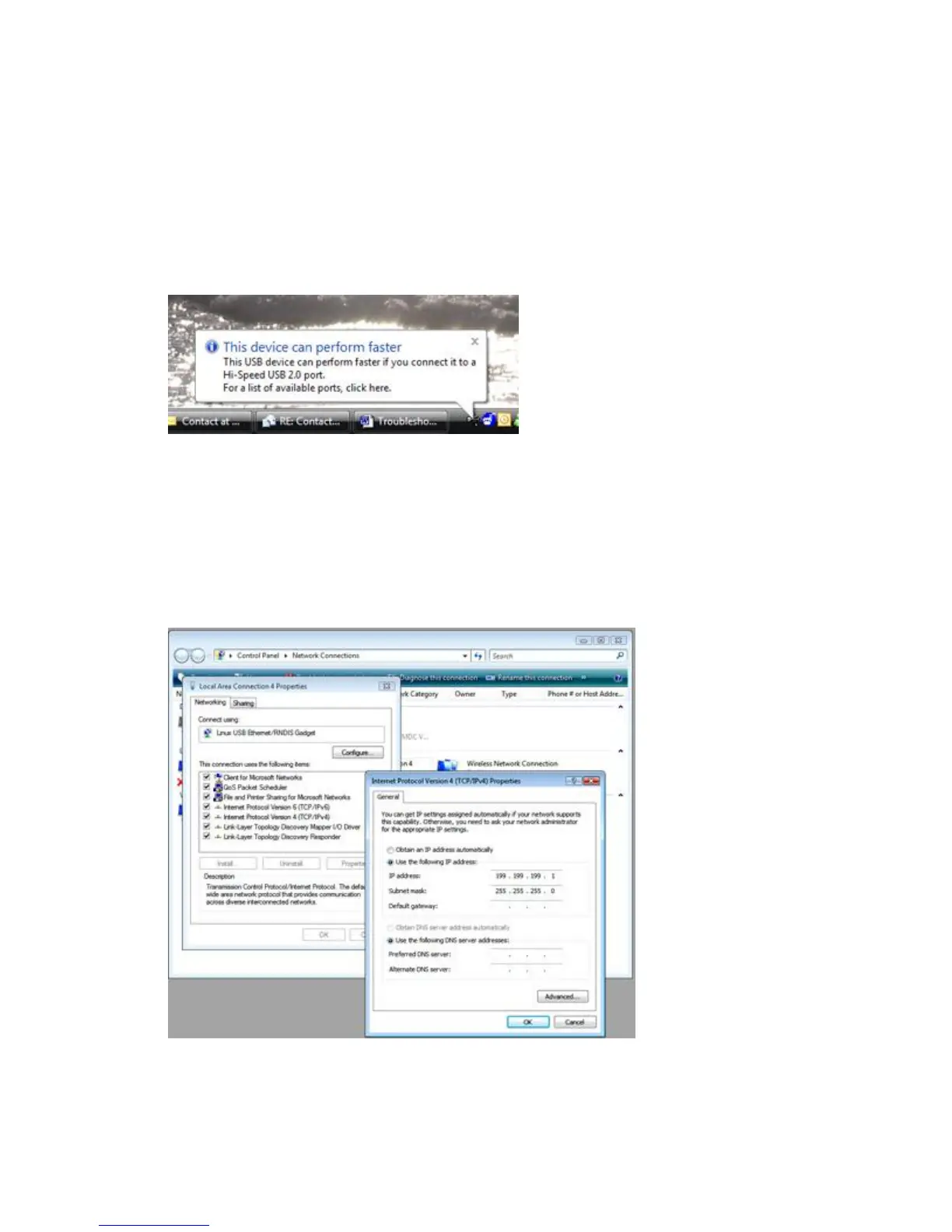
1. First, when you plug the cable in, you should see “Device can perform faster on a
USB 2.0 port….” message.
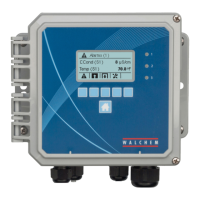
If you see this, then go to your Network Connections on your computer. Under “LAN
or High Speed Connection”, you should see Local Area Connection 2 (it may be
Local Area Connection 3, or some other number). It should be connected, and the
connection time moving. If you see this, then you’re connected.
2. Right-click on Properties. Highlight TCP-IP (in Vista, it will be TCP-IP-v4), and
click Properties. The IP address should be 199.199.199.1, and the subnet mask should
be 255.255.255.0.
3. If you don’t get the message “This device can perform faster”, or if you don’t see the
Local Area Connection 2, then unplug your USB cable, wait 3 minutes, and plug back
in.


 To Next Page