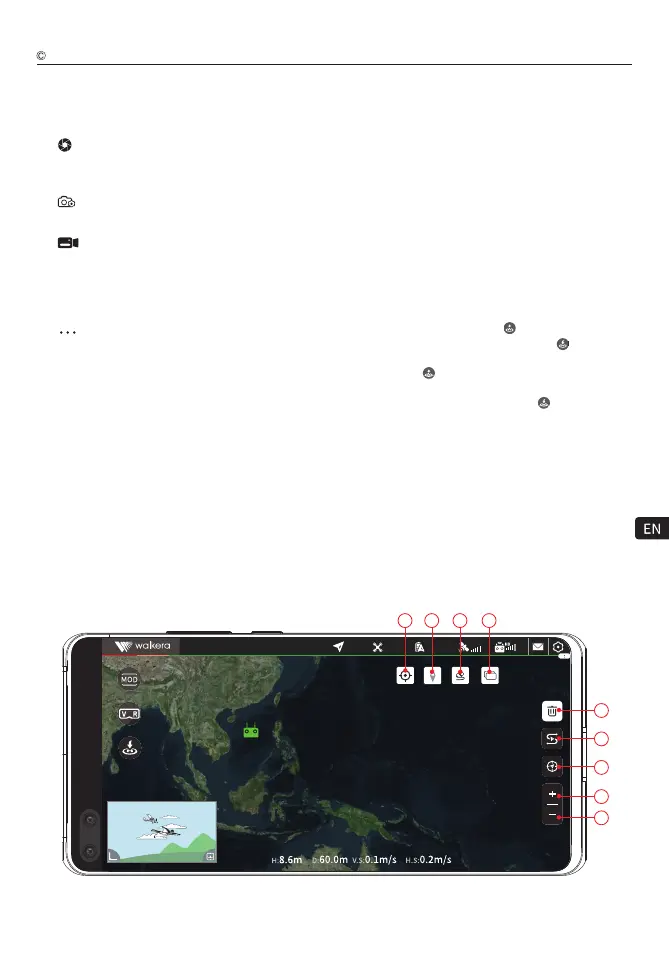
19) Map / camera picture small window: Click the icon
map window to swap with the camera picture window
(the map switch to the full-screen large window, the
camera screen switch to the small window).
20) Hide the small window: Click on the icon to hide
the map/camera picture small window.
21) Zoom in on the map: Click on the icon to enlarge
the map.
22) Scale down the map: Click on the icon to narrow
down the map.
H Height: Vertical distance of the aircraft to the return
point.
D Distance: Horizontal distance between the aircraft
and the return point.
V.S Vertical speed: the flight speed of the aircraft in
the vertical direction.
H.S Horizontal speed: the flight speed of the aircraft
in the horizontal direction.
17) Aircraft Status Parameters:
16) Media Library: Click the icon to open the location
where photos and videos taken by the aircraft are
stored, click on a photo or video to quickly share,
download or manage media files.
18) Posture thumbnail icon: Click this icon to expand
the attitude ball suspension window.
23) Take-off/RTL mode icon
(when the aircraft is not
taking off, the takeoff icon is displayed; after the
aircraft takes off, the RTL mode icon is displayed):
When the auto takeoff condition is reached, click the
takeoff icon , and the aircraft will take off automatically
and hover at a certain height; when the aircraft has
taken off, click t
he RTL mode icon , and the aircraft
will abort all flight missions and automatically return
to home point landing.
24) VR mode icon: Click this icon, the camera window
preview video will switch to display in SBS mode (side
by side). With a pair of VR glasses, it allows users to
enjoy an immersive first person view (FPV) flight
experience, and relying on the gyroscope of mobile
phone, achieve head tracking function to control the
flight gimbal camera pitch and yaw angle.
In VR mode, the information displayed on the interface
includes aircraft battery information, flight mode, real
-time status parameters, etc.
15) Camera Settings: Click the icon to expand the camera
Settings interface, which has professional Settings,
photo settings, video settings and other settings.
Profe ssional setting: it can be set with ISO
sensitivity, shutter speed, exposure compensation,
white balance, etc.
Photo Settings: you can set the shooting mode,
photo format, photo size (quality), etc.;
Video setting: you can set the preview resolution,
preview code rate, video code rate, video resolution,
video display mode.(With the same preview resolution,
the greater the preview code rate, the better the picture
quality and the transmission distance accordingly).
Other settings: grid (grid setting); anti-flicker (on
/ off anti-flicker); defogging (on / off); formatting TF
card (in-aircraft TF card), TF card capacity information;
photo animation switch; photo sound switch, etc.
11
f icon is displayed; after the
00 00
00:00
Sport
Connected
98.5%
33
2726 28 29
30
31
32
33
34
Map window interface
Walkera All Rights Reserved
T210 MINI(WK-V8)Operation guide



 To Next Page