EasyManua.ls Logo

Wasp WDI4200 - User Manual

Wasp WDI4200
44 pages
Print Icon
To Next Page IconTo Next Page
Loading...
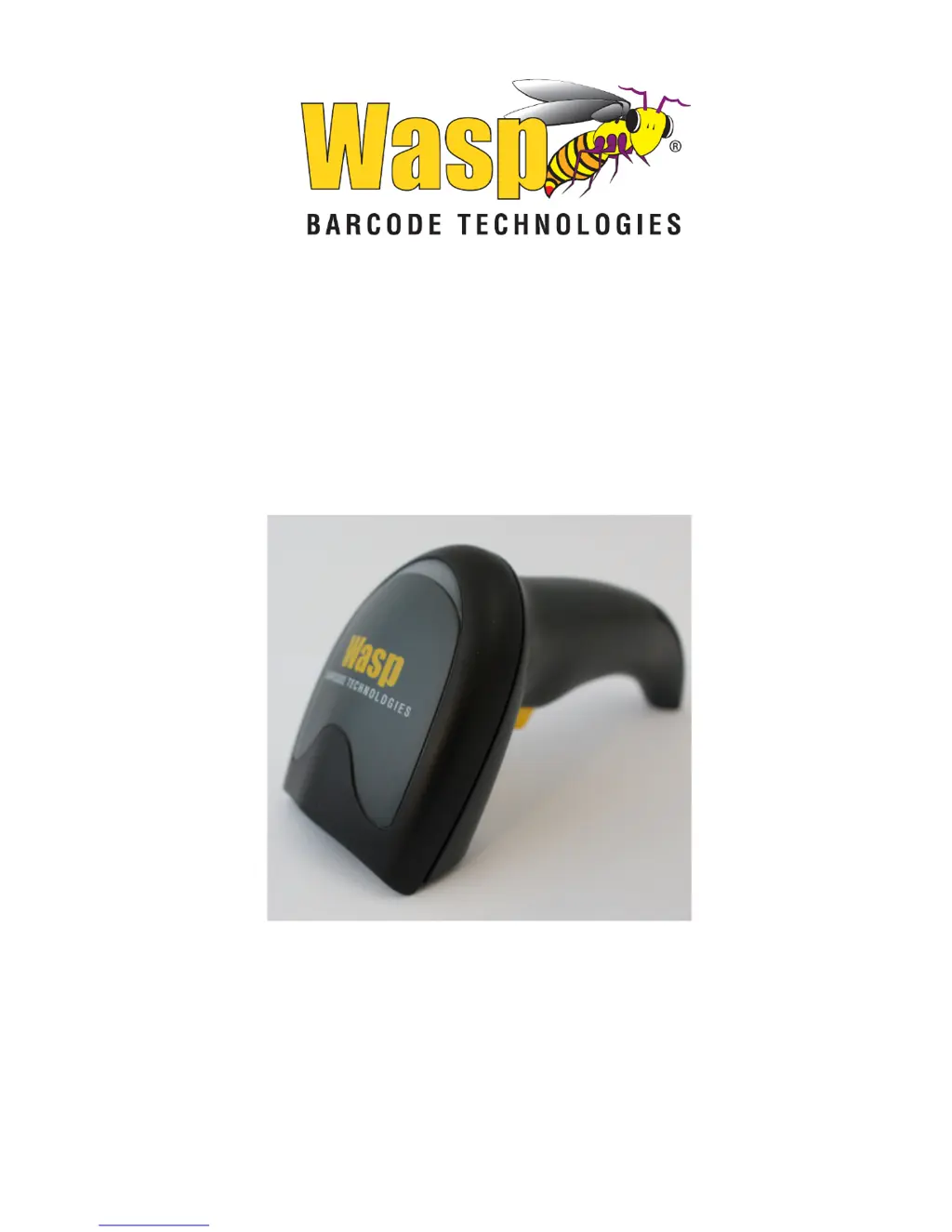
Wasp WDI4200
2D USB Barcode Scanner
Quick Reference Guide

Questions and Answers

  • K
    Kelly DuncanAug 3, 2025
    Why Wasp WDI4200 Barcode Reader LED is on, but the barcode does not decode?
    • N
      norrislisaAug 3, 2025
      If the LED on your Wasp Barcode Reader lights up but the barcode isn't decoding, there could be a few reasons: 1. The barcode label might be damaged or unreadable. Inspect the label for any damage and try scanning a different barcode. 2. The distance between the barcode and the imager might be incorrect. Try moving the Wasp Barcode Reader either closer to or further away from the barcode. 3. The Wasp Barcode Reader might not be programmed to read that specific type of barcode. Ensure that the imager is programmed to read the type of barcode you are scanning. Refer to the PRG for more information.
  • J
    jasminerogersAug 13, 2025
    What to do if nothing happens when the scan button is pulled on Wasp WDI4200?
    • S
      Samantha McgeeAug 13, 2025
      If nothing happens when you pull the scan button on your Wasp Barcode Reader, it could be due to these reasons: * There is no power to the imager. Check the system power and ensure the power supply is properly connected. * The interface or power cables are loose. Make sure that all cable connections are securely attached.
  • E
    Edward McdanielAug 22, 2025
    Why is the barcode decoded but not transmitted to the host on my Wasp Barcode Reader?
    • M
      Monica RodriguezAug 22, 2025
      If your Wasp Barcode Reader decodes the barcode but doesn't transmit it to the host, it might not be programmed for the correct host type. You should scan the appropriate host type barcode. Refer to the PRG for more information.

Summary

Setting Up the Reader

Using the Wasp WD14200

Parts of the Reader

Selecting the Interface Type

Interface Selection Overview

Lists the host interfaces supported by the Wasp WD14200 scanner.

Configuring the Interface

Instructions on how to scan bar codes to select the system's interface type.

RS-232 Interface Options

Details programming bar codes for RS-232 standard, Wincor-Nixdorf, and OPOS/UPOS/JavaPOS.

USB Interface Options

Provides programming bar codes for USB-OEM and USB-Composite interfaces.

Keyboard Interface Options

Details programming bar codes for various AT, PS/2, and Keyboard Wedge configurations.

Programming

Using Programming Bar Codes

Explains how to use bar codes to reconfigure the reader and its settings.

Resetting Product Defaults

Instructions to reset the reader to its factory default configuration using a bar code.

Reading Parameters

Operating Modes

Technical Features

Decode Capability

Lists the 1D and 2D barcode symbologies the scanner can decode.

LED and Beeper Indications

Troubleshooting

Cleaning

Wasp WDI4200 Specifications

General IconGeneral
TypeHandheld Barcode Reader
Supported Barcode Types1D Barcodes
Interfaces SupportedUSB, RS-232
Weight150 grams
Power Supply5 VDC ± 10%
Operating Temperature0°C to 50°C
Storage Temperature-20°C to 70°C
Humidity5% to 95% (non-condensing)
Drop Resistance1.5 meters
Resolution4 mil (Code 39)
Decode CapabilitiesStandard 1D barcodes

Related product manuals