EasyManua.ls Logo

Wasp WPL305 - User Manual

Wasp WPL305
18 pages
Print Icon
To Next Page IconTo Next Page
Loading...
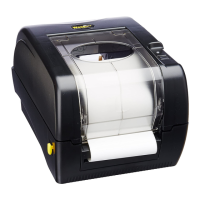
WPL305 Thermal Label Printer
User’s Guide
For Wasp Technologies
DT/TT Printer
Copyright Wasp Bar Code Technologies 2004.
All rights reserved.
No part of this publication may be reproduced or transmitted in any
form or by any means without the written permission of Wasp Bar
Code Technologies. The information contained in this document is
subject to change without notice.
Wasp is a trademark of Wasp Bar Code Technologies. All other trademarks are the property of their
respective owners.
i

Other manuals for Wasp WPL305

Questions and Answers

  • R
    Rachel McdonaldJul 26, 2025
    What to do if my Wasp Label Maker has no power?
    • R
      Robert JohnsonJul 26, 2025
      First, ensure the power switch is turned on. Next, check if the green LED is lit on the power supply; if not, the power supply might be broken. Finally, verify both power connections: from the power cord to the power supply and from the power supply to the printer power jack.
  • A
    Austin CaseJul 31, 2025
    Why is the print quality poor on my Wasp Label Maker?
    • A
      ashleypenaAug 1, 2025
      Poor print quality can result from several factors. Ensure the top cover is completely closed and that both the right and left side levers are properly latched. Another reason might be an issue with the thermal print head, so try cleaning it. You may also need to adjust the print density setting. Finally, make sure that the ribbon and paper media are compatible.
  • T
    Travis WilliamsAug 7, 2025
    What to do if my Wasp Label Maker is out of label/ribbon or has incorrect settings?
    • D
      Donald MartinezAug 7, 2025
      If the printer is out of labels or ribbon, load a new roll of labels or ribbon, following the instructions in 'Loading the Labels' or 'Loading the Ribbon', then press the feed button to resume printing. If the printer settings are incorrect, initialize the printer by following the instructions in 'Power on Utilities'.
  • C
    Charles ReynoldsAug 12, 2025
    How to fix a Wasp Label Maker when there is no print on the label?
    • D
      Denise ChoiAug 12, 2025
      First, check if the label and ribbon are loaded correctly, referring to the instructions in 'Loading the Labels' or 'Loading the Ribbon'. Also, check if the ribbon has run out and reload if necessary, following the instructions in 'Loading the Ribbon'.
  • T
    tyler96Aug 19, 2025
    What to do if my Wasp Label Maker is paused?
    • S
      Stephanie SanfordSep 12, 2025
      If the printer is paused, simply press the feed button to resume printing.

Summary

Introduction

Getting Started

Unpacking and Inspection

Inspect packaging and printer upon receipt, retain materials.

Equipment Checklist

List of items included with the printer, such as CD, ribbon, labels, and cables.

Printer Parts Identification

Identifies key physical components of the printer using top and back views.

Printer Setup

Initial Printer Setup

Steps to place, connect, and power the printer, ensuring secure grounding.

Loading the Ribbon

Instructions for installing the ribbon, ensuring correct orientation and attachment for printing.

Loading Label Stock

Steps to insert and prepare the label roll, including spindle and centering tab usage.

Top Cover Operation

Detailed steps for opening and closing the printer's top cover safely and correctly.

Power-On Utilities

Printer Initialization

Resets printer settings to factory defaults and clears DRAM for a fresh start.

Ribbon Sensor Calibration

Calibrates the ribbon sensor to ensure proper detection and functionality during operation.

Gap;Black Mark Calibration

Calibrates the gap/black mark sensor for accurate label detection and positioning.

Maintenance

Cleaning Procedures

Methods for cleaning printer parts like the print head and platen roller using specific supplies.

Troubleshooting

LED Status Indicators

Explains LED status indicators (color, pattern) and corresponding printer states and solutions.

Print Quality Issues

Discusses common print quality problems, their causes, and recommended solutions.

Specifications

Printer Specifications

Detailed technical specifications of the W305 printer model, including resolution, speed, and memory.

Label Stock Specifications

Specifications for compatible label media, including width, length, thickness, and roll diameter.

Ribbon Specifications

Specifications for compatible ribbon media, including type, width, capacity, and wound type.

LED and Button Functions

Describes the function of the LED indicators and buttons on the printer's operation panel.

Product Support

Technical Support Information

Information on how to get technical assistance, contact details, and online support site.

Warranty Information

Warranty Details

Details the warranty terms and conditions for the Wasp printer, including print head coverage.

Wasp WPL305 Specifications

General IconGeneral
BrandWasp
ModelWPL305
CategoryBarcode Reader
LanguageEnglish

Related product manuals