3 Using dAISy 2+
Using dAISy is as simple as connecting it with an antenna and a PC and powering up your AIS capable
application of choice. When plugged in, dAISy automatically starts to listen for AIS transmissions.
3.1 Interpreting the status LED
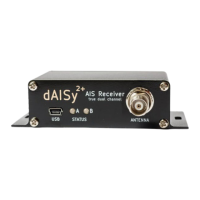
dAISy has two, two-color status LED, has two two-color status LED, giving an indication about how it’s
doing. Each LED represents one of the two AIS channels.
Short GREEN flash every 5 seconds
dAISy is well and alive and in receive mode, listening for AIS messages.
While in receive mode, the mode dAISy starts in when powered up, it will very briefly blink green every 5
seconds to indicate that everything is ok.
Long GREEN flash
Yay! dAISy received a valid AIS packet.
For every packet received and passing all error checks, the LED will turn green for ¼ second. At the same
time, the dAISy will output the received message as NMEA AIVDM sentence on the connected ports.
Long RED flash
dAISy received an invalid packet.
This means that the dAISy received bits that looks like the start of an AIS package, but the data did not
pass other sanity checks like checksum. It might be a ship just out of range, interference from another
radio source, or just random noise.
Don’t panic, you will see a lot of red even under optimal conditions.
Fast regular blinking RED
dAISy encountered an unexpected system error.
The most common cause is that it lost USB connection, which happens on some PCs (particularly Macs)
when they go into sleep mode. Unplug dAISy and plug it in again to fix this condition.
If the condition persists, there might a hardware issue with your device. Please contact us.
No LED activity
dAISy failed to boot or crashed. Unplug dAISy and plug it in again to fix this condition. If the condition
persists, there might a hardware issue with your device. Please contact us.
Or dAISy is not in receive mode because you are using the debug menu.


 To Next Page