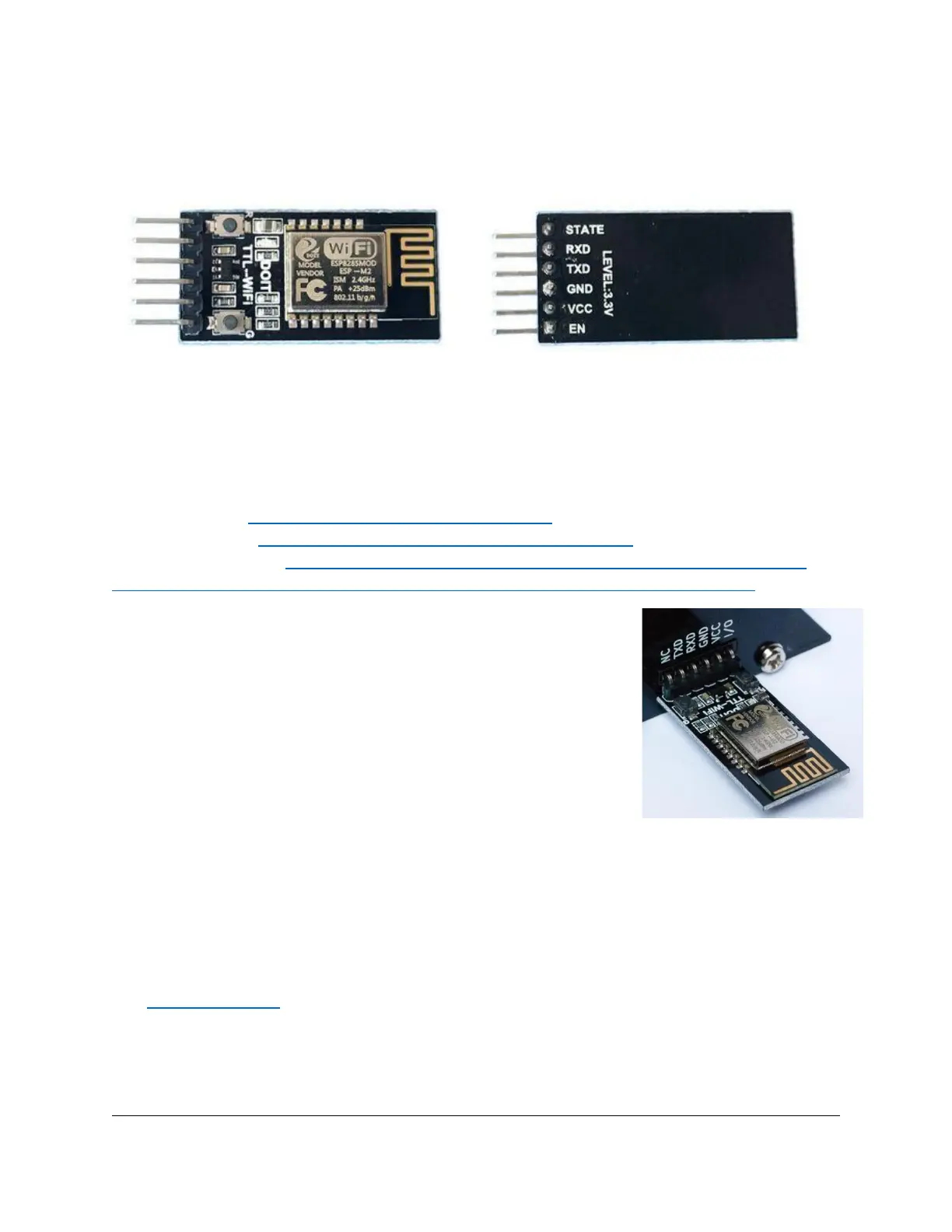
5.1.1 What you need
- DT-06 WiFi module, available for US$4 to $10 on Ebay and other online shops.
- An app that accepts AIS from a network connection, like for example OpenCPN or Navionics. In
this document, we will use OpenCPN, but configuration of other apps is very similar.
WARNING: We received reports that some DT-06 modules offered on Ebay and AliExpress don’t work.
Specifically, modules branded DM DIY MORE do not work! We buy our modules from these vendors:
muxj8505 on Ebay: https://www.ebay.com/itm/394629161058
szdoit on AliExpress: https://www.aliexpress.com/item/32813585141.html
Geekcreit on BangGood: https://www.banggood.com/DT-06-Wireless-WiFi-Serial-Port-Transparent-
Transmission-Module-TTL-To-WiFi-With-bluetooth-HC-06-Interface-ESP-M2-p-1141047.html
5.1.2 Installing the WiFi module
Remove power from the dAISy AIS receiver before installing the module.
Plug the WiFi module into AUX Serial so that the VCC and GND pins of the
WiFi module line up with the respective labels on dAISy. With that, dAISy
TXD will be connected to WiFi RXD, and dAISy RXD to WiFi TXD. The
module may be upside down compared to the picture, that’s ok if the pins
are connected as described above.
Connect dAISy to power. The LED on the WiFi module should light up.
At any time, the module can be reset to factory default settings by keeping the button labelled G
pressed until the LED turns off.
5.1.3 Configuring the WiFi module
When first powered up, the module will show up as a WiFi access point with the name Doit_WiFi_x,
where x are the last 6 characters of the module’s MAC address.
Connect to this access point with a computer or mobile device. Open a browser and in the address bar
type http://192.168.4.1 and press enter. You will see the configuration menu of the WiFi module.


 To Next Page