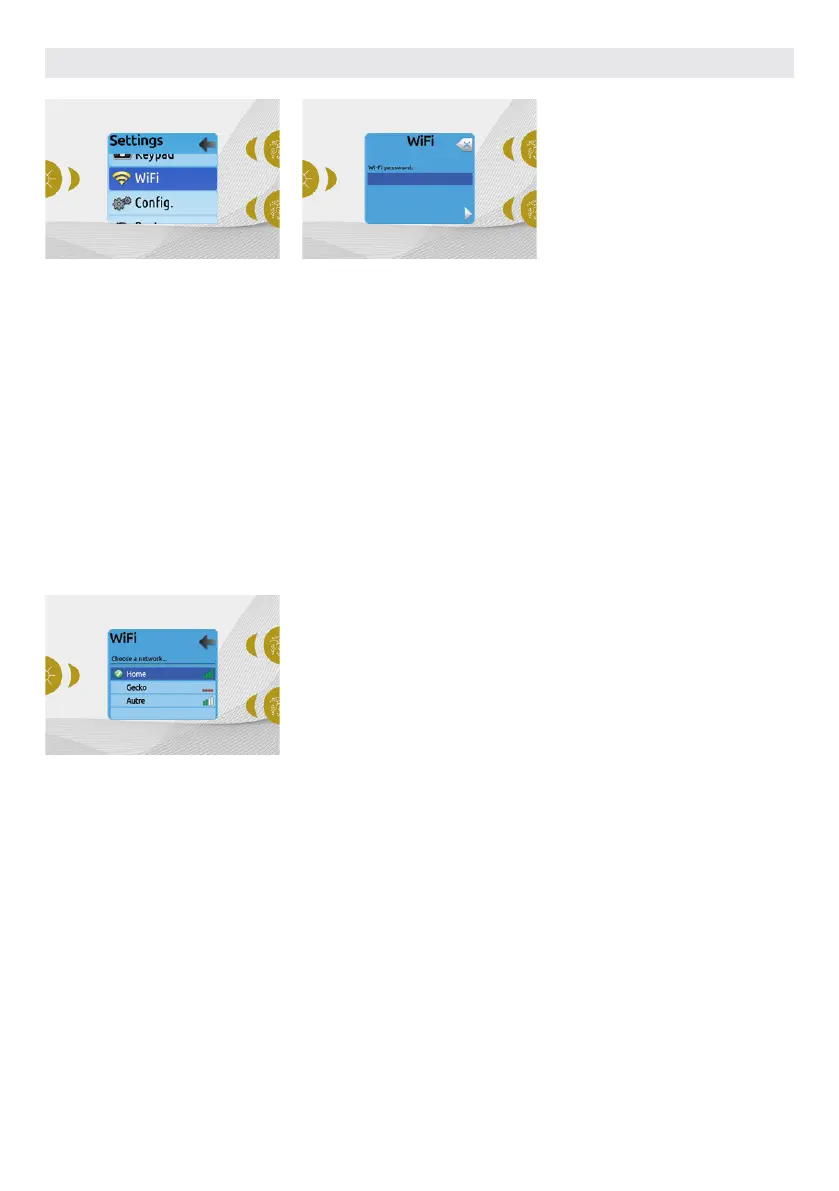
Once the in.touch module is connected
to a WiFi network a check mark in a green
circle will appear in the WiFi menu, and
the network logo will change to green in
Settings menu.
Note:
WiFi logo color in Settings menu corresponds to the in.touch connection state.
Yellow = not connected
Green = connected to a network
Yellow with wait icon = connection attempt to a network
Red with wait icon = in.touch no longer detected
(in.touch must be reset before next connection attempt)
WIFI (IN.TOUCH ONLY)
For the WiFi menu to appear in the
Settings menu your in.touch module
must be equipped with software version
11.00 or higher. This menu allows you to
connect your in.touch module to a WiFi
network or to change its network.
For more details about other in.touch
connection methods please see the
in.touch techbook.
To connect your in.touch module to a
wireless network, use the Up/Down keys
to go to the WiFi option in the Settings
menu and Light key to select it.
After a few seconds the available
networks will appear on the screen, as
well as their signal strength.
Use the Up/Down keys to move through
the list. Select your network by pressing
on Light key.
If the WiFi network is password protected
enter it when prompted.
• Use the arrow keys to choose your
letters and change the type of char-
acter (uppercase, lowercase, number,
symbol).
• Use Key 2 to move the curser forward
• Use Key 1 to backspace
• Use Light key to confim
If no password is required the in.touch will
connect automatically.
USER INTERFACE EASY 7
46



 To Next Page