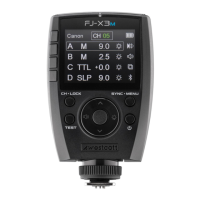
FJ-X2m: Warnings
Caution
● Keep away from fire, water, and moisture. Do not submerge in water.
● Avoid drastic temperature changes before, during, and/or after use.
● Do not overtighten the shoe lock wheel when mounting to the camera.
● Securely mount the FJ-X2m before use.
● Surrounding RF interference may affect the communication performance of the FJ-X2m.
● Do not attempt to modify any Westcott products. Contact Westcott for assistance.
● The operating temperature range is 32-104°F (0-40°C).
FJ-X2m: Firmware Updates
The FJ-X2m Wireless Trigger is designed with a USB-C port to allow firmware updates and charging
ONLY. Future firmware updates may result in performance enhancements along with modified menu
options and layouts. Regularly visit westcott.com/4705 to confirm your strobe has the latest firmware.
Installing the Firmware
1. Visit westcott.com/4705 and scroll to the Support section. Find and download the latest FJ-X2m
firmware ZIP file to your computer. (Note: Various browsers may automatically unzip the ZIP file. In
this scenario, skip to Step #3).
2. Unzip the file. Open the extracted folder.
3. IMPORTANT: Read ALL FILES in the extracted folder (i.e., README, Changelog, etc.).
4. Ensure the FJ-X2m is OFF.
5. Connect the USB-A to USB-C cable to the FJ-X2m’s USB-C port.
6. On the FJ-X2m, press and hold the 3rd Menu Selection button.
7. Hold the Menu Selection button, connect the USB-A to USB-C cable into your computer’s USB-A
port. The Wireless Signal Indicator light on FJ-X2m will illuminate red when your computer has
recognized the connection to the FJ-X2m. You may release the button at this time.
8. Standard operating systems will present the FJ-X2m as an external device.
a. NOTE: macOS may display the external device on the desktop or in the Finder window.
9. Locate the .BIN firmware file on your computer and drag it to the FJ-X2m external device.
10. Once the file has been completely copied to the FJ-X2m, EJECT the FJ-X2m external device from
the computer.
11. Unplug the USB-A to USB-C cable from your computer and the FJ-X2m.
12. Long press the Power | Menu button on the FJ-X2m to initiate the firmware update and confirm
installation was successful by locating the firmware text in the bottom right corner of the screen
during the start-up process.
Important


 To Next Page