GETTING STARTED
108
WD MY CLOUD PERSONAL CLOUD STORAGE
USER MANUAL
All options are enabled by default. The table below explains what happens when the
options are enabled and disabled.
5. Select your desired options, clearing the check box for any option you want to disable,
and click Finish.
Option Result
Install the WD My Cloud application If option is enabled:
• An installation wizard launches
automatically.
• See “Installing and Accessing the
WD My Cloud™ for Desktop
App” on page 109 for
instructions.
If option is disabled:
• The online Learning Center
Welcome page displays
• The Public share displays in
Explorer (Windows) or Finder
(Mac).
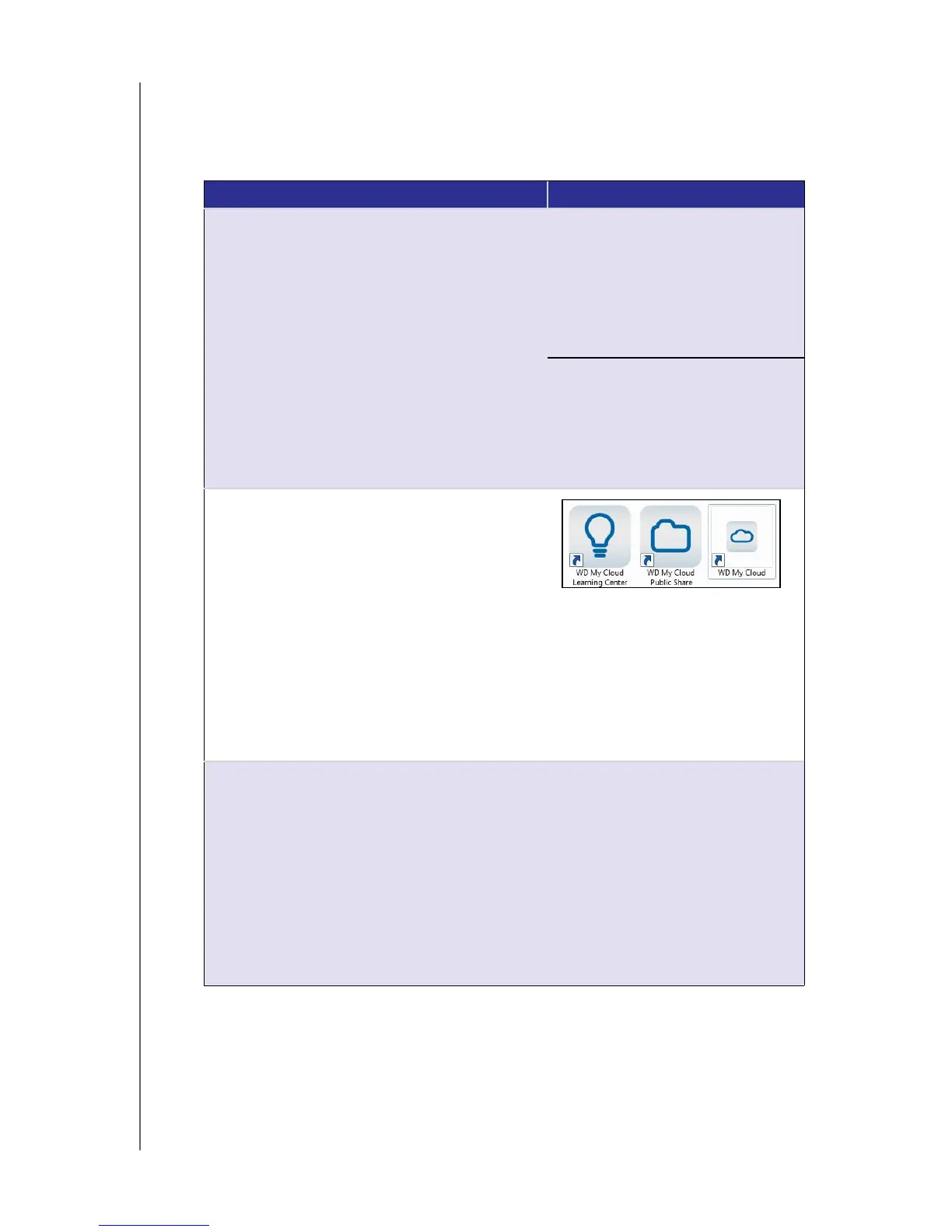
Place helpful shortcuts on my Desktop
• The online Learning Center
Welcome page displays
• The Public share displays in
Explorer (Windows) or Finder
(Mac).
• Opens the My Cloud dashboard
for configuring your WD My
Cloud device.
Recommended: Automatically update WD
My Cloud whenever new firmware becomes
available
• The online Learning Center
Welcome page displays
• The Public share displays in
Explorer (Windows) or Finder
(Mac).
• If option is enabled, the
firmware turns on automatic
updates; at 3:00 AM daily. To
change settings for automatic
updates, see “Firmware” on page
90.




 To Next Page