AT A GLANCE: THE DASHBOARD
42
WD MY CLOUD PERSONAL CLOUD STORAGE
USER MANUAL
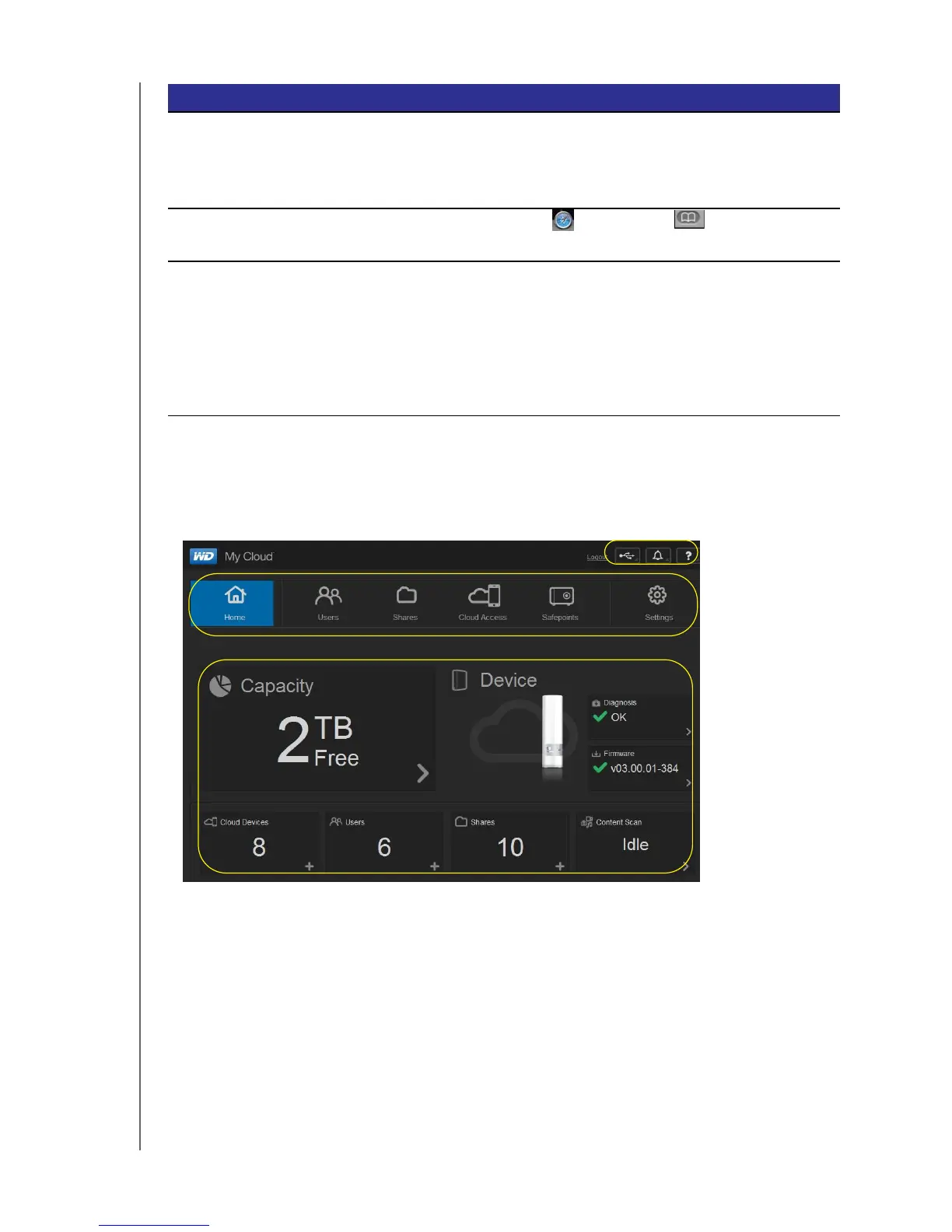
The Dashboard Home Page
The WD My Cloud Home page has an information bar at the top right, a navigation icon bar
across the top of the page, an instant overview of the status of the device’s main functions,
and links for updating settings in the body of the page.
Windows XP 1. Click Start > My Network Places.
2. Locate your WD My Cloud device.
3. Double-click the device or right-click and select
Invoke.
Mac OS X (shortcut) 1. Click Safari > Bookmark > Bonjour.
2. Double-click the WD My Cloud device on the network.
Mobile devices
1. Open a browser.
2. In the Address bar, enter http:// name of your WD My
Cloud device (default name: WDMyCloud) or
http://IP address.
Note: If the URL fails to display the dashboard, try
typing the following URL:
http://WDMyCloud.local (for a Mac).
IF you want to launch from . . . THEN . . .
Navigation icons
Information icons
Status and update
panels




 To Next Page